
 Carmen J. Moore
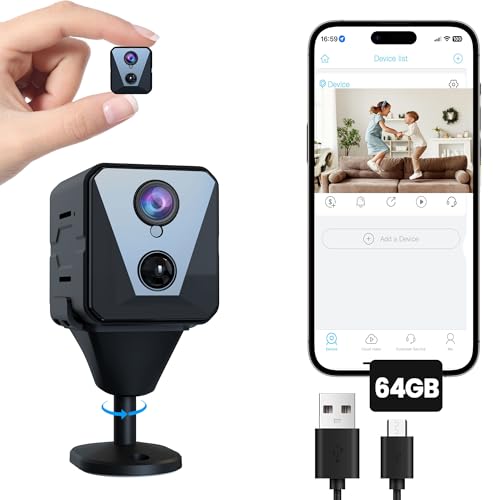
Security cameras play a crucial role in keeping our homes and businesses safe. However, simply having cameras installed is not enough – you need to ensure that the footage they capture is securely stored and easily accessible. One of the most effective ways to achieve this is by setting up an FTP (File Transfer Protocol) server for your security cameras.
FTP allows you to transfer files between your security cameras and a remote server, providing a reliable and secure way to store your footage. In this guide, we will walk you through the steps to set up an FTP server for your security cameras, ensuring that your footage is stored safely and can be accessed whenever you need it.
Whether you are a homeowner looking to enhance the security of your property or a business owner seeking to protect your assets, setting up an FTP server for your security cameras is a crucial step in ensuring the safety of your premises. Follow our guide to learn how to set up an FTP server for your security cameras and take your security to the next level.


Step-by-step guide for setting up an FTP server for security camera
Setting up an FTP server for your security camera is a crucial step in ensuring that your footage is securely stored and accessible. Follow these steps to set up an FTP server:
- Choose the FTP server software that best suits your needs and install it on your server or computer.
- Configure the FTP server by setting up user accounts and permissions to ensure secure access to the server.
- Open the necessary ports on your firewall to allow the security camera to communicate with the FTP server.
- Set up the security camera to send footage to the FTP server by entering the server’s IP address, port, username, and password in the camera’s settings.
- Test the connection by recording some footage on the security camera and verifying that it is being successfully transferred to the FTP server.
- Regularly monitor the FTP server to ensure that it is functioning correctly and that the footage is being stored securely.
Choose the right ftp server software
When setting up an FTP server for security cameras, it’s crucial to choose the right FTP server software to ensure reliability, security, and compatibility with your cameras. Here are some key factors to consider when selecting FTP server software:
- Security: Look for FTP server software that supports secure protocols like FTPS or SFTP to encrypt data transmission and protect your footage from unauthorized access.
- Compatibility: Ensure that the FTP server software is compatible with your security cameras’ file formats and protocols to seamlessly transfer video recordings.
- Reliability: Choose FTP server software that offers stable performance and uptime to ensure continuous recording and monitoring without interruptions.
- User-friendly interface: Opt for FTP server software with an intuitive interface that makes it easy to configure settings, manage users, and monitor file transfers.
By carefully evaluating these factors, you can select the right FTP server software that meets your security camera system’s requirements and helps you effectively store and manage video recordings.
Install and configure the ftp server software
Once you have selected an FTP server software that meets your requirements, you will need to install and configure it on your server. Here are the general steps to follow:
- Download the FTP server software from the official website or repository.
- Follow the installation instructions provided by the software vendor.
- Configure the FTP server settings, such as port number, authentication methods, and access permissions.
- Create user accounts with appropriate permissions to access the FTP server.
- Set up security measures, such as firewalls and encryption, to protect data transfer.
- Test the FTP server to ensure that it is functioning correctly and securely.
Create a user account for the security camera
To enhance security, it is recommended to create a dedicated user account for your security camera system. This will allow you to control access to the FTP server and ensure that only authorized users can view or download the footage.
Follow these steps to create a user account:
- Log in to your FTP server using an administrator account.
- Navigate to the user account management section.
- Click on “Create New User” or a similar option.
- Enter the username and password for the new user account.
- Assign appropriate permissions to the user, such as read-only access to the camera footage.
- Save the changes and log out of the administrator account.
Set up port forwarding on your router
To access your security camera remotely via FTP, you will need to set up port forwarding on your router. This allows incoming traffic on a specific port to be directed to the IP address of your camera. Here’s how you can do it:
1. Log in to your router’s admin panel using a web browser and the router’s IP address.
2. Find the port forwarding section in the router settings. This is usually located under the “Advanced” or “Security” tab.
3. Add a new port forwarding rule. Enter the port number (usually 21 for FTP) and the IP address of your security camera.
4. Save the changes and restart your router to apply the new settings.
Once port forwarding is set up, you should be able to access your security camera remotely using FTP from anywhere with an internet connection.
Configure the security camera to upload footage to the ftp server
To set up your security camera to upload footage to the FTP server, follow these steps:
Step 1: Access the camera settings
Log in to the camera’s web interface using your credentials. Navigate to the settings section where you can configure the camera’s FTP settings.
Step 2: Configure FTP settings
Enter the FTP server details such as the server address, port, username, and password. Make sure to enable the FTP upload feature on the camera.
Note: Ensure the FTP server is accessible from the camera’s network and that the credentials are correct.
Test the ftp connection and adjust settings as needed
After setting up your FTP server, it is important to test the connection to ensure that your security camera can successfully upload footage to the server. You can test the connection by configuring your security camera to use the FTP server settings you have set up and then triggering a test upload.
If the test upload is successful, you can proceed with adjusting the settings as needed. This may include optimizing the upload frequency, adjusting the file storage location on the server, or setting up alerts for failed uploads.


I set up an FTP server for my cameras last month. I went with FileZilla, and it’s been great! The installation was straightforward, but I had some trouble with port forwarding on my router. After some tinkering, it all worked out fine. Just remember to set a strong password for security!
I’m new to this whole FTP setup. Can anyone explain how to choose the right FTP server software for security cameras? What should I look for?
I don't think FTP is the best option for security cameras. Isn’t it better to use cloud storage instead? It seems safer and easier to access remotely.
Cloud storage is indeed convenient, but it can be more costly over time. FTP gives you more control over your footage without ongoing fees.
Can someone clarify if I need to change any settings on my firewall when setting up the FTP server? I’m a bit confused about that part.
Yes, you need to open the necessary ports on your firewall to allow communication between your security camera and the FTP server. Typically, port 21 is used for FTP.