
 Carmen J. Moore
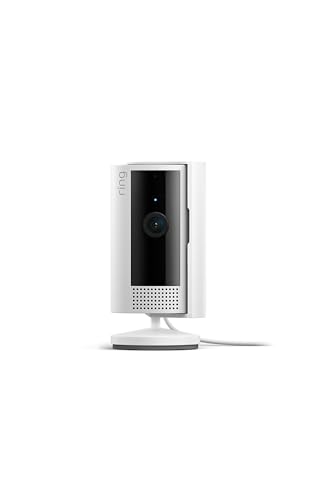
Ring security cameras are a popular choice for home security, offering easy installation and remote monitoring capabilities. Connecting your Ring security camera to your wifi network is a crucial step to ensure that you can access live video feeds and receive alerts on your smartphone.
Before you begin the setup process, make sure you have a stable wifi connection and your camera is fully charged. Follow these simple steps to connect your Ring security camera to wifi:
Step-by-Step Guide to Connect Ring Security Camera to WiFi
Connecting your Ring security camera to WiFi is essential for remote monitoring and alerts. Follow these steps to ensure a successful connection:
| Step 1: | Open the Ring app on your smartphone and select the camera you want to connect. |
| Step 2: | Go to the camera settings and look for the WiFi setup option. |
| Step 3: | Follow the on-screen instructions to put the camera in setup mode. |
| Step 4: | Enter your WiFi network name and password when prompted. |
| Step 5: | Wait for the camera to connect to your WiFi network, which may take a few minutes. |
| Step 6: | Once the connection is successful, you will receive a confirmation message on the app. |
| Step 7: | You can now view your camera’s live feed and receive alerts on your smartphone. |
Check Camera Compatibility
Before you begin the setup process, make sure your Ring security camera is compatible with your Wi-Fi network. Check the specifications of your camera to ensure it works with the type of Wi-Fi network you have (2.4GHz or 5GHz). Some cameras only work with one frequency band, so it’s important to verify this information before proceeding.

Additionally, ensure that your Wi-Fi network meets the minimum requirements for the camera to function properly. This includes signal strength, network speed, and security settings. If your network does not meet these requirements, you may need to make adjustments or upgrades to ensure a seamless connection.
Download Ring App
To connect your Ring security camera to your WiFi network, you will need to download the Ring app on your smartphone or tablet. The Ring app is available for both iOS and Android devices and can be downloaded from the App Store or Google Play Store.
Once you have downloaded the Ring app, open the app and follow the on-screen instructions to create a Ring account. Make sure to enter your correct email address and set a secure password for your account.
After creating your Ring account, you can proceed to set up your Ring security camera by following the step-by-step instructions provided in the app. The app will guide you through the process of connecting your camera to your WiFi network and configuring its settings.
Make sure to keep the Ring app updated to access the latest features and security enhancements for your Ring security camera.
Power on the Camera
Before you can connect your Ring security camera to Wi-Fi, you need to power on the camera. To do this, plug the camera into a power source using the provided power adapter. Make sure the camera is receiving power and that the LED indicator lights are on. This is essential for the camera to start up and connect to your Wi-Fi network.
Connect Camera to WiFi Network
Connecting your Ring security camera to your WiFi network is essential for remote monitoring and access. Follow these steps to ensure a successful connection:
1. Power on the Camera
Ensure your Ring security camera is powered on and ready for setup.
2. Launch the Ring App
Open the Ring app on your smartphone or tablet.
Follow the in-app instructions to add a new device and select your Ring security camera model.
Enter your WiFi network credentials (SSID and password) when prompted.
Wait for the camera to connect to your WiFi network successfully.
Once connected, you can access and control your camera remotely through the Ring app.
Configure Camera Settings
Once your Ring security camera is connected to your Wi-Fi network, you may need to configure some settings to ensure it functions correctly. Here are the steps to configure the camera settings:
- Open the Ring app on your smartphone or tablet.
- Select the camera you want to configure from the list of devices.
- Go to the camera settings menu.
- Adjust the motion detection sensitivity and zones if needed.
- Set up any alerts or notifications you want to receive.
- Check the video quality settings and adjust as necessary.
- Make sure the camera firmware is up to date.
- Customize any other settings according to your preferences.
By configuring these settings, you can optimize the performance of your Ring security camera and ensure it meets your specific needs and preferences.
Test Connection and Enjoy Security Features
Once you have successfully connected your Ring security camera to your Wi-Fi network, it is important to test the connection to ensure everything is working properly. You can do this by accessing the camera’s live feed on your smartphone or computer to see if you can view the video stream.
If the connection is stable and the video feed is clear, you can start enjoying the security features of your Ring camera. This includes motion detection alerts, two-way audio communication, and the ability to monitor your property remotely.
Make sure to customize the settings of your camera to suit your security needs and preferences. You can set up motion zones, adjust sensitivity levels, and enable notifications to stay informed about any activity detected by your camera.
By regularly checking the connection and utilizing the security features of your Ring camera, you can enhance the safety and protection of your home or property.





I just set up my Ring camera, and the instructions were pretty straightforward. I made sure my wifi signal was strong before starting. One thing I noticed is that it only works on 2.4GHz for my model, so that was a crucial step for me. Once connected, the live feed was clear, and I got the alerts on my phone right away. Definitely a good buy!
I'm having trouble connecting my Ring camera to wifi. The app keeps saying it can't find the camera. Any advice?