
 Carmen J. Moore
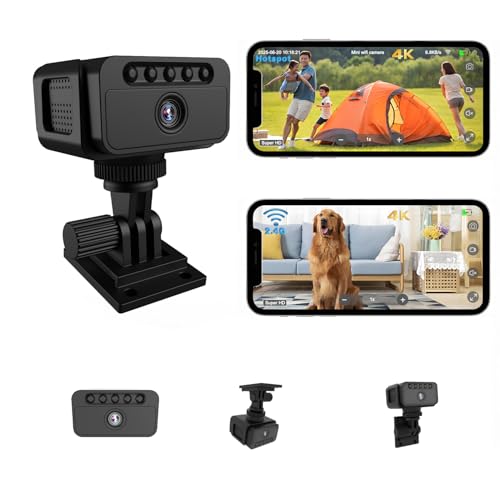
Security cameras are essential tools for monitoring and protecting your home or business. However, setting up a security camera system can sometimes be challenging, especially if you don’t have a stable internet connection. One solution to this problem is to use a hotspot to connect your security camera to the internet.
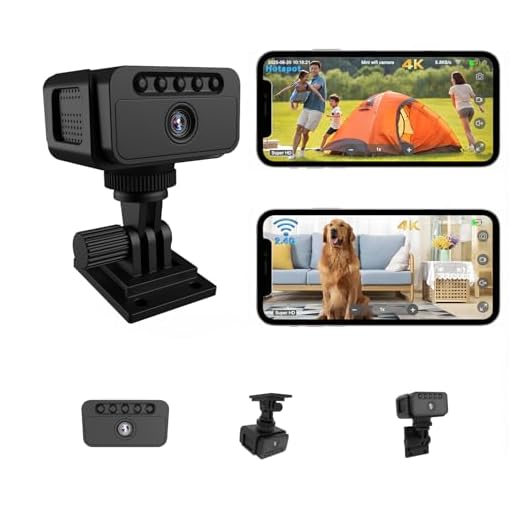


Using a hotspot with a security camera allows you to access live footage and recordings remotely, even in areas where traditional internet connections are not available. In this article, we will guide you through the process of setting up a hotspot for your security camera and ensuring that your camera system remains secure.
By following the steps outlined in this guide, you can enhance the security of your property and have peace of mind knowing that you can monitor it from anywhere, anytime. Let’s dive into the details of how to use a hotspot with a security camera effectively.
Setting up a secure hotspot
When setting up a hotspot for your security camera, it is important to ensure that it is secure to prevent unauthorized access to your camera feed. Here are some steps to set up a secure hotspot:
| 1. Change the default SSID and password: | Make sure to change the default SSID (network name) and password of your hotspot to something unique and secure. Avoid using easily guessable passwords. |
| 2. Enable WPA2 encryption: | Use WPA2 encryption to secure your hotspot network. This will encrypt the data transmitted between your security camera and the hotspot, making it more difficult for hackers to intercept. |
| 3. Disable SSID broadcast: | By disabling SSID broadcast, you can make your hotspot network invisible to others, adding an extra layer of security. |
| 4. Enable MAC address filtering: | Restrict access to your hotspot by allowing only specific MAC addresses to connect. This will prevent unauthorized devices from accessing your camera feed. |
| 5. Regularly update firmware: | Keep your hotspot firmware up to date to ensure the latest security patches are applied, protecting your network from vulnerabilities. |
Choose a reliable network provider
When setting up a hotspot for your security camera, it is crucial to choose a reliable network provider to ensure a stable and secure connection. Here are some factors to consider when selecting a network provider:
- Check the coverage area: Make sure the network provider offers good coverage in the area where you plan to install your security camera.
- Consider data plans: Look for data plans that suit your needs in terms of data usage and price.
- Check for security features: Ensure that the network provider offers secure connections and encryption to protect your camera footage.
- Read reviews: Research the network provider’s reputation and read reviews from other users to gauge their reliability and customer service.
By choosing a reliable network provider, you can ensure that your security camera hotspot operates smoothly and securely.
Installing security cameras
Installing security cameras is a crucial step in setting up a reliable surveillance system. Here are the key steps to follow:
1. Determine the best locations
Survey your property to identify the areas that need surveillance coverage. Consider factors such as entry points, blind spots, and high-risk areas.
2. Mount the cameras
Install the cameras at strategic locations, ensuring they have a clear view of the area you want to monitor. Use mounting brackets or poles for proper positioning.
- Ensure the cameras are securely mounted to prevent tampering.
- Position the cameras at a height that provides a wide-angle view without obstruction.
By following these steps, you can effectively install security cameras to enhance the security of your property.
Securing your hotspot connection
When using a hotspot with a security camera, it’s essential to ensure that your connection is secure to prevent unauthorized access to your camera feed. Here are some tips to help you secure your hotspot connection:
1. Change default passwords
- Make sure to change the default passwords of both your hotspot device and security camera. Using strong, unique passwords will help prevent unauthorized access.
2. Enable encryption
- Enable encryption on your hotspot device to secure the data transmitted between your camera and the hotspot. Use WPA2 encryption for a more secure connection.
By following these tips, you can enhance the security of your hotspot connection and protect your security camera feed from potential threats.
Enable WPA2 encryption
One of the most important steps to secure your security camera when using a hotspot is to enable WPA2 encryption on your Wi-Fi network. WPA2 (Wi-Fi Protected Access 2) is a strong encryption protocol that helps protect your network from unauthorized access and ensures that your data is transmitted securely.
To enable WPA2 encryption, log in to your hotspot device’s settings and navigate to the Wi-Fi security settings. Look for the option to select WPA2 as the encryption type and set a strong password. Make sure to choose a password that is difficult to guess and contains a mix of letters, numbers, and special characters.
Change default passwords
It is crucial to change the default passwords of your security camera system when setting up a hotspot connection. Default passwords are easily accessible to hackers and can compromise the security of your system.
Steps to change default passwords:
1. Access the camera settings through the manufacturer’s software or web interface.
2. Navigate to the password settings section and create a strong, unique password.
Monitoring your security cameras
Once your security cameras are set up and connected to the hotspot, you can easily monitor them remotely using your smartphone, tablet, or computer. Here are some steps to help you effectively monitor your security cameras:
1. Accessing the camera feed
Use the camera manufacturer’s app or software to access the live feed from your security cameras. Make sure to log in with the correct credentials to view the footage.
2. Setting up alerts
Enable motion detection alerts or notifications on your camera system. This will notify you whenever there is movement detected in the camera’s field of view, allowing you to take immediate action if necessary.
| Tip: | Regularly check the camera feed to ensure everything is in order and make any necessary adjustments to the camera settings. |
|---|



I have a choice between using a mobile hotspot and a dedicated security camera with its own SIM card. Has anyone compared the performance or reliability of the two? I'm leaning towards the SIM card option for less hassle.
That's a valid point. Dedicated SIM cards can offer more stable connections since they are designed specifically for data usage.
Don't forget to regularly update your camera firmware for security. It's easy to overlook!
I tried using a hotspot with my camera, and it worked surprisingly well! I have a strong signal in my area, so I didn’t face any major issues.
I'm considering using a hotspot for my security camera, but I'm concerned about the data usage. How much data does a typical security camera consume when streaming continuously?
I disagree with the idea that disabling SSID broadcast adds significant security. If someone is determined, they can still find hidden networks easily.