Carmen J. Moore

Connection time out is a common issue faced by users of Mi security cameras, causing frustration and inconvenience. This error message indicates that the camera is unable to establish a stable connection with the network, leading to disruptions in monitoring and recording.
There are several reasons why the connection time out error may occur in Mi security cameras. It could be due to network issues, such as weak Wi-Fi signal, router problems, or internet outages. Additionally, software glitches, outdated firmware, or improper camera settings can also contribute to this issue.


Resolving the connection time out problem in Mi security cameras requires troubleshooting steps such as rebooting the camera, checking network settings, updating firmware, and ensuring a strong and stable internet connection. By addressing these factors, users can restore the camera’s connection and resume normal functionality.
Reasons for Connection Time Out Issue in Mi Security Camera
If you are experiencing a connection time out issue with your Mi security camera, several factors could be causing this problem. Here are some common reasons for the connection time out problem:
1. Weak Wi-Fi Signal: A weak Wi-Fi signal can lead to intermittent connection issues and cause the camera to time out. Make sure your camera is within range of a strong Wi-Fi signal.
2. Network Congestion: High network traffic or congestion can also result in connection time out problems. Try reducing the number of devices connected to the network or use a dedicated network for your camera.
3. Firmware Issues: Outdated firmware on the camera or router can cause connectivity problems. Make sure both the camera and router have the latest firmware updates installed.
4. IP Address Conflict: An IP address conflict with another device on the network can disrupt the camera’s connection. Check for any conflicting IP addresses and resolve them.
5. Firewall or Security Settings: Sometimes, firewall settings or security configurations on your router can block the camera from connecting. Check your router settings and make sure the camera is allowed to connect.
By addressing these common issues, you can troubleshoot and resolve the connection time out problem with your Mi security camera.
Network Connectivity Problems
If your MI security camera is displaying a “connection time out” error, it could be due to network connectivity issues. Here are some common reasons for this problem:
| 1. | Weak Wi-Fi signal: Ensure that your camera is within range of a strong Wi-Fi signal to maintain a stable connection. |
| 2. | Router issues: Restart your router and check for any firmware updates that may improve connectivity. |
| 3. | Network congestion: If multiple devices are using the same network, it can cause congestion and affect the camera’s connection. |
| 4. | Firewall settings: Check your firewall settings to ensure that they are not blocking the camera’s connection. |
By addressing these network connectivity problems, you can resolve the “connection time out” issue with your MI security camera.
Firmware Update Required
If you are experiencing connection timeout issues with your Mi security camera, it may be due to outdated firmware. Firmware is the software that controls the camera’s operation and functionality. Ensuring that your camera has the latest firmware update can help resolve connection problems and improve overall performance.
To update the firmware on your Mi security camera, follow these steps:
| 1. | Check for Updates: Go to the camera’s settings menu and look for the firmware update option. If there is an update available, follow the on-screen instructions to download and install it. |
| 2. | Manual Update: If the camera does not have an automatic update option, you can visit the manufacturer’s website to download the latest firmware version. Follow the instructions provided to manually update the camera. |
| 3. | Restart Camera: After updating the firmware, restart the camera to apply the changes. This can help ensure that the update is properly installed and functioning. |
By keeping your Mi security camera’s firmware up to date, you can help prevent connection timeout issues and ensure optimal performance and security.
Interference from Other Devices
One common reason for the “connection time out” message on your Mi security camera could be interference from other electronic devices in your home. Devices such as microwaves, cordless phones, baby monitors, and even neighboring Wi-Fi networks can disrupt the signal between your camera and the router, leading to connection issues.
To improve the connection stability of your security camera, try to place it away from other electronic devices that may cause interference. Additionally, you can change the Wi-Fi channel on your router to reduce interference from neighboring networks. Ensuring a clear line of sight between the camera and the router can also help minimize signal disruptions.
Incorrect Camera Settings
One of the common reasons for the “connection time out” error in MI security cameras is incorrect camera settings. Make sure that the camera is properly configured with the correct network settings, including the SSID and password. Additionally, check the camera’s IP address, subnet mask, and gateway settings to ensure they are accurate. Incorrect settings can prevent the camera from connecting to the network properly, resulting in connection issues.
| Fix: | Access the camera’s settings menu and verify that all network settings are correct. If necessary, re-enter the correct information and save the settings. Reboot the camera and try reconnecting to the network. |
Power Supply Issues
If you are experiencing connection time-outs with your Mi security camera, it could be due to power supply issues. Make sure that your camera is receiving a stable power supply. Check the power adapter and the cable for any damage or loose connections. It is also important to ensure that the power source meets the camera’s requirements. Inadequate power supply can lead to intermittent connectivity problems and cause the camera to disconnect frequently.
| Checklist: |
| 1. Verify power adapter functionality |
| 2. Inspect the cable for damage |
| 3. Ensure power source meets camera requirements |
Camera Placement and Distance
When setting up your security camera, it is important to consider the placement and distance from your Wi-Fi router. Ensure that the camera is within range of the Wi-Fi signal to avoid connection issues. Avoid placing the camera behind obstacles or in areas with poor signal strength.
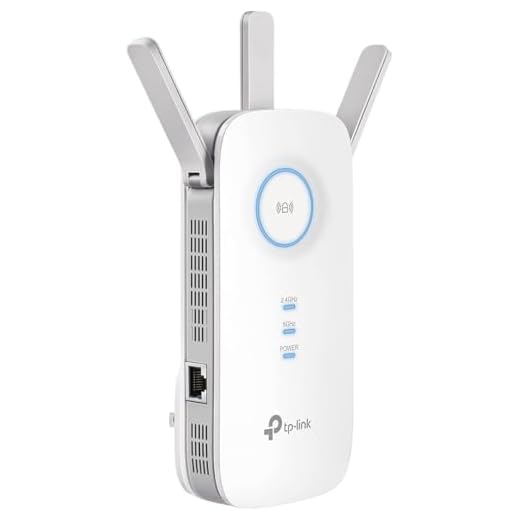
Additionally, consider the distance between the camera and the router. If the camera is too far away, the signal may not reach it properly, resulting in connection timeouts. Position the camera closer to the router or use Wi-Fi extenders to improve the signal strength.
| Placement Tips: | Avoid obstacles | Ensure line of sight to the router | Position camera at optimal height |
|---|---|---|---|
| Distance Considerations: | Keep camera within Wi-Fi range | Position closer to the router if necessary | Use Wi-Fi extenders for larger distances |
Contact Support for Assistance
If you are experiencing issues with your security camera showing a “connection time out” error message, it is recommended to contact the customer support team for assistance. They can help troubleshoot the issue and provide you with the necessary steps to resolve it.
Steps to Contact Support:
- Check the user manual or product documentation for contact information.
- Visit the official website of the security camera manufacturer and look for a support section.
- Call the customer support hotline provided by the manufacturer for immediate assistance.
By reaching out to the support team, you can get the guidance you need to fix the connection time out issue and ensure your security camera is working properly.