
 Carmen J. Moore
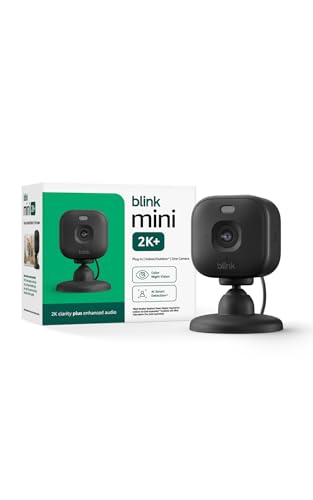
Wireless home security cameras are a convenient and effective way to monitor your home. With advances in technology, setting up these cameras has become easier than ever. Whether you want to keep an eye on your property while you’re away or simply enhance the security of your home, installing wireless cameras can provide peace of mind.
Before you begin setting up your wireless home security cameras, it’s important to choose the right cameras for your needs. Consider factors such as resolution, field of view, and night vision capabilities. Once you’ve selected the cameras that best suit your requirements, you can proceed with the installation process.
Setting up wireless home security cameras involves a few key steps, including positioning the cameras, connecting them to your Wi-Fi network, and configuring the camera settings. By following these steps carefully and ensuring that your cameras are properly installed and connected, you can enjoy the benefits of a secure and protected home.
Step-by-step guide for setting up wireless home security cameras
Setting up wireless home security cameras can help enhance the safety of your home and provide you with peace of mind. Follow these steps to ensure a smooth installation process:


- Choose the right location: Select strategic locations around your home where you want to install the cameras. Make sure they provide a clear view of the areas you want to monitor.
- Install the camera mounts: Use the appropriate tools to mount the cameras securely. Ensure they are positioned at the right angle for optimal coverage.
- Connect the cameras to power: Plug in the cameras to a power source. If your cameras are battery-operated, make sure they are fully charged before installation.
- Connect the cameras to your Wi-Fi network: Follow the manufacturer’s instructions to connect the cameras to your home Wi-Fi network. This will allow you to access the camera feed remotely.
- Set up the camera settings: Use the camera’s mobile app or web portal to configure settings such as motion detection, recording schedules, and notifications.
- Test the cameras: After setting up the cameras, test each one to ensure they are working properly and capturing the desired footage.
- Monitor the camera feed: Once everything is set up, you can monitor the camera feed remotely from your smartphone, tablet, or computer.
Choosing the right wireless home security camera system
When selecting a wireless home security camera system, there are several factors to consider to ensure you choose the right one for your needs. Here are some key points to keep in mind:
1. Resolution: Look for cameras with high-resolution capabilities to capture clear images and video.
2. Night vision: Opt for cameras equipped with infrared night vision to monitor your property in low-light conditions.
3. Motion detection: Choose cameras with motion detection features to receive alerts when activity is detected.
4. Two-way audio: Consider cameras with two-way audio capabilities to communicate with visitors or intruders.
5. Remote access: Select a system that allows you to view live footage and control your cameras remotely via a smartphone app or web browser.
6. Storage options: Decide whether you prefer cloud storage or local storage for your camera footage.
7. Installation: Choose a system that is easy to install and set up without the need for professional assistance.
By considering these factors, you can find the right wireless home security camera system to enhance the safety and security of your home.
Installing the cameras in strategic locations
When setting up wireless home security cameras, it’s crucial to install them in strategic locations to maximize their effectiveness. Here are some key tips to consider:
- Place cameras at entry points: Position cameras near doors, windows, and other entry points to capture any potential intruders.
- Cover blind spots: Identify blind spots in your home and install cameras in those areas to ensure comprehensive coverage.
- Consider high traffic areas: Install cameras in high traffic areas like the living room, kitchen, or hallway to monitor activity.
- Mount cameras at a height: Mount cameras at a height that provides a clear view of the area without being easily tampered with.
- Protect cameras from weather: If installing outdoor cameras, ensure they are weatherproof and positioned to withstand the elements.
Connecting the cameras to your home Wi-Fi network
Once you have installed your wireless home security cameras in the desired locations, the next step is to connect them to your home Wi-Fi network. Follow these steps to ensure a successful setup:
1. Check camera compatibility
Before connecting the cameras to your Wi-Fi network, make sure they are compatible with your network. Check the camera’s specifications and ensure it supports the Wi-Fi frequency bands used by your router.
2. Locate the camera’s Wi-Fi settings
Access the camera’s settings either through the camera’s mobile app or web interface. Look for the Wi-Fi settings section, where you can input your network’s SSID and password.
3. Connect to your Wi-Fi network
Enter your home Wi-Fi network’s SSID (name) and password into the camera’s settings. Ensure the information is correct and then save the settings. The camera should now attempt to connect to your Wi-Fi network.
Follow any on-screen instructions provided by the camera to complete the connection process. Once successfully connected, you can monitor the camera feed remotely through the camera’s app or web interface.
Setting up the camera monitoring app on your smartphone
Once you have installed your wireless home security cameras, the next step is to set up the camera monitoring app on your smartphone. Follow these steps to get started:
1. Download the camera monitoring app from the App Store or Google Play Store.
2. Open the app and create an account using your email address and a secure password.
3. Follow the on-screen instructions to add your cameras to the app. This usually involves scanning a QR code or entering a unique camera ID.
4. Once your cameras are connected, you can view live feeds, adjust settings, and receive notifications on your smartphone.
5. Make sure to enable any additional features like motion detection, two-way audio, or cloud storage if desired.
With the camera monitoring app set up on your smartphone, you can easily monitor your home security cameras from anywhere at any time.
Configuring motion detection and alerts
Setting up motion detection on your wireless home security cameras is crucial for ensuring that you are notified of any unusual activity in and around your home. Follow these steps to configure motion detection and alerts:
Step 1: Access camera settings
Log in to the camera’s app or web interface to access the settings menu. Look for the motion detection section where you can adjust sensitivity levels, detection zones, and notification settings.
Step 2: Adjust motion detection settings
| 1. | Set the sensitivity level to your desired preference. Higher sensitivity levels will trigger alerts for even minor movements, while lower sensitivity levels may miss some events. |
| 2. | Define specific detection zones where you want the camera to monitor for motion. This can help reduce false alerts triggered by non-essential areas. |
| 3. | Customize notification settings such as push notifications, emails, or text messages when motion is detected. Make sure to test the alerts to ensure they are working correctly. |
By configuring motion detection and alerts on your wireless home security cameras, you can rest assured that you will be promptly notified of any suspicious activity, enhancing the overall security of your home.
Testing the camera system for optimal performance
Once you have set up your wireless home security cameras, it’s important to test the system to ensure it is working correctly and capturing footage effectively. Here are some steps to follow to test your camera system:
1. Check the camera placement: Make sure the cameras are positioned correctly to cover the desired areas. Test each camera’s field of view to ensure there are no blind spots.
2. Test the wireless connection: Check the signal strength of the cameras to ensure they are connected to the Wi-Fi network. Move the cameras closer to the router if the signal is weak.
3. Check the video quality: View the live feed from each camera to assess the video quality. Make sure the images are clear and not pixelated.
4. Test the motion detection: Walk around the areas monitored by the cameras to see if the motion detection feature is working properly. Adjust the sensitivity settings if needed.
5. Review the recording: Check the recorded footage to see if the cameras are capturing events as expected. Ensure the recordings are saved properly and can be accessed easily.
By following these steps, you can ensure that your wireless home security camera system is set up correctly and performing optimally to keep your home safe and secure.
Maintaining and troubleshooting your wireless home security cameras
Once you have set up your wireless home security cameras, it is important to regularly maintain and troubleshoot them to ensure they are functioning properly. Here are some tips to help you keep your cameras in top shape:
- Regularly clean the lenses of your cameras to ensure clear footage.
- Check the camera’s positioning to make sure it covers the desired area effectively.
- Inspect the power source and connections to ensure they are secure.
- Update the camera’s firmware regularly to access new features and security updates.
- Monitor the camera’s performance through the accompanying app or software.
If you encounter any issues with your wireless home security cameras, here are some common troubleshooting steps:
- Restart the camera by unplugging it and plugging it back in.
- Check the Wi-Fi signal strength in the camera’s location.
- Reset the camera to its factory settings and reconfigure it.
- Ensure the camera’s software and app are up to date.
- Contact customer support for further assistance if the issue persists.


I recently installed a wireless camera system and found the process pretty straightforward. I was able to connect them to my Wi-Fi without any issues, but I had to adjust the motion detection settings because it was too sensitive at first! Now it works great for me.
What are the best locations to install these cameras? I have some ideas, but I’m not sure how to identify blind spots.
It's good to place them near entry points, but also consider high traffic areas inside your home. Don’t forget to check corners!
Can you clarify whether the cameras need to be plugged in all the time or if battery-operated ones are a good option?