
 Carmen J. Moore
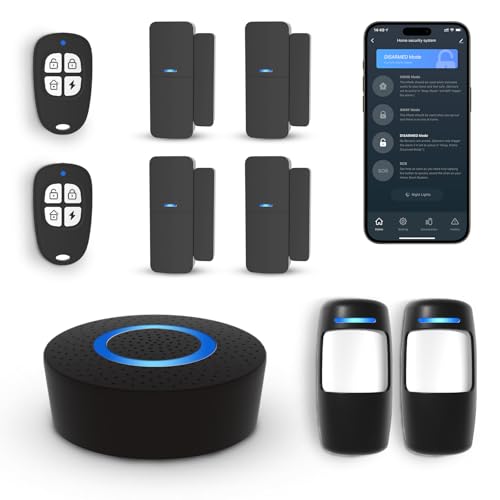
Security cameras are an essential part of keeping your home or business safe, and Samsung offers a range of high-quality cameras that provide peace of mind. One of the key features of Samsung security cameras is the ability to connect to them remotely, allowing you to monitor your property from anywhere in the world.
Remote access to your Samsung security camera can be set up easily with the right knowledge and tools. In this guide, we will walk you through the steps to connect to your Samsung security camera remotely, so you can keep an eye on your property no matter where you are.


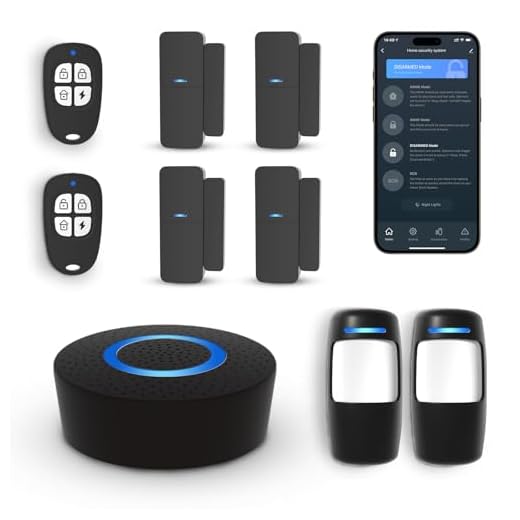
Whether you’re on vacation, at work, or simply away from home, being able to check in on your security camera remotely provides an added layer of security and peace of mind. Follow our step-by-step instructions to set up remote access to your Samsung security camera and stay connected to your property at all times.
Step-by-Step Guide to Connect to Samsung Security Camera Remotely
Connecting to your Samsung security camera remotely allows you to monitor your property from anywhere. Follow these steps to set up remote access:
- Install Samsung Security Camera: Set up your Samsung security camera and connect it to your Wi-Fi network.
- Download Samsung SmartCam App: Install the Samsung SmartCam app on your smartphone or tablet from the App Store or Google Play Store.
- Create an Account: Launch the app and create an account using your email address and password.
- Add Camera to Account: Follow the app instructions to add your Samsung security camera to your account. Make sure the camera is connected to the same Wi-Fi network.
- Enable Remote Access: In the app settings, enable remote access to your camera. This may require setting up port forwarding on your router.
- Access Camera Remotely: Once remote access is enabled, you can view your Samsung security camera feed from anywhere using the app on your mobile device.
By following these steps, you can easily connect to your Samsung security camera remotely and keep an eye on your property at all times.
Step 1: Download the Samsung SmartCam App
To remotely connect to your Samsung security camera, you need to download the Samsung SmartCam app on your smartphone or tablet. The app is available for both Android and iOS devices, and you can easily find it in the Google Play Store or Apple App Store.
Once you have downloaded the app, follow the on-screen instructions to set up your account and link your Samsung security camera to the app. Make sure you have a stable internet connection to ensure smooth remote access to your camera.
Step 2: Install and Open the App
After setting up your Samsung security camera, the next step is to install the corresponding mobile app on your smartphone or tablet. This app allows you to access your camera remotely and monitor your property from anywhere.
Follow these steps to install and open the app:
- Go to the App Store (for iOS devices) or Google Play Store (for Android devices).
- Search for the Samsung security camera app (e.g., Samsung SmartCam, Samsung Wisenet, etc.) and download it.
- Once the app is installed, open it on your mobile device.
- Follow the on-screen instructions to set up the app and connect it to your Samsung security camera.
- Log in using your account credentials or create a new account if required.
Once the app is installed and connected to your camera, you can now remotely view live footage, receive alerts, and manage your camera settings from your mobile device.
Step 3: Create a Samsung Account
In order to remotely access your Samsung security camera, you need to create a Samsung account. Follow these steps to set up your account:
- Visit the Samsung account creation page on the official Samsung website.
- Click on the “Create Account” or “Sign Up” button.
- Fill in the required information, such as your email address, password, and personal details.
- Agree to the terms and conditions and complete the account creation process.
Once your Samsung account is created, you can use it to log in to the Samsung SmartThings app or the Samsung website to remotely monitor and control your security camera.
Step 4: Add Your Security Camera to the App
Once you have set up your Samsung security camera and connected it to your network, the next step is to add it to the Samsung SmartThings app for remote access.
Instructions:
1. Open the Samsung SmartThings app on your smartphone or tablet.
2. Tap on the “+” sign to add a new device.
3. Select “Device” and then “Security Cameras” from the list of available devices.
4. Follow the on-screen instructions to connect your Samsung security camera to the app.
5. Once the camera is successfully added, you can now access and control it remotely through the SmartThings app.
Step 5: Configure Remote Access Settings
After setting up your Samsung security camera, you’ll need to configure the remote access settings to view the camera feed from anywhere. Follow these steps:
- Open the Samsung SmartViewer software on your computer.
- Click on the “Configuration” tab and select “Network” settings.
- Enable the “Remote Access” option and set up a username and password for secure access.
Additional Tips:
Make sure to write down your username and password for future reference.
Step 6: Connect Your Camera to Wi-Fi
Once your Samsung security camera is powered on and ready, you need to connect it to your Wi-Fi network for remote access. Follow these steps:
- Open the camera’s settings menu on the app or web interface.
- Locate the Wi-Fi settings option and select it.
- Choose your Wi-Fi network from the list of available networks.
- Enter the network password when prompted.
- Wait for the camera to connect to the Wi-Fi network.
- Once connected, you can now access your camera remotely over the internet.
Step 7: Access Your Camera Remotely
Once you have set up your Samsung security camera and connected it to your network, you can access it remotely using the Samsung SmartViewer software or the mobile app.
1. Download and install the Samsung SmartViewer software on your computer. Launch the software and enter the IP address of your camera along with the login credentials.
2. If you prefer to access your camera on the go, download the Samsung SmartViewer mobile app from the App Store or Google Play Store. Sign in with your account and add your camera to the app.
Now you can view live footage from your Samsung security camera remotely, check alerts, and manage settings from anywhere with an internet connection.
Step 8: Enjoy Remote Monitoring and Control
Once you have successfully connected to your Samsung security camera remotely, you can now enjoy the convenience of remote monitoring and control. From the comfort of your smartphone or computer, you can view live footage, adjust camera settings, and receive alerts when motion is detected.
Make sure to check your camera regularly to ensure it is functioning properly and to stay updated on any security issues. With remote access, you can have peace of mind knowing that you can keep an eye on your property no matter where you are.


I recently connected my Samsung security camera remotely, and it was surprisingly easy! I followed all the steps in this guide. Just a heads up, I had some trouble with the port forwarding on my router. I had to look up additional instructions online to get it working. But now I can check on my home from anywhere, which is super reassuring while I'm away.
Thanks for sharing your experience! Stability can depend on your internet connection and router settings. If any users encounter issues, checking network configurations or updating firmware may help.
That's good to know, but I've read that some users face issues with remote access stability. Did you experience any lag or disconnections after the setup?
Can someone clarify if the Samsung SmartCam app is available for all Samsung security cameras? I have an older model and just want to make sure it’s compatible before I try to set it up.
Yes, the app should work with most models, but it’s best to check the specific model information on the Samsung site. Older models might have limited features though.