
 Carmen J. Moore

Is your iPhone camera constantly producing blurry photos? It can be frustrating when you’re trying to capture a perfect moment, only to find that your images are coming out unclear and out of focus. But don’t worry, there are several steps you can take to troubleshoot and fix the issue.
First and foremost, make sure your camera lens is clean. Oftentimes, smudges and dirt on the lens can cause blurriness in your photos. Use a microfiber cloth or lens cleaning solution to gently wipe the lens clean and remove any obstructions.
Another common reason for blurry photos is camera shake. If you’re taking photos without a tripod or stabilizing your phone properly, the slight movements of your hand can result in blurry images. Try to hold your phone steady or consider using a tripod for sharper photos.


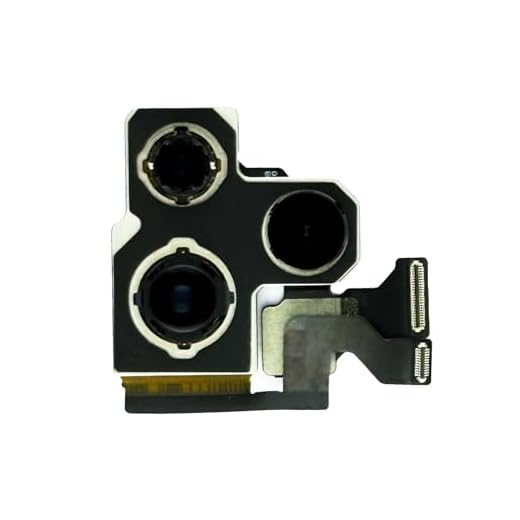
How to troubleshoot a blurry iPhone camera
If your iPhone camera is producing blurry images, there are several troubleshooting steps you can take to try and fix the issue.
1. Clean the lens: Sometimes a dirty lens can cause blurry photos. Use a soft, lint-free cloth to gently clean the lens of your iPhone camera.
2. Restart your iPhone: A simple restart can often solve many camera-related issues. Turn off your iPhone, wait a few seconds, then turn it back on.
3. Check for updates: Make sure your iPhone’s software is up to date. Go to Settings > General > Software Update to see if there are any updates available.
4. Reset camera settings: Go to Settings > Camera > Reset Settings to reset your camera settings to default.
5. Remove any accessories: If you’re using a case or lens attachments, try removing them and taking a photo to see if the blurriness is still present.
6. Test in different lighting conditions: Poor lighting can also cause blurry photos. Try taking photos in different lighting conditions to see if that makes a difference.
If none of these steps solve the issue, it may be a hardware problem, and you may need to contact Apple Support or visit an authorized service provider for further assistance.
Clean the lens for better clarity
One common reason for a blurry iPhone camera is a dirty lens. Oftentimes, the lens can get smudged with fingerprints, dust, or other debris, which can affect the clarity of your photos. To fix this issue, gently wipe the lens with a soft, clean cloth to remove any dirt or smudges. Be careful not to use harsh chemicals or abrasive materials, as this can damage the lens. After cleaning the lens, check to see if the blurriness has improved.
Check for software updates and restart your device
If your iPhone camera is blurry, it could be due to software issues. Make sure your iPhone is running the latest version of iOS by checking for updates in the Settings app. If there is an update available, download and install it to see if it resolves the camera issue.
Additionally, restarting your device can sometimes help fix camera problems. Simply power off your iPhone, wait a few seconds, and then turn it back on. This simple step can often clear up any temporary glitches that may be affecting the camera’s performance.
Reset the camera settings to default
If your iPhone camera is still blurry after cleaning the lens and checking for any obstructions, you may want to reset the camera settings to default. This can sometimes resolve software glitches or issues causing the blurriness.
To reset the camera settings on your iPhone, follow these steps:
- Open the “Settings” app on your iPhone.
- Scroll down and tap on “General.”
- Scroll down again and tap on “Reset.”
- Choose “Reset All Settings.”
- Enter your passcode if prompted.
- Confirm the action by selecting “Reset All Settings” again.
After resetting the camera settings, check if the blurriness issue is resolved. If not, you may need to consider other troubleshooting steps or seek professional assistance.
Remove any protective case or cover
One common reason for blurry iPhone camera images is a dirty or obstructed lens. Sometimes, the issue could be caused by the protective case or cover you have on your phone. Dust, dirt, or smudges on the case can affect the clarity of your photos. Remove the case or cover and clean it thoroughly. Also, make sure there are no obstructions around the camera lens that could be causing the blurriness.
Adjust the focus and exposure settings
If your iPhone camera is producing blurry images, it could be due to incorrect focus and exposure settings. Here’s how you can adjust these settings:
1. Tap to focus
When taking a photo, tap on the object or subject you want to focus on. This will adjust the focus of the camera and ensure that the subject is clear in the image.
2. Adjust exposure
If the image is too bright or too dark, you can manually adjust the exposure. Tap on the screen to focus, then slide your finger up or down to adjust the exposure level. Finding the right balance will help improve the clarity of your photos.
Ensure there is enough light for clear photos
One common reason for blurry photos on your iPhone camera is inadequate lighting. Make sure you are in a well-lit environment when taking pictures to ensure clear and sharp images. If you are indoors, try to position yourself near a window or turn on additional lights to improve the lighting conditions.
Adjust the exposure
If you are still experiencing blurry photos despite good lighting, you can manually adjust the exposure on your iPhone camera. Tap on the screen to focus on the subject and then slide your finger up or down to adjust the exposure level. This can help improve the clarity of your photos.
| Tip: | Try different angles and positions to find the best lighting for your photos. |
Use the grid feature to align your shots
One way to ensure that your iPhone camera captures clear and focused images is to utilize the grid feature. The grid feature divides your camera frame into nine equal sections, helping you align your subjects and maintain balance in your composition.
To enable the grid feature, go to your iPhone settings, select “Camera”, and toggle on the “Grid” option. Once the grid is displayed on your camera screen, use the intersecting lines to align your subjects along the grid lines or at the intersections for a more visually appealing shot.
By using the grid feature, you can improve the composition of your photos and reduce the chances of blurry or out-of-focus images. Experiment with different grid alignments to find the best composition for your shots and elevate the quality of your iPhone photography.
Avoid using digital zoom to maintain image quality
One common mistake many people make when using their iPhone camera is relying too heavily on digital zoom. Digital zoom works by cropping and enlarging a portion of the image, which can result in a loss of image quality and clarity. To avoid this, try to get closer to your subject instead of zooming in digitally. This will help maintain the quality of your photos and prevent them from appearing blurry or pixelated.
Restore your iPhone to factory settings as a last resort
If all other methods fail to fix the blurry camera on your iPhone, you may need to consider restoring your device to its factory settings. This will erase all data on your phone, so be sure to back up your important files before proceeding. To restore your iPhone to factory settings, follow these steps:
| 1. | Make sure your iPhone is backed up to iCloud or iTunes. |
| 2. | Go to Settings on your iPhone. |
| 3. | Tap on General. |
| 4. | Scroll down and tap on Reset. |
| 5. | Select Erase All Content and Settings. |
| 6. | Enter your passcode if prompted. |
| 7. | Confirm the action by tapping Erase iPhone. |
| 8. | Your iPhone will restart and begin the process of erasing all data and restoring to factory settings. |
| 9. | Set up your iPhone as a new device or restore from your backup. |
After restoring your iPhone to factory settings, check if the camera issue has been resolved. If not, there may be a hardware problem with your device, and you may need to contact Apple Support or visit an authorized service provider for further assistance.
Visit an Apple Store for professional assistance if the issue persists
If you have tried all the troubleshooting steps and your iPhone camera is still blurry, it may be time to seek professional help. Apple Stores have trained technicians who can diagnose and fix hardware issues with your device. Make an appointment at your nearest Apple Store and bring your iPhone in for a thorough assessment.


I’ve tried cleaning the lens and restarting my iPhone, but the camera is still blurry. Any other suggestions?
Cleaning the lens is super important! I didn’t realize how much dirt could affect the photos until I tried it.
I think using a tripod is overrated. I get just as clear shots without one as long as I hold my phone steady.
While that can work, I find a tripod helps a lot, especially for low-light conditions where there's more chance of camera shake.