
 Carmen J. Moore

If you’re experiencing issues with the camera during group FaceTime calls on your iPhone, you’re not alone. Many users have reported facing problems where the camera freezes, shows a black screen, or simply doesn’t work properly. This can be frustrating, especially when you’re trying to have a video call with multiple people.


Fortunately, there are some troubleshooting steps you can take to fix the group FaceTime camera problem on your iPhone. By following these simple solutions, you may be able to resolve the issue and get back to enjoying seamless video calls with your friends and family.
From checking your device settings to updating your software, we’ll walk you through the steps to troubleshoot and fix the group FaceTime camera problem on your iPhone. Keep reading to learn how to resolve this issue and get your camera working smoothly during group calls.
How to troubleshoot group FaceTime on iPhone camera
If you’re experiencing issues with the camera during group FaceTime calls on your iPhone, there are a few troubleshooting steps you can take to try and resolve the problem.
1. Check Camera Permissions
Make sure that FaceTime has permission to access your camera. Go to Settings > Privacy > Camera and ensure that FaceTime is listed and enabled.
2. Restart FaceTime
Try restarting the FaceTime app by swiping up from the bottom of the screen and closing the app. Then reopen FaceTime and see if the camera issue is resolved.
If these steps don’t resolve the problem, you may need to update your iPhone’s software or contact Apple Support for further assistance.
Check camera settings
First, make sure that the camera settings on your iPhone are properly configured for FaceTime. Go to Settings, then scroll down and tap on FaceTime. Check if the camera is enabled for FaceTime by ensuring that the switch next to “Camera” is turned on.
If the camera setting is already enabled, try toggling it off and then back on to reset it. This can sometimes resolve any issues with the camera not working properly during a FaceTime call.
Update iOS to the latest version
If you are experiencing issues with Group FaceTime on your iPhone camera, one of the first steps you should take is to check if your iOS is up to date. Apple frequently releases updates to address bugs and improve performance, so ensuring you have the latest version installed can often resolve issues with FaceTime.
To update your iOS, follow these steps:
- Go to “Settings” on your iPhone.
- Scroll down and tap on “General.”
- Tap on “Software Update.”
- If an update is available, tap “Download and Install.”
- Follow the on-screen instructions to complete the update process.
After updating your iOS, restart your iPhone and check if Group FaceTime is now working correctly. If the issue persists, you can try other troubleshooting steps to fix the problem.
Restart your iPhone
If you are experiencing issues with Group FaceTime camera on your iPhone, a simple restart may help resolve the problem. Here’s how you can restart your iPhone:
- Press and hold the power button until the “slide to power off” slider appears on the screen.
- Slide the slider to power off your iPhone.
- Wait for a few seconds, then press and hold the power button again until the Apple logo appears on the screen.
After your iPhone restarts, try using Group FaceTime again to see if the camera issue has been resolved. If the problem persists, you may need to explore other troubleshooting steps.
Force close the FaceTime app
If your group FaceTime camera is not working on your iPhone, try force closing the FaceTime app. To do this, double-click the Home button (for iPhones with a Home button) or swipe up from the bottom of the screen and pause slightly in the middle of the screen (for iPhones without a Home button) to access the App Switcher. Then, swipe up on the FaceTime app to close it. After force closing the app, reopen it and check if the camera is now working properly in group FaceTime calls.
Check internet connection
One of the common reasons for group FaceTime camera issues is a poor internet connection. Make sure you are connected to a stable and strong Wi-Fi network or have a good cellular data connection. You can try restarting your Wi-Fi router or switching to a different network to see if that resolves the problem.
Reset network settings
If you’re still experiencing issues with Group FaceTime on your iPhone camera, you can try resetting the network settings. This can help resolve any network-related issues that may be affecting the camera during Group FaceTime calls.
To reset the network settings on your iPhone, follow these steps:
Step 1: Go to Settings
Open the Settings app on your iPhone.
Step 2: Reset network settings
Scroll down and tap on “General”, then select “Reset”. Choose “Reset Network Settings” and confirm your selection. Your iPhone will restart and the network settings will be reset to default.
After resetting the network settings, try using Group FaceTime again to see if the issue with the camera has been resolved.
Check for restrictions on FaceTime
If you are facing issues with Group FaceTime on your iPhone camera, it is important to check if there are any restrictions set up on your device that may be affecting the camera functionality. Here’s how you can do it:
| Step 1: | Go to your iPhone’s Settings. |
| Step 2: | Scroll down and tap on “Screen Time”. |
| Step 3: | Tap on “Content & Privacy Restrictions”. |
| Step 4: | Make sure that FaceTime is not restricted under “Allowed Apps”. |
By checking and adjusting the restrictions on FaceTime, you may be able to resolve any issues related to Group FaceTime on your iPhone camera.
Check camera hardware for damage
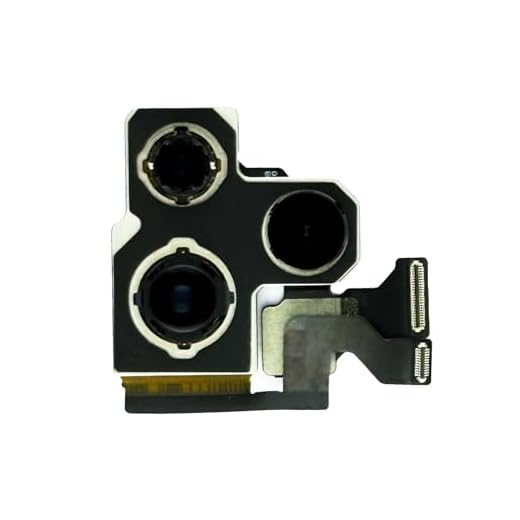
If you are experiencing issues with the group FaceTime camera on your iPhone, the first step is to check the camera hardware for any visible damage. Inspect the camera lens for scratches, cracks, or dirt that may be obstructing the view. Make sure there are no physical obstructions blocking the camera, such as a case or screen protector.
If you notice any damage to the camera hardware, it may be necessary to replace the camera module to resolve the issue. Contact Apple Support or visit an authorized service provider for assistance with replacing the camera hardware.
Contact Apple Support for further assistance
If you have tried all the troubleshooting steps mentioned above and are still facing issues with Group FaceTime on your iPhone camera, it may be best to contact Apple Support for further assistance. Apple’s support team can provide personalized guidance and help you resolve any technical issues you may be experiencing with Group FaceTime. You can reach out to Apple Support through their website, Apple Store app, or by visiting an Apple Store in person for hands-on support.




Has anyone tried restarting FaceTime to fix the camera issue? Did it work?
I don't think updating iOS is always necessary. Sometimes it’s just a glitch with the app.
I had a similar problem last week. Restarting the iPhone did the trick for me. I couldn’t believe how simple it was!
What if none of these solutions work? Should I just contact Apple Support right away?
If you've tried all the troubleshooting steps without success, contacting Apple Support is a good next step. They can help with more advanced solutions.
Can someone explain how to check the camera permissions for FaceTime? I’m not sure where to find that in the settings.
To check camera permissions for FaceTime, go to Settings > Privacy > Camera. Make sure FaceTime is enabled.
I always check the internet connection first. A weak signal can mess up FaceTime for sure.