
 Carmen J. Moore

If you are experiencing issues with the rear-facing camera on your iPhone, you are not alone. Many iPhone users have encountered problems with the camera not working properly or displaying blurry images. Fortunately, there are several solutions you can try to fix the issue and get your camera working again.
Check the Camera Lens: The first step in troubleshooting your rear-facing camera is to check the camera lens for any dirt, dust, or smudges. Use a soft cloth to gently clean the lens and remove any debris that may be obstructing the camera’s view.
Restart Your iPhone: Sometimes a simple restart can resolve camera issues. Try restarting your iPhone by holding down the power button until the “Slide to Power Off” option appears. Turn off your phone, wait a few seconds, then turn it back on and check if the camera is working properly.

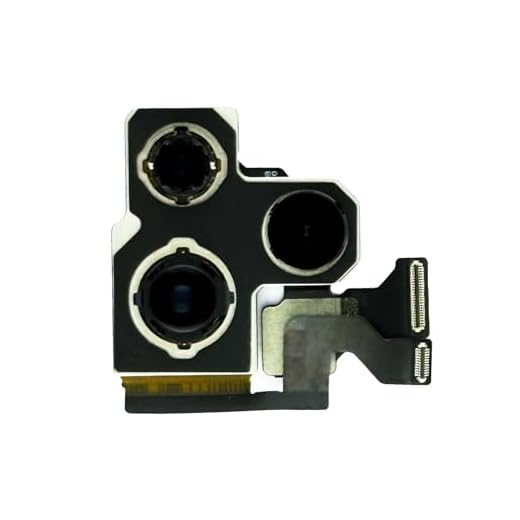
Check camera settings
If your rear-facing camera is not working on your iPhone, one of the first things you should do is check the camera settings. Make sure that the camera app has the necessary permissions to access the camera. You can do this by going to Settings > Privacy > Camera and ensuring that the camera app is enabled.
Additionally, you can try resetting the camera settings by going to Settings > General > Reset > Reset All Settings. This will reset all settings on your iPhone, including camera settings, and may help resolve any issues with the rear-facing camera.
Restart the iPhone
If your rear-facing camera is not working properly on your iPhone, one of the first troubleshooting steps you can try is to restart the device. Restarting the iPhone can often resolve minor software glitches or issues that may be causing the camera to malfunction.
How to Restart an iPhone:
To restart your iPhone, simply press and hold the power button until the “slide to power off” slider appears on the screen. Slide the slider to power off the device. Once the iPhone is completely powered off, press and hold the power button again until the Apple logo appears on the screen, indicating that the device is restarting.
After the iPhone has restarted, check to see if the rear-facing camera is now working properly. If the issue persists, you may need to try other troubleshooting steps or seek assistance from Apple Support.
Update iOS Software
If your rear facing camera is not working properly, it might be due to a software issue. Make sure your iPhone is running the latest version of iOS. To update your iOS software, follow these steps:
| 1. | Connect your iPhone to Wi-Fi |
| 2. | Go to Settings |
| 3. | Tap on General |
| 4. | Tap on Software Update |
| 5. | If an update is available, tap Download and Install |
| 6. | Follow the on-screen instructions to complete the update |
After updating your iOS software, check if the rear facing camera is working properly. If the issue persists, you may need to consider other troubleshooting steps or seek assistance from Apple Support.
Clear camera app cache
If you are experiencing issues with your rear-facing camera on your iPhone, one of the troubleshooting steps you can try is to clear the camera app cache. This can help resolve any temporary glitches or conflicts that may be causing the camera to malfunction.
Here’s how you can clear the camera app cache on your iPhone:
- Go to the “Settings” app on your iPhone.
- Scroll down and find the “Camera” option.
- Tap on “Camera” and then select “Clear Cache” or “Clear History and Website Data.”
- Confirm the action and wait for the cache to be cleared.
After clearing the camera app cache, restart your iPhone and try using the rear-facing camera again to see if the issue has been resolved.
Remove the case
If your rear-facing camera is not working properly on your iPhone, it may be due to a case or cover that is obstructing the camera lens. Remove the case from your iPhone and try using the camera again to see if the issue is resolved.
If removing the case does not fix the problem, you can move on to other troubleshooting steps to identify and resolve the issue with your iPhone’s rear-facing camera.
Reset all settings
If the rear-facing camera on your iPhone is still not working after trying the previous steps, you may need to reset all settings on your device. This will not erase your data, but it will reset all settings to their default values. To do this, go to Settings > General > Reset > Reset All Settings. Confirm the action and wait for your iPhone to restart. Check if the camera is now functioning properly.
Use third-party camera apps
If you’re still experiencing issues with the rear-facing camera on your iPhone, you can try using third-party camera apps. These apps often have different settings and features that may help fix the problem with the camera.
Some popular third-party camera apps include Camera+, ProCamera, and Halide. These apps may offer additional controls and options for adjusting the camera settings, which could potentially resolve any issues you’re facing with the built-in camera app.
Visit an Apple Store
If you are unable to fix the rear facing camera issue on your iPhone on your own, it may be time to visit an Apple Store. Apple Store technicians are trained to diagnose and repair hardware issues with iPhones, including problems with the rear facing camera. By bringing your iPhone to an Apple Store, you can get professional help and potentially have your camera issue resolved quickly and efficiently.
Contact Apple Support
If you’ve tried all the troubleshooting steps and your rear-facing camera on your iPhone is still not working, it may be time to contact Apple Support for further assistance. You can reach out to Apple Support through various channels:
- Visit the Apple Support website and initiate a chat with a representative.
- Call Apple Support directly and speak with a customer service representative.
- Schedule an appointment at an Apple Store or authorized service provider for an in-person assessment of your device.
When contacting Apple Support, be prepared to provide the following information:
- Details about the issue you’re experiencing with the rear-facing camera.
- Any troubleshooting steps you’ve already attempted.
- Your device’s serial number and warranty status, if applicable.


I had a similar issue with my iPhone camera last month. I found that after updating to the latest iOS, my camera was finally working properly again. It’s worth checking if your software is up to date!
I disagree about clearing the app cache. I tried that and it didn’t change anything for me. I think it's more of a software issue if cleaning the lens didn't help.
Thanks for your input! Sometimes, issues can be caused by both software and hardware. If cleaning the lens doesn’t help, checking for software updates or visiting an Apple Store may be necessary.
I’ve been having trouble with my rear-facing camera displaying blurry images. I cleaned the lens, but it didn’t help. What else can I do?
It's good that you cleaned the lens! Have you tried restarting your iPhone or checking the camera settings to ensure permissions are granted? Those are often effective first steps.
Removing my case fixed the camera issues I was having. I didn’t realize it was blocking the lens!