
 Carmen J. Moore

Are you looking to improve the quality of your video calls on Skype? If you have a DSLR camera, you can take advantage of its superior image quality and use it as a webcam for your Skype calls. This will give you clearer, crisper video and better overall performance during your video chats.

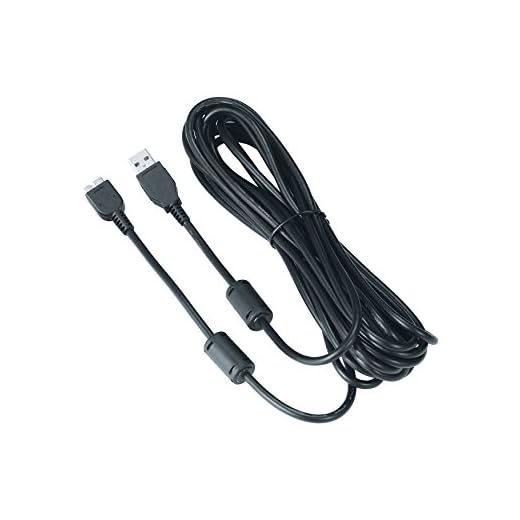

Connecting your DSLR camera to Skype is not as straightforward as using a built-in webcam, but with the right tools and setup, you can easily make it work. In this guide, we will walk you through the steps to connect your DSLR camera to Skype, so you can enjoy high-quality video calls with friends, family, or colleagues.
Step-by-Step Guide to Connect DSLR Camera to Skype
Step 1: Check if your DSLR camera is compatible with Skype. Make sure your camera has a clean HDMI output.
Step 2: Connect your DSLR camera to your computer using an HDMI cable. You may need an HDMI capture card or USB HDMI capture device if your computer doesn’t have an HDMI input.
Step 3: Open Skype on your computer and go to the settings. Look for the video settings and select your DSLR camera as the video input device.
Step 4: Test the connection by making a test call on Skype. Check if your DSLR camera is displaying the video feed properly.
Step 5: Adjust the camera settings like focus, exposure, and white balance to ensure a clear and well-lit image.
Step 6: Start your Skype call and enjoy the high-quality video from your DSLR camera!
Check Camera Compatibility
Before connecting your DSLR camera to Skype, it is important to check if your camera is compatible with the software. Not all DSLR cameras can be used as a webcam for Skype, so make sure to verify if your camera model is supported.
You can check the official website of the camera manufacturer or do a quick online search to see if there are any drivers or software updates available that enable your camera to work as a webcam. Some popular camera brands like Canon and Nikon offer software solutions that allow you to use your DSLR camera for video calls.
Install Required Software
Before connecting your DSLR camera to Skype, you’ll need to install the necessary software on your computer. Here are the steps to follow:
1. Camera Software
Make sure you have the software that came with your DSLR camera installed on your computer. This software is essential for connecting your camera to your computer.
2. Skype Software
Download and install the latest version of Skype on your computer. This will ensure compatibility with your camera and provide the necessary settings for video calls.
Connect Camera to Computer
To connect your DSLR camera to your computer, you will need a USB cable that is compatible with your camera. Make sure the camera is turned off before connecting it to the computer.
Step 1: Connect the USB Cable
Locate the USB port on your camera and plug one end of the USB cable into the camera. Then, plug the other end of the USB cable into a USB port on your computer.
Step 2: Turn On the Camera
Turn on your camera. Your computer should recognize the camera as a new device and install the necessary drivers. Follow the on-screen prompts to complete the installation process.
Note: Some cameras may require additional software or drivers to connect to your computer. Check the camera manufacturer’s website for any required downloads.
Configure Camera Settings
Before connecting your DSLR camera to Skype, it is important to configure the camera settings to ensure the best quality video call. Here are some key settings to adjust:
1. Resolution
Set the resolution of your camera to the highest possible setting to ensure a clear and sharp image during the video call. This will help improve the overall quality of the video feed.
2. Frame Rate
Adjust the frame rate of your camera to a standard rate, such as 30 frames per second, to ensure smooth and consistent video playback. A higher frame rate may result in a more fluid video feed.
| Setting | Value |
| Resolution | Highest possible |
| Frame Rate | 30 frames per second |
Set Up Skype for Camera Input
Once you have connected your DSLR camera to your computer, you need to set up Skype to recognize it as the camera input device.
Step 1: Open Skype on your computer and go to the settings menu.
Step 2: In the settings menu, look for the audio and video settings option.
Step 3: In the video settings, you should see the option to select the camera input device. Choose your DSLR camera from the list of available devices.
Step 4: Test the camera input by making a video call or checking the video preview within Skype.
Step 5: Adjust the camera settings within Skype to optimize the video quality for your calls.
Once you have completed these steps, your DSLR camera should be set up as the camera input device for Skype, allowing you to use its high-quality video capabilities during calls.
Test Camera Connection on Skype
After connecting your DSLR camera to your computer and setting it up as a webcam on Skype, it’s important to test the camera connection to ensure that everything is working correctly.
To test the camera connection on Skype, follow these steps:
- Open Skype: Launch the Skype application on your computer.
- Access Settings: Go to the “Settings” or “Preferences” section in Skype.
- Camera Settings: Look for the “Video Settings” or “Camera Settings” option in Skype.
- Select DSLR Camera: Choose your DSLR camera from the list of available cameras.
- Test Camera: Click on the “Test Camera” or “Test Video” button to check if the camera is working properly.
- Adjust Settings: If the camera is not working, make sure the camera is properly connected and configured in Skype settings.
By following these steps, you can easily test the camera connection on Skype and troubleshoot any issues that may arise.
FAQ
How can I connect my DSLR camera to Skype?
To connect your DSLR camera to Skype, you will need a video capture device such as a capture card or a cam link. Connect your DSLR camera to the video capture device using an HDMI cable, then connect the capture device to your computer via USB. In Skype settings, choose the video capture device as your camera input, and you should be able to use your DSLR camera for video calls.
What equipment do I need to connect my DSLR camera to Skype?
To connect your DSLR camera to Skype, you will need a video capture device like a capture card or cam link, an HDMI cable to connect your camera to the capture device, and a USB cable to connect the capture device to your computer. Make sure your DSLR camera supports clean HDMI output for the best results.
Can I use my DSLR camera as a webcam for Skype?
Yes, you can use your DSLR camera as a webcam for Skype by connecting it to your computer through a video capture device. This allows you to have higher quality video for your Skype calls compared to a standard webcam. Just make sure your camera supports clean HDMI output and that you have the necessary equipment to connect it to your computer.
Is it possible to connect a DSLR camera to Skype on a Mac?
Yes, you can connect a DSLR camera to Skype on a Mac by using a video capture device like a capture card or cam link. Connect your DSLR camera to the capture device via HDMI, then connect the capture device to your Mac via USB. In Skype settings, select the video capture device as your camera input, and you should be able to use your DSLR camera for video calls on Skype.
What are the benefits of using a DSLR camera for Skype calls?
Using a DSLR camera for Skype calls can provide higher video quality, better depth of field, and improved overall image quality compared to a standard webcam. This can enhance your video calls, making you look more professional and improving the visual experience for the person on the other end of the call. It’s a great way to step up your video conferencing game.



I recently connected my Nikon D5600 to Skype, and it worked great! I had to get a capture card, but the video quality was noticeably better. Just make sure your lighting is good, as that makes a big difference too.
I disagree that a DSLR is always better. I’ve used a high-end webcam, and in low light, it actually performed better than my DSLR without much effort.
That's a fair point! Webcams can be very convenient, especially for quick setups.
I’m not sure if my camera has a clean HDMI output. Is there a way to check that without going through all the settings?
Most cameras have that info in the manual or on the manufacturer's website. You can also find forums where users share their experiences with specific models.
Don’t forget to update your camera’s firmware! It can fix bugs and improve performance.
Are there specific capture cards you recommend for this setup?