
 Carmen J. Moore

Are you looking for a way to enhance your video calls or live streams with better image quality? Using a Kodak digital camera as a webcam can be a game-changer in improving the visual experience for your audience.

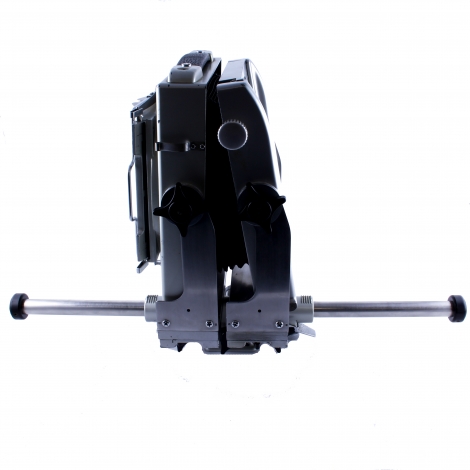


With the right tools and setup, you can easily connect your Kodak digital camera to your computer and use it as a high-quality webcam for video conferencing, online meetings, or content creation.
By following a few simple steps and utilizing the right software, you can unlock the full potential of your Kodak digital camera and take your online interactions to the next level.
Utilizing Kodak Digital Camera for Webcam: A Step-by-Step Guide
If you own a Kodak digital camera and want to use it as a webcam for video calls or live streaming, you’re in luck! With a few simple steps, you can easily transform your Kodak camera into a high-quality webcam. Follow this step-by-step guide to get started.
Step 1: Check Camera Compatibility
Before proceeding, make sure that your Kodak digital camera is compatible with being used as a webcam. Check the camera’s specifications or refer to the manufacturer’s website for information on webcam functionality.
Step 2: Install Webcam Software
Download and install webcam software on your computer that supports using an external camera as a webcam. Popular options include OBS Studio, ManyCam, or Logitech Capture. Follow the software’s instructions for installation.

Note: Some Kodak cameras may require specific drivers or software to be installed for webcam functionality. Check the camera’s manual or website for more information.
Understanding the Compatibility of Kodak Cameras with Webcam Functionality
Kodak digital cameras are versatile devices that can be used for capturing photos and videos. However, not all Kodak cameras have the built-in functionality to be used as a webcam. Before attempting to use your Kodak camera as a webcam, it is important to check if your specific model supports this feature.
Some newer models of Kodak cameras come equipped with the necessary hardware and software to be used as webcams, while older models may not have this capability. If your camera does support webcam functionality, you will typically need to install the appropriate drivers and software provided by Kodak to enable this feature.
Once you have set up your Kodak camera to function as a webcam, you can use it for video calls, live streaming, and other online applications that require a webcam. Just connect your camera to your computer via USB, select it as the video input source in your preferred video conferencing software, and you’re ready to go!
Installing the Necessary Software for Kodak Camera Webcam Integration
If you want to use your Kodak digital camera as a webcam, you will need to install the necessary software on your computer. Here’s how to do it:
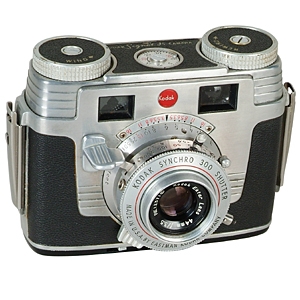
Step 1: Check for Compatibility
Before you begin, make sure that your Kodak camera is compatible with the webcam software you plan to use. Check the camera’s specifications and the requirements of the software to ensure compatibility.
Step 2: Download and Install Webcam Software
Once you’ve confirmed compatibility, download the webcam software from the official website or a trusted source. Follow the installation instructions provided by the software developer to install the program on your computer.
Configuring Kodak Camera Settings for Webcam Usage
Before using your Kodak digital camera as a webcam, you need to configure some settings to ensure optimal performance. Follow these steps to set up your camera:
1. Connect the Camera: Start by connecting your Kodak digital camera to your computer using a USB cable. Make sure the camera is powered on and in webcam mode.
2. Install Camera Software: If your camera came with software, install it on your computer. This software may include drivers and settings that are necessary for using the camera as a webcam.

3. Adjust Camera Settings: Open the camera settings menu on your Kodak camera. Look for options related to webcam usage, such as resolution, frame rate, and audio settings. Adjust these settings according to your preferences.
4. Test the Camera: Once you have configured the settings, test the camera to ensure it is working properly as a webcam. Open a video conferencing or streaming application on your computer and select your Kodak camera as the input device.
5. Fine-Tune Settings: If you encounter any issues or want to improve the video quality, fine-tune the camera settings. Experiment with different resolutions, frame rates, and lighting conditions to achieve the best results.
6. Enjoy Using Your Kodak Camera as a Webcam: Once you have successfully configured the settings, you can now enjoy using your Kodak digital camera as a high-quality webcam for video calls, live streaming, and more.
Connecting Kodak Camera to Computer for Webcam Setup
If you want to use your Kodak digital camera as a webcam, you will need to connect it to your computer using a USB cable. Follow these steps to set up your Kodak camera as a webcam:

Step 1: Connect the Camera
Turn off your Kodak camera and connect it to your computer using a USB cable. Make sure the camera is set to the appropriate mode for webcam use.
Step 2: Install Software
Install any necessary software or drivers for your Kodak camera on your computer. This software will help your computer recognize the camera as a webcam.
Testing the Kodak Camera as Webcam for Quality and Functionality
Before using your Kodak digital camera as a webcam, it’s essential to test its quality and functionality to ensure a smooth experience during video calls or streaming.
1. Setup: Connect your Kodak camera to your computer using the appropriate cable or adapter. Install any necessary drivers or software provided by Kodak to enable webcam functionality.
2. Image Quality: Test the image quality of your Kodak camera by capturing a few test photos or videos. Ensure that the images are clear, well-lit, and in focus to guarantee a good webcam experience.
3. Audio Quality: Check the audio quality of your Kodak camera by recording a short video with sound. Make sure that the audio is clear and free from background noise for effective communication.
4. Compatibility: Verify that your Kodak camera is compatible with the software or platform you intend to use for video calls or streaming. Ensure that the camera is recognized and functions properly within the application.
5. Testing: Conduct a test video call or stream using your Kodak camera as a webcam. Evaluate the video and audio quality, as well as the overall performance of the camera during the call.
6. Adjustments: Make any necessary adjustments to the camera settings, such as resolution, exposure, or white balance, to optimize the quality of your webcam feed. Experiment with different settings to find the best configuration for your needs.
By thoroughly testing your Kodak camera as a webcam, you can ensure that it meets your expectations for quality and functionality, providing a reliable tool for your video communication needs.

Troubleshooting Common Issues when Using Kodak Camera as Webcam
If you are experiencing issues while trying to use your Kodak digital camera as a webcam, here are some common troubleshooting steps you can take:
1. Check Camera Compatibility: Ensure that your Kodak camera is compatible with being used as a webcam. Not all models may support this feature.
2. Install Camera Drivers: Make sure you have installed the necessary drivers for your Kodak camera on your computer. You may need to download specific software or drivers from the Kodak website.
3. Connect Properly: Ensure that your camera is connected to your computer using the correct cable and that it is properly recognized by your computer.
4. Check Camera Settings: Verify that your camera is set to the correct mode for webcam use. Some cameras may have a specific setting for this purpose.

5. Restart Your Computer: Sometimes a simple restart of your computer can resolve connectivity issues between your Kodak camera and your computer.
6. Update Software: Check for any available updates for your camera’s software or firmware that may improve compatibility with using it as a webcam.
7. Test on Different Computer: If you are still experiencing issues, try connecting your Kodak camera to a different computer to see if the problem persists, which can help identify if the issue is with the camera or the computer.
By following these troubleshooting steps, you can work towards resolving common issues that may arise when using your Kodak digital camera as a webcam.
Exploring Additional Features and Applications for Kodak Camera Webcam Integration
Aside from using your Kodak digital camera as a webcam for video calls and conferences, there are several other creative ways to leverage its features and functionality. Here are a few ideas:
| 1. Live Streaming: | Utilize your Kodak camera for live streaming on platforms like YouTube, Twitch, or Facebook Live. Share your experiences, tutorials, or events with your audience in real-time. |
| 2. Content Creation: | Enhance your content creation by using your Kodak camera to capture high-quality photos and videos for social media, vlogs, or online courses. Take advantage of its advanced features for professional-looking results. |
| 3. Remote Monitoring: | Set up your Kodak camera as a surveillance tool to monitor your home, office, or pets remotely. Access the live feed from your camera using a computer or mobile device for added security and peace of mind. |
| 4. Virtual Meetings: | Improve the quality of your virtual meetings or webinars by using your Kodak camera for crisp, clear video and audio. Stand out from the crowd with professional-grade equipment. |
By exploring these additional features and applications for your Kodak camera, you can maximize its potential and unlock new possibilities for creativity and productivity.
FAQ
Can I use my Kodak digital camera as a webcam?
Yes, you can use your Kodak digital camera as a webcam by connecting it to your computer using a USB cable and installing the necessary software. This allows you to stream live video from your camera to your computer for video calls or online meetings.
What software do I need to use my Kodak digital camera as a webcam?
You will need to download and install the Kodak webcam software from the official Kodak website. This software allows you to connect your camera to your computer and use it as a webcam for video calls and online meetings.
Is it easy to set up my Kodak digital camera as a webcam?
Setting up your Kodak digital camera as a webcam is relatively easy. Simply connect your camera to your computer using a USB cable, install the Kodak webcam software, and follow the on-screen instructions to configure your camera for use as a webcam.
What are the benefits of using a Kodak digital camera as a webcam?
Using your Kodak digital camera as a webcam allows you to take advantage of the high-quality video and audio capabilities of your camera for video calls and online meetings. This can result in clearer and more professional-looking video compared to using a standard webcam.

Can I use my Kodak digital camera as a webcam for streaming on social media platforms?
Yes, you can use your Kodak digital camera as a webcam for streaming on social media platforms like Facebook Live or YouTube Live. Simply connect your camera to your computer, install the necessary software, and configure it for live streaming.



I recently tried using my Kodak camera as a webcam and it was surprisingly easy! I followed the steps from the article, and after installing OBS Studio, it worked perfectly. The image quality is way better than my laptop's built-in webcam. Just make sure to adjust the settings for the best results. I had to play around with the resolution a bit, but overall, I'm really happy with the upgrade!
Good question! I'm wondering if all Kodak models can be used as a webcam or is it just the newer ones? I have an older model and I'm not sure if it would even work.
Not all Kodak models support webcam functionality. It's best to check the specifications of your specific model on Kodak's website to see if it has this capability.
Can you use any USB cable to connect the camera, or does it have to be a specific type? I want to make sure I get it right.
You can generally use any compatible USB cable, but it's best to use the one that came with your camera to ensure proper connectivity.