
 Carmen J. Moore
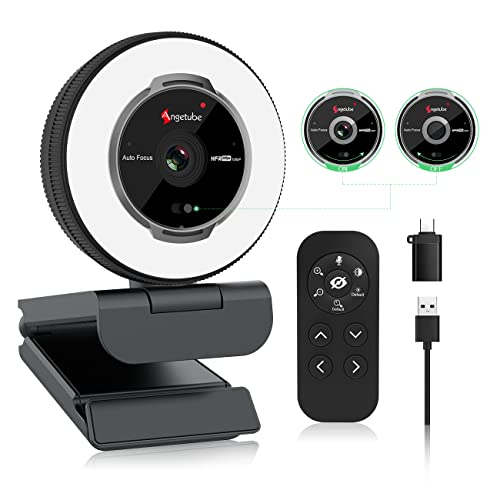
Are you looking to improve the quality of your video calls or live streams? Using a digital camera as a webcam can significantly enhance the visual appearance of your online content. While webcams built into laptops or monitors may not provide the best image quality, digital cameras offer superior resolution and advanced features that can take your video communication to the next level.
Fortunately, you don’t need to invest in an expensive webcam to achieve this. With a few simple steps, you can easily use your existing digital camera as a webcam for your computer. Whether you have a DSLR, mirrorless camera, or point-and-shoot, the process is relatively straightforward and can be done with the help of some software and hardware solutions.
How to Set Up
Setting up your digital camera as a webcam is a simple process that can greatly improve the quality of your video calls and streaming. Follow these steps to get started:
Step 1: Check Compatibility
Make sure your digital camera is compatible with being used as a webcam. Check the manufacturer’s website or user manual for information on how to set up your specific model.




Step 2: Install Software
Download and install any necessary software or drivers for your camera. Some cameras may require additional software to function as a webcam. Check the manufacturer’s website for the latest updates.
Tip: Look for software that allows you to adjust settings such as exposure, focus, and white balance for the best video quality.
By following these steps, you can easily set up your digital camera as a webcam and enjoy high-quality video calls and streaming experiences.
Camera for Webcam
Using a digital camera as a webcam can enhance the quality of your video calls and online meetings. Follow these steps to set up your camera:
- Check if your camera supports being used as a webcam. Some newer models have this feature built-in.
- Connect your camera to your computer using a USB cable.
- Install any necessary drivers or software provided by the camera manufacturer.
- Open your video conferencing software and select your camera as the video input source.
- Adjust the camera settings for optimal video quality, such as resolution and frame rate.
- Position your camera at the desired angle and distance for the best video framing.
- Test your setup by making a video call or recording a video to ensure everything is working correctly.
With these steps, you can easily use your digital camera as a high-quality webcam for your online communication needs.

Connecting Your Digital Camera to Your Computer
Once you have installed the necessary drivers and software for your digital camera, it’s time to connect it to your computer and set it up as a webcam. Follow these steps:
| 1. | Turn off your digital camera. |
| 2. | Connect the camera to your computer using a USB cable. |
| 3. | Turn on your digital camera. |
| 4. | Open the webcam software on your computer. |
| 5. | Select your digital camera as the input source in the webcam software. |
| 6. | You should now see the feed from your digital camera on your computer screen. |
Digital Camera
A digital camera is a device that captures and stores photographs electronically. It uses an image sensor to convert light into digital data, which can then be stored on a memory card. Digital cameras come in various shapes and sizes, ranging from compact point-and-shoot models to professional DSLRs.
Features of a Digital Camera
Some common features of digital cameras include:
- Resolution: Determines the quality of the image captured.
- Zoom: Optical and digital zoom capabilities for close-up shots.
- Storage: Memory card slots for storing images and videos.
- Display: LCD screen for framing shots and reviewing images.
Using a Digital Camera as a Webcam
To use a digital camera as a webcam, you will need a USB cable to connect the camera to your computer. You may also need special software or drivers to enable webcam functionality on your camera. Once connected, you can select the camera as a video source in your video conferencing software or online streaming platform.
Choosing the Right
When selecting a digital camera to use as a webcam, there are a few key factors to consider:
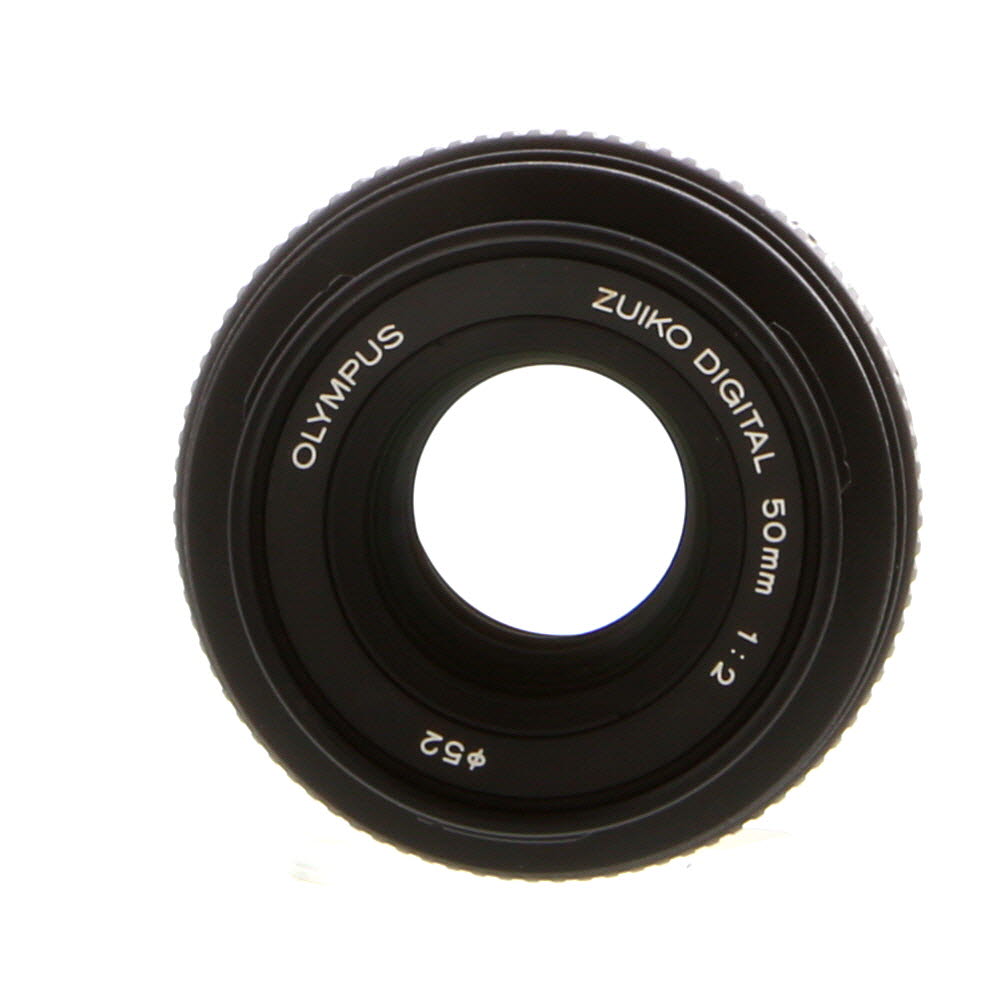
| Resolution: | Choose a camera with a high resolution for better image quality during video calls. |
| Connectivity: | Make sure the camera can connect to your computer easily, either through USB or HDMI. |
| Compatibility: | Check if the camera is compatible with the software you plan to use for video calls. |
| Mounting options: | Consider how you will mount the camera to your computer or monitor for optimal positioning. |
| Audio quality: | Some digital cameras have built-in microphones for better audio during calls. |
Software
Once you have connected your digital camera to your computer, you will need software to use it as a webcam. There are various software options available for this purpose, such as CameraFi, ManyCam, and OBS Studio.
These software programs allow you to connect your digital camera to your computer and use it as a webcam for video calls, live streaming, and more. You can adjust settings like resolution, frame rate, and audio input to customize your webcam experience.
Adjusting Camera
Once you have connected your digital camera to your computer and set it up as a webcam, you may need to adjust the camera settings to ensure the best video quality. Here are some tips on how to adjust your camera:
- Focus: Use the camera’s focus settings to ensure that the image is sharp and clear. Adjust the focus until you are satisfied with the image quality.
- Exposure: Check the exposure settings on your camera to ensure that the video is not too bright or too dark. Adjust the exposure settings as needed to achieve the right balance.
- White balance: Adjust the white balance settings on your camera to ensure that colors are accurate and natural. This will help avoid any color distortions in your video.
By adjusting these settings on your digital camera, you can enhance the video quality and ensure a clear and professional-looking image for your webcam setup.
Settings
Before using your digital camera as a webcam, you need to adjust some settings to ensure the best quality video and audio. Here are some key settings to consider:

Resolution: Set the resolution of your camera to match the resolution of your streaming platform or video conferencing software for the best image quality.
Frame rate: Adjust the frame rate of your camera to ensure smooth video playback without any lag or stuttering.
Exposure: Make sure the exposure settings are appropriate for the lighting conditions in your room to avoid overexposure or underexposure.
White balance: Set the white balance to match the lighting conditions to ensure accurate colors in your video.
Focus: Adjust the focus of your camera to ensure clear, sharp images during your video calls or streams.

By adjusting these settings, you can make the most of your digital camera as a webcam and enhance the quality of your video content.
Testing Your Setup
Once you have connected your digital camera to your computer and set it up as a webcam, it’s important to test the setup to ensure everything is working correctly. Here are a few steps you can follow to test your setup:
1. Open a video conferencing or streaming application: Open the application you plan to use your camera with, such as Zoom, Skype, or OBS Studio.
2. Select your camera: In the settings or preferences of the application, choose your digital camera as the video input device.
3. Start a video call or recording: Initiate a video call or start a recording to see if your camera is working properly. Check the video quality, audio, and any other settings you may have configured.
4. Adjust settings if necessary: If you encounter any issues during the test, such as poor video quality or audio problems, go back to the camera settings on your computer and make adjustments as needed.
By following these steps, you can ensure that your digital camera is set up correctly as a webcam and ready to use for video calls, streaming, or recording.
FAQ
Can I use any digital camera as a webcam?
Yes, you can use many digital cameras as webcams with the help of software or hardware solutions. This allows you to improve the video quality of your video calls or live streams.
What software do I need to use my digital camera as a webcam?
To use your digital camera as a webcam, you may need software like SparkoCam, OBS Studio, or ManyCam. These software programs allow you to connect your camera to your computer and use it for video calls or streaming.
Is it difficult to set up a digital camera as a webcam?
Setting up a digital camera as a webcam can vary in difficulty depending on the camera model and software you choose. Some cameras may require specific drivers or settings adjustments, while others can be easily connected via USB.

What are the benefits of using a digital camera as a webcam?
Using a digital camera as a webcam can provide higher video quality, better image resolution, and more customization options compared to built-in webcams. This can enhance your video calls, online meetings, or live streams.
Can I use a digital camera as a webcam for online meetings or virtual events?
Yes, you can use a digital camera as a webcam for online meetings, virtual events, or live streaming. By connecting your camera to your computer and using the appropriate software, you can improve the video quality and overall experience of your online interactions.



I recently set up my mirrorless camera as a webcam, and it made a huge difference in quality! I followed the steps mentioned, but I had to download some specific drivers from the manufacturer's site. It was worth it for the improved video quality during my online meetings. Just a tip: make sure to test the angles and lighting beforehand!
That sounds awesome! Did you find any particular software easier to use for connecting it to your computer?
I'm curious about the compatibility part. How do I check if my older DSLR camera can be used as a webcam? Is there a specific website or resource I should be looking at?