
 Carmen J. Moore

Have you ever wanted to improve the video quality of your online meetings or live streams? Using a digital camera as a webcam can be a game-changer in terms of image quality and professional appearance. In this article, we will guide you through the process of setting up your digital camera as a webcam.

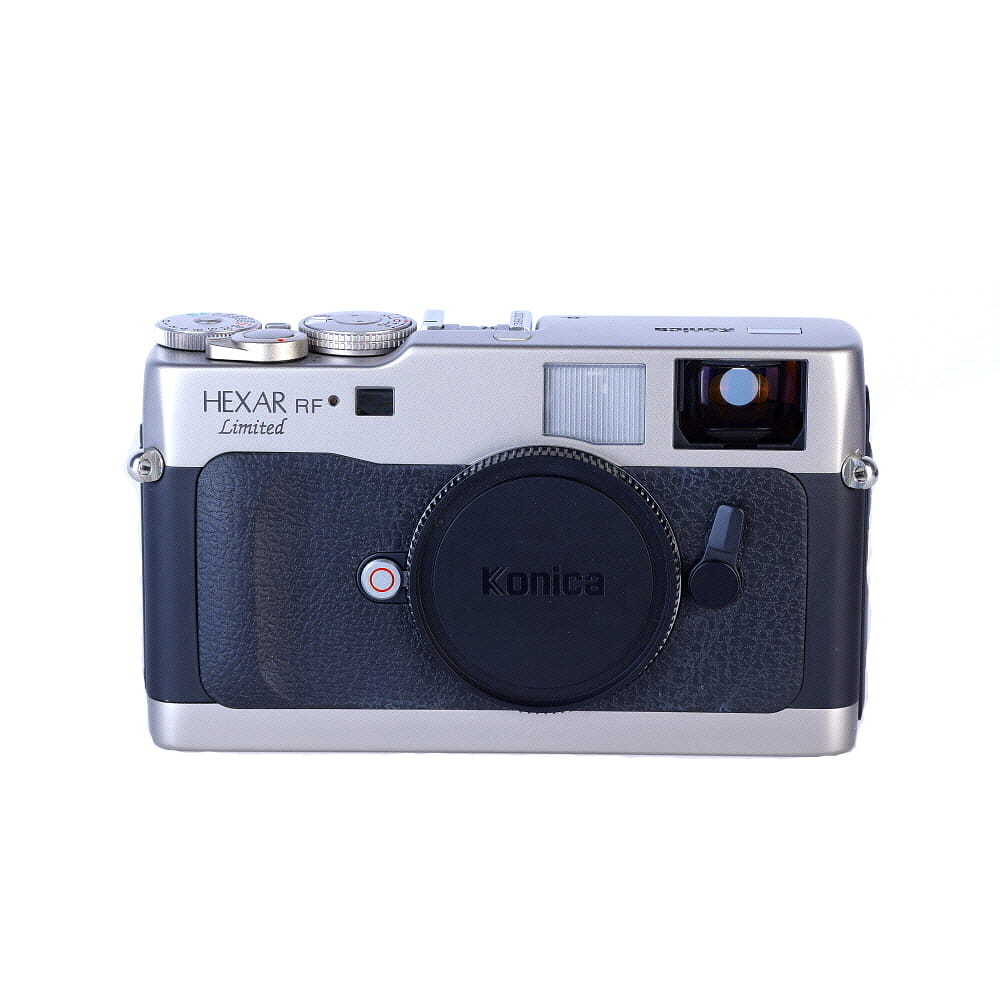


With the rise of remote work and virtual events, having a high-quality webcam has become essential. While most laptops come with built-in webcams, they often lack the image quality that can be achieved with a digital camera. By using a digital camera as a webcam, you can take your video quality to the next level and stand out in online meetings or live streams.
Setting up a digital camera as a webcam may sound complicated, but with the right tools and know-how, it can be relatively straightforward. Whether you have a DSLR, mirrorless, or point-and-shoot camera, you can transform it into a high-quality webcam with just a few simple steps. Follow our step-by-step guide to unleash the full potential of your digital camera for online video.
Step-by-Step Guide to Setting Up Digital Camera as Webcam
Using your digital camera as a webcam can enhance your video conferencing experience and improve the quality of your video calls. Follow these simple steps to set up your digital camera as a webcam:
Step 1: Check Camera Compatibility
Make sure your digital camera is compatible with being used as a webcam. Check the manufacturer’s website or user manual for information on webcam compatibility.
Step 2: Install Camera Software
Install any necessary software or drivers provided by the camera manufacturer to enable webcam functionality. Follow the installation instructions carefully.

Continue with the remaining steps to complete the setup process.
Check Camera Compatibility and Requirements
Before setting up your digital camera as a webcam, it is important to check if your camera is compatible with this function. Not all digital cameras have the capability to be used as webcams, so you will need to verify this with the manufacturer’s specifications or user manual.
Additionally, you will need to ensure that your camera meets the minimum requirements for webcam use. These requirements may include a high-quality video output, a stable connection to your computer, and the necessary software or drivers to enable webcam functionality.
Things to Consider:
| Camera Model | Check if your camera model is compatible with webcam use. |
| Video Quality | Ensure your camera provides high-quality video output for a clear image. |
| Connection | Make sure your camera can connect to your computer via USB or other means. |
| Software | Check if your camera requires specific software or drivers to function as a webcam. |
Install Necessary Software and Drivers
Before setting up your digital camera as a webcam, you will need to install the necessary software and drivers on your computer. Check the manufacturer’s website for any specific software or drivers required for your camera model. Download and install these software and drivers according to the instructions provided by the manufacturer. Make sure to follow all the steps carefully to ensure proper installation.
Connect the Camera to Your Computer
Before you can use your digital camera as a webcam, you need to connect it to your computer. Here’s how to do it:
- Locate the USB cable that came with your camera. This cable is used to connect your camera to your computer.
- Turn off your camera and computer before you start connecting them.
- Find the USB port on your camera. It is usually located on the side or back of the camera.
- Connect one end of the USB cable to your camera’s USB port.
- Locate a free USB port on your computer. This is where you will connect the other end of the USB cable.
- Plug the other end of the USB cable into the USB port on your computer.
- Turn on your camera and computer. Your computer should recognize the camera as a new device.
Once you have successfully connected your camera to your computer, you can proceed to set it up as a webcam following the instructions provided by your camera manufacturer or using third-party software.
Adjust Camera Settings for Webcam Use
Before using your digital camera as a webcam, you may need to adjust some settings to ensure optimal performance. Here are some key settings to consider:
| Brightness | Adjust the brightness level to ensure clear and well-lit images. |
| Focus | Make sure the camera is focused correctly to avoid blurry images. |
| White Balance | Set the white balance to match the lighting conditions in your room for accurate colors. |
| Resolution | Select the appropriate resolution for your webcam use to balance image quality and file size. |
| Frame Rate | Adjust the frame rate for smooth video streaming without lagging. |
By adjusting these settings, you can enhance the quality of your webcam footage and ensure a better experience for your video calls or live streams.
Select Camera as Input Device in Video Conferencing Software
Once you have set up your digital camera as a webcam, the next step is to select it as the input device in your video conferencing software. Here are the general steps to do this:
Step 1: Open Video Conferencing Software
Launch your preferred video conferencing software on your computer. This could be Zoom, Skype, Microsoft Teams, Google Meet, or any other software you use for online meetings.

Step 2: Access Settings or Preferences
Look for the settings or preferences section within the video conferencing software. This is usually located in the menu bar or as a separate icon on the interface.
Follow the software-specific steps to access the camera settings or devices section where you can choose your digital camera as the input device.
Test the Camera and Adjust Settings for Optimal Performance
Before using your digital camera as a webcam, it is important to test the camera and make necessary adjustments for optimal performance. Follow these steps to ensure that your camera is functioning properly:
Step 1: Test the Camera
Connect your digital camera to your computer using the appropriate cable. Open the camera app on your computer and check if the camera is recognized. Take a test photo or video to ensure that the camera is capturing images correctly. Adjust the focus and settings as needed.
Step 2: Adjust Camera Settings
Access the camera settings on your computer and adjust the resolution, frame rate, and other settings for the best performance. Make sure that the camera is set to the highest quality possible to ensure clear and sharp images. Experiment with different settings to find the optimal configuration for your needs.

| Resolution: | Set the resolution to the highest available option for better image quality. |
| Frame Rate: | Adjust the frame rate for smoother video playback. |
| Exposure: | Control the exposure settings to avoid overexposed or underexposed images. |
| White Balance: | Adjust the white balance to ensure accurate colors in your video feed. |
Enjoy High-Quality Video Calls with Your Digital Camera!
Using your digital camera as a webcam can significantly enhance the quality of your video calls. With a few simple steps, you can easily set up your camera to provide crisp and clear video for your online meetings, virtual gatherings, or video chats with friends and family.
Step 1: Check Camera Compatibility
Before you begin, make sure your digital camera is compatible with being used as a webcam. Check the manufacturer’s website or user manual to see if your camera supports this feature. You may need to install specific software or drivers to enable webcam functionality.
Step 2: Connect Your Camera to Your Computer
Connect your digital camera to your computer using a USB cable. Once connected, your computer should recognize the camera as a video input device. Adjust the camera settings to ensure the best video quality, such as resolution, frame rate, and focus.
By following these simple steps, you can enjoy high-quality video calls using your digital camera as a webcam. Say goodbye to grainy, low-resolution video and hello to crystal-clear video for all your online communication needs!
FAQ
How can I set up my digital camera as a webcam?
To set up your digital camera as a webcam, you will need a USB cable to connect the camera to your computer. Install any necessary software or drivers for the camera on your computer. Then, open your video conferencing software or streaming platform and select your camera as the input source. Your digital camera should now function as a webcam.

Is it possible to use any digital camera as a webcam?
Not all digital cameras can be used as webcams. Some cameras have a webcam mode that allows them to function as a webcam when connected to a computer, while others may require additional software or hardware to enable this functionality. It’s best to check your camera’s manual or manufacturer’s website to see if it supports webcam functionality.
What are the advantages of using a digital camera as a webcam?
Using a digital camera as a webcam can result in higher video quality compared to built-in webcams on laptops or monitors. Digital cameras often have better sensors and lenses, which can provide clearer and more detailed video. Additionally, using a digital camera allows for more control over settings like exposure, focus, and white balance, enhancing the overall video quality.
Can I use a digital camera as a webcam for livestreaming?
Yes, you can use a digital camera as a webcam for livestreaming. By connecting your camera to your computer and configuring it as a webcam input in your streaming software, you can broadcast high-quality video to your audience. Make sure your camera is capable of continuous video output and consider factors like battery life and overheating if livestreaming for extended periods.
Are there any limitations to using a digital camera as a webcam?
While using a digital camera as a webcam can offer superior video quality, there are some limitations to consider. Digital cameras may not have the same autofocus performance as dedicated webcams, so manual focusing may be required. Additionally, some cameras may have recording time limits or battery life constraints that could affect prolonged use as a webcam. It’s important to test your setup and consider these factors before using a digital camera for webcam purposes.




I recently set up my mirrorless camera as a webcam, and the difference in quality was amazing! I used a USB capture card, which made the connection super easy. I followed the steps in this article, and it was straightforward. Just make sure to adjust the settings correctly for brightness and focus—it makes a huge difference!
Thanks for sharing your experience! Using a capture card can indeed enhance compatibility and quality. If you have any tips to add for adjusting settings, feel free to share!
I'm interested in using my DSLR as a webcam, but how do I know if it's compatible? Is there a specific feature I should look for?
You can check the manufacturer's website or the user manual. Look for terms like 'webcam mode' or 'USB video class' (UVC) support.