
 Carmen J. Moore

Setting up a security camera system is a crucial step in ensuring the safety and security of your home or business. However, if you’re experiencing difficulties connecting your Zumimall security camera to your router, it can be frustrating and concerning. There are several potential reasons why your camera is having trouble establishing a connection, ranging from network issues to hardware malfunctions. In this guide, we’ll explore common troubleshooting steps to help you resolve the connectivity issues and get your security camera up and running smoothly.
One of the first things to check when your Zumimall security camera won’t connect to your router is the strength and stability of your Wi-Fi signal. A weak or unstable Wi-Fi connection can prevent the camera from establishing a reliable connection with your network. Make sure that your router is properly configured and positioned to provide adequate coverage to the area where the camera is installed. Additionally, check for any potential sources of interference, such as other electronic devices or physical obstacles, that may be disrupting the signal.
Common Issues with Connecting Zumimall Security Cameras to Router
When setting up your Zumimall security camera and trying to connect it to your router, you may encounter various issues that can prevent a successful connection. Here are some common problems you might face:


1. Incorrect Wi-Fi Password
One of the most common issues is entering the wrong Wi-Fi password during the setup process. Make sure you double-check the password and ensure it is correct before attempting to connect the camera to your network.
2. Poor Wi-Fi Signal Strength
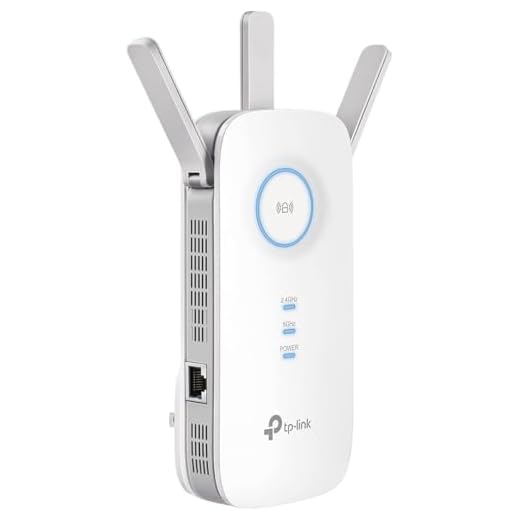
If your security camera is located far from your router or in an area with weak Wi-Fi signal, it may have trouble connecting. Try moving the camera closer to the router or using a Wi-Fi extender to improve the signal strength.
| Issue | Solution |
|---|---|
| Incorrect Wi-Fi Password | Double-check and enter the correct Wi-Fi password. |
| Poor Wi-Fi Signal Strength | Move the camera closer to the router or use a Wi-Fi extender. |
Compatibility Problems between Camera and Router
When your ZumiMall security camera fails to connect with your router, one possible reason could be compatibility issues between the camera and the router. This can happen if the camera and router use different network protocols or encryption methods, making it difficult for them to communicate effectively.
Possible Solutions:
To resolve compatibility problems between your camera and router, consider the following steps:
| 1. | Check the network protocols supported by both the camera and the router. Make sure they are compatible. |
| 2. | Ensure that the encryption methods used by both devices match. If not, adjust the settings to align them. |
| 3. | Update the firmware of your camera and router to the latest versions, as this may resolve compatibility issues. |
| 4. | Reset both the camera and router to their default settings and attempt to reconnect them. |
Network Configuration Errors
When your Zumimall security camera is unable to connect to your router, it could be due to network configuration errors. These errors can prevent the camera from establishing a stable connection with your Wi-Fi network. Here are some common network configuration errors that may be causing the issue:
Incorrect Wi-Fi Password
Make sure you are entering the correct Wi-Fi password when setting up the camera. An incorrect password will prevent the camera from connecting to the network.
IP Address Conflict
An IP address conflict can occur if multiple devices on your network are assigned the same IP address. This can cause communication issues and prevent the camera from connecting to the network. Check your router settings to ensure each device has a unique IP address.
| Network Configuration Error | Possible Cause |
| Incorrect Wi-Fi Password | Entering the wrong password during setup |
| IP Address Conflict | Multiple devices with the same IP address |
Wi-Fi Signal Interference
One common reason why your zumimall security camera may not connect to your router is due to Wi-Fi signal interference. Interference can be caused by various factors, such as:
- Other electronic devices in your home operating on the same frequency as your Wi-Fi network
- Physical obstructions like walls, floors, or furniture blocking the Wi-Fi signal
- Distance between the camera and the router being too far
- Network congestion from multiple devices connected to the same Wi-Fi network
To troubleshoot this issue, try relocating your camera closer to the router, reducing the number of devices connected to the network, or changing the Wi-Fi channel to minimize interference. You can also consider using a Wi-Fi extender or booster to improve the signal strength in the area where the camera is installed.
Incorrect Network Settings on Camera
If your zumimall security camera is not connecting to your router, one possible reason could be incorrect network settings on the camera itself. Make sure that the camera is configured to connect to the correct network and that the settings such as SSID, password, and encryption type match those of your router.
To check the network settings on your camera, you may need to access the camera’s configuration interface through a web browser or a dedicated app. Once you are in the settings, verify that the network information is accurate and try reconnecting the camera to your router.
Firmware Update Needed for Camera
If your Zumimall security camera is not connecting to your router, it may be due to outdated firmware. Firmware is the software that controls the camera’s operation, and updating it can often resolve connectivity issues.
To update the firmware on your camera, you will need to visit the Zumimall website and locate the latest firmware version for your specific camera model. Download the firmware update file to your computer and follow the instructions provided by Zumimall to install it on your camera.
After updating the firmware, restart your camera and try reconnecting it to your router. This should help resolve any connectivity issues and ensure that your camera is operating smoothly.
Router Firewall Blocking Camera Connection
One common reason why your Zumimall security camera may not connect to your router is due to the router’s firewall settings. The firewall on your router is designed to protect your network from unauthorized access and potentially harmful traffic.
When the firewall settings are too strict, they may block the camera from communicating with the router, preventing it from establishing a connection. To resolve this issue, you will need to adjust the firewall settings on your router to allow the camera to connect.
Troubleshooting Steps to Resolve Connection Issues
If your Zumimall security camera is having trouble connecting to your router, try the following steps to troubleshoot the issue:
1. Check Wi-Fi Signal Strength
Ensure that your camera is within range of your Wi-Fi router and that the signal strength is strong enough for a stable connection. Move the camera closer to the router if needed.
2. Restart Camera and Router
Try restarting both your security camera and your router. Sometimes a simple reboot can resolve connectivity issues.
3. Verify Wi-Fi Credentials
Double-check that you have entered the correct Wi-Fi network name and password on your camera. Incorrect credentials can prevent a successful connection.
By following these troubleshooting steps, you should be able to resolve any connection issues between your Zumimall security camera and your router.


I’ve been trying to connect my Zumimall camera for hours, but I keep getting a message about incorrect Wi-Fi password. How can I troubleshoot this?
How does the Zumimall camera compare to other brands like Ring or Arlo when it comes to connectivity? Do they also have these kinds of issues?
I had a similar issue when I first set up my Zumimall camera. It turned out that the camera was placed too far from the router. Once I moved it closer and reset both devices, it connected immediately. Make sure to consider signal strength, especially with walls and furniture in the way.
I don't think moving the camera closer to the router is always a good solution. Sometimes it’s just the camera itself that has issues, not the Wi-Fi.