
 Carmen J. Moore

Security cameras play a crucial role in keeping our homes and businesses safe. However, setting up a security camera system can be a daunting task, especially when it comes to connecting it to your computer. If you are wondering whether your computer is equipped to work with your security camera, you are not alone.
Whether you are using a wired or wireless security camera system, it is important to ensure that your computer meets the necessary requirements to access and control the camera feed. Having the right software and drivers installed on your computer is essential for seamless integration with your security camera system.
In this article, we will explore the steps you need to take to set up your security camera with your computer and ensure that your system is secure and functional. From checking compatibility to installing the necessary software, we will guide you through the process of connecting your security camera to your computer.
How to check if your computer is connected to the security camera
If you want to verify whether your computer is properly set up with your security camera, follow these steps:


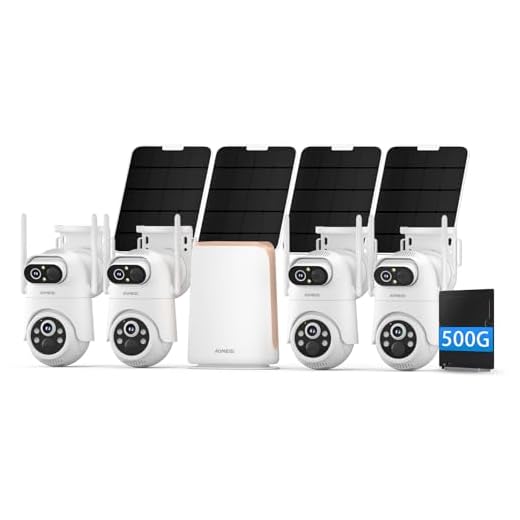
- Check the camera connection: Ensure that the security camera is properly connected to your computer either via USB, network cable, or wireless connection.
- Check software settings: Open the security camera software on your computer and confirm that the camera is recognized and configured correctly.
- Test the camera: Use the software to test the camera by viewing a live feed or recording a short video to confirm that it is working as expected.
- Check recording settings: Verify that the camera is set up to record footage to your computer’s storage or a cloud service if applicable.
Additional steps:
- Restart your computer: Sometimes a simple restart can resolve connection issues between the camera and the computer.
- Update software and drivers: Make sure the camera software and drivers on your computer are up to date to ensure compatibility and stability.
Steps to verify the connection between the computer and the security camera
Follow these steps to ensure that your computer is properly set up with your security camera:
1. Check the physical connections
Ensure that the security camera is properly connected to the computer via the appropriate cables. Make sure all connections are secure and that there are no loose cables.
2. Verify software installation
Check if the necessary software for the security camera is installed on your computer. Ensure that the software is up to date and compatible with your operating system.
Ensuring the security camera feed is accessible on your computer
Setting up your security camera feed on your computer is essential for monitoring your premises. Here are some steps to ensure that the camera feed is accessible:
1. Install the necessary software:
Make sure you have the appropriate software installed on your computer to access the security camera feed. This may include the camera manufacturer’s software or a third-party application that is compatible with your camera.
2. Configure network settings:
Ensure that the security camera is connected to your network and that you have configured the necessary settings to allow access from your computer. This may involve setting up port forwarding or accessing the camera through a specific IP address.
Troubleshooting common issues with computer and security camera setup
When setting up a security camera with your computer, you may encounter some common issues that can be easily resolved. Here are a few troubleshooting tips:
1. Check the connections: Ensure that all cables are properly connected between the security camera and your computer. Loose or damaged cables can cause connectivity issues.
2. Software compatibility: Make sure that the software you are using to access the security camera is compatible with your computer’s operating system. Update the software if necessary.
3. Network settings: Verify that your computer is connected to the same network as the security camera. Check your network settings and ensure that they are configured correctly.
4. Power source: Ensure that both the security camera and your computer are receiving power. A lack of power can cause both devices to malfunction.
5. Firewall settings: Check your computer’s firewall settings to ensure that they are not blocking the connection to the security camera. Adjust the settings if needed.
By following these troubleshooting tips, you can resolve common issues that may arise when setting up a security camera with your computer.
Importance of having a secure connection between your computer and security camera
Ensuring a secure connection between your computer and security camera is crucial for safeguarding your privacy and data.
By establishing a secure connection, you can prevent unauthorized access to your camera feed and footage, reducing the risk of potential security breaches.
Additionally, a secure connection helps protect your network from cyber threats and ensures that your camera system operates smoothly and efficiently.
Investing in proper security measures and encryption protocols can help you maintain the integrity of your surveillance system and provide peace of mind knowing that your camera feed is secure.
Benefits of monitoring your security camera through your computer
Monitoring your security camera through your computer offers numerous advantages. Here are some key benefits:
Convenience
By accessing your security camera feed on your computer, you can conveniently monitor your property from anywhere with an internet connection. This flexibility allows you to keep an eye on your home or business in real-time, enhancing your peace of mind.
Enhanced Security
Using your computer to monitor your security camera can provide enhanced security features and functionalities. You can easily configure settings, set up alerts, and review footage, helping you to better protect your property and assets.
Future developments in computer integration with security camera systems
In the future, we can expect even greater integration between computers and security camera systems. Advancements in artificial intelligence and machine learning will enable security cameras to become more intelligent and proactive in detecting and preventing security threats. Computer vision technology will continue to improve, allowing cameras to recognize faces, license plates, and other important details with greater accuracy. Additionally, cloud computing will play a significant role in enhancing the capabilities of security camera systems, enabling real-time monitoring and remote access from any device connected to the internet.
Furthermore, the Internet of Things (IoT) will enable seamless communication between security cameras and other smart devices, creating a comprehensive security ecosystem that can automatically respond to potential threats. Integrating security camera systems with computer networks will also enhance data analytics and provide valuable insights for improving security measures. Overall, the future of computer integration with security camera systems looks promising, with increased automation, intelligence, and connectivity to ensure better protection and surveillance.


I'm debating between wired and wireless security camera setups. Does one type generally work better with computer integration than the other?
Could you explain how to configure network settings for a security camera? I've heard it can be complicated, especially with port forwarding.
I disagree that wireless setups are always more convenient. I've had issues with signal drops that were frustrating.
Remember to check your firewall settings if you're having trouble connecting your security camera to your computer. It can be a common issue.
What are the main software requirements for connecting a security camera to my computer? Is there anything specific I should look out for?
I recently set up a security camera with my computer, and I found that updating the software made a huge difference. Initially, I had trouble accessing the camera feed until I installed the latest drivers. I'm now able to monitor my property from anywhere, which is a huge relief!