
 Carmen J. Moore

Lorex security cameras are a popular choice for homeowners and businesses looking to monitor their property. One of the key features of these cameras is the ability to zoom in on specific areas for a closer look. Whether you want to keep an eye on your front door or monitor activity in your backyard, knowing how to zoom in on your Lorex camera can be incredibly useful.
There are several ways to zoom in on a Lorex security camera, depending on the model you have. Some cameras come with optical zoom capabilities, which allow you to adjust the lens to zoom in and out. Others offer digital zoom, which enlarges the image digitally. In this article, we will explore the different methods for zooming in on Lorex security cameras and provide step-by-step instructions to help you get a closer view of your surroundings.
Tips for Zooming In on Lorex Security Cameras
If you want to zoom in on your Lorex security cameras to get a closer look at specific areas, follow these tips:
- Use the digital zoom feature: Lorex cameras often come with a digital zoom feature that allows you to zoom in on specific areas of the footage. Check your camera’s manual to learn how to use this feature.
- Adjust the camera’s position: If you want to zoom in on a particular area, try adjusting the camera’s position to get a better view. Make sure the camera is pointing directly at the area you want to zoom in on.
- Upgrade to a camera with optical zoom: If you find yourself needing to zoom in often, consider upgrading to a Lorex camera that has optical zoom capabilities. Optical zoom provides better image quality compared to digital zoom.
By following these tips, you can effectively zoom in on your Lorex security cameras and get a clearer view of specific areas you want to monitor.

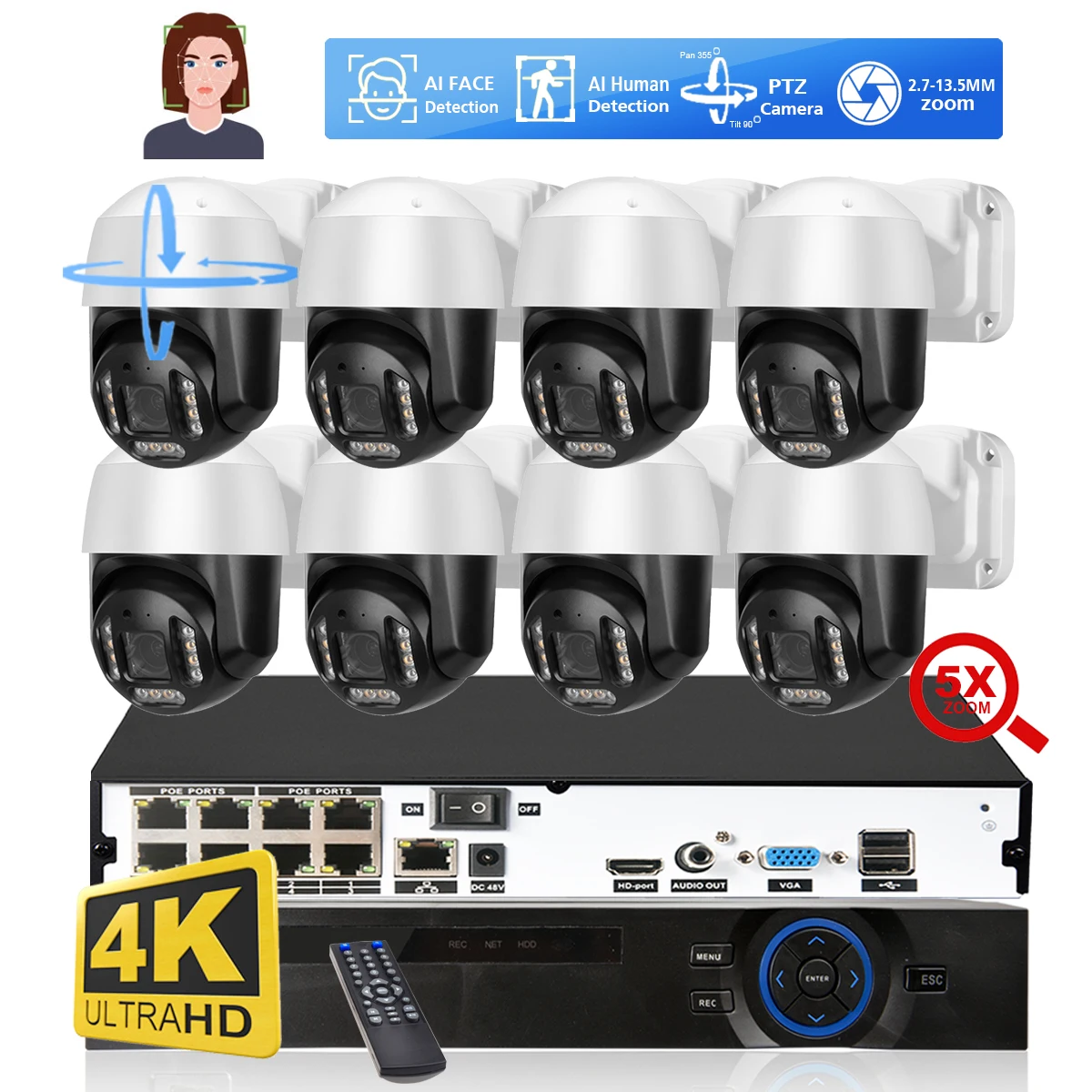
Understanding the Zoom Feature
Many Lorex security cameras come equipped with a zoom feature that allows you to get a closer look at specific areas of interest. The zoom feature can be particularly useful for monitoring details such as license plate numbers, faces, or other specific objects.
To zoom in on a Lorex security camera, you can typically use the digital zoom function on the camera’s interface. This function allows you to zoom in on an image by cropping and enlarging a portion of the video feed. Keep in mind that digital zoom may result in a loss of image quality, so it’s important to use it judiciously.
Some Lorex cameras also offer optical zoom capabilities, which allow you to physically adjust the focal length of the camera lens to zoom in or out. Optical zoom generally provides better image quality than digital zoom since it does not rely on cropping the image.
| Digital Zoom | Digital zoom enlarges a portion of the image, resulting in a loss of image quality. |
| Optical Zoom | Optical zoom adjusts the focal length of the lens for a closer or wider view without sacrificing image quality. |
Adjusting the Camera Settings
Once you have accessed the live feed of your Lorex security camera, you can easily adjust the camera settings to suit your needs. Here’s how:
| 1. Navigate to the camera settings menu by clicking on the gear icon. |
| 2. In the settings menu, you can adjust parameters such as brightness, contrast, saturation, and sharpness to optimize the camera’s image quality. |
| 3. You can also adjust the camera’s zoom level by using the zoom controls provided in the settings menu. |
| 4. Make sure to save your changes after adjusting the settings to apply them to the camera feed. |
Using the Mobile App for Zooming
If you prefer to use your mobile device to zoom in on your Lorex security cameras, you can easily do so with the Lorex mobile app. Follow these simple steps:
- Open the Lorex mobile app on your smartphone or tablet.
- Select the camera you want to zoom in on from the camera list.
- Once the live feed is displayed, use the pinch-to-zoom gesture on your touch screen to zoom in and out.
- You can also double-tap on the live feed to zoom in quickly.
- Adjust the zoom level to get a closer look at specific areas or objects within the camera’s view.
Using the mobile app for zooming in on your Lorex security cameras gives you the flexibility to monitor and inspect your property from anywhere using your smartphone or tablet.
Remote Zoom Control Options
When it comes to zooming in on your Lorex security cameras remotely, there are a few options available to you. Here are some ways you can control the zoom function from a distance:
1. Mobile App
You can use the Lorex mobile app to remotely access your security cameras and control the zoom feature. Simply open the app on your smartphone or tablet, navigate to the camera you want to zoom in on, and use the zoom controls provided in the app.
2. Web Browser
If you prefer to use a web browser on your computer to access your security camera footage, you can also control the zoom function remotely. Log in to your Lorex account on the web browser, select the camera you want to zoom in on, and use the zoom controls available on the screen.
Enhancing Image Clarity with Zoom
One of the key features of Lorex security cameras is the ability to zoom in on specific areas to enhance image clarity. By zooming in, you can get a closer look at details that may be crucial for security purposes.
Zooming in on Lorex security cameras is a simple process. You can use the zoom function on the camera itself or through the Lorex mobile app or software. This allows you to adjust the zoom level according to your specific needs.
When zooming in, make sure to focus on the area of interest to get the best image quality. Adjust the zoom level until you have a clear and detailed view of the subject. This can help you identify important details such as faces, license plates, or other identifying features.
By utilizing the zoom feature on Lorex security cameras, you can enhance image clarity and improve the overall effectiveness of your surveillance system.
Troubleshooting Zooming Issues
If you are experiencing issues with zooming on your Lorex security camera, here are some troubleshooting steps you can try:
1. Check Camera Settings
Make sure that the camera settings allow for zooming. Some cameras may have a digital zoom feature that needs to be enabled.
2. Power Cycle the Camera
Try power cycling the camera by unplugging it from the power source, waiting for a few seconds, and then plugging it back in. This can sometimes resolve software glitches that may be causing zooming issues.
- Ensure that the camera is connected to a stable power source.
- Check the camera’s connection to the network or DVR.
- Verify that the camera lens is clean and free from obstructions.
If you have tried these troubleshooting steps and are still experiencing zooming issues, consider contacting Lorex customer support for further assistance.
Zooming for Security Purposes
Zooming in on your Lorex security cameras can be essential for enhancing security measures. By utilizing the zoom feature, you can focus on specific areas of interest, such as entry points or valuable assets, with greater clarity and detail. This can help in identifying potential threats or suspicious activities more effectively.
When zooming in on your Lorex security cameras, it is important to adjust the zoom level carefully to avoid losing image quality. Over-zooming may result in pixelation or distortion, making it harder to see details clearly. By finding the right balance in zoom level, you can ensure that the images captured by your security cameras remain sharp and detailed.
Additionally, zooming in can also help in monitoring activities from a distance. Whether you need to observe a large area or keep an eye on specific objects, the zoom feature allows you to capture images from afar without compromising on quality. This can be particularly useful for outdoor surveillance or monitoring areas that are hard to access.
Final Thoughts on Zooming In
Zooming in on your Lorex security cameras can provide you with a closer look at specific areas of interest, helping you to monitor your property more effectively. By following the steps outlined in this guide, you can easily zoom in and out on your camera feeds to get a better view of any potential security threats or incidents. Remember to adjust the zoom level carefully to avoid losing image quality and clarity.
Stay Vigilant
Regularly checking your security camera feeds and zooming in when necessary can help you stay vigilant and ensure the safety of your home or business. Make it a habit to review your camera footage and zoom in on any suspicious activity to gather more details.
Utilize the Features
Take advantage of the zoom features available on your Lorex security cameras to enhance your surveillance capabilities. Experiment with different zoom levels and camera angles to find the best settings for your specific security needs.


I’m new to using Lorex cameras. Can anyone explain the difference between digital and optical zoom in simpler terms? Which one should I prioritize for better image quality?
I've been using Lorex cameras for a while now, and I find the digital zoom feature handy for quick checks. However, I did notice that when I zoom in too much, the image can get pixelated. I’m thinking about upgrading to a model with optical zoom. Has anyone else made this switch, and did you notice a big difference?
I upgraded to an optical zoom model last month, and it's definitely worth it! The clarity is so much better, especially at a distance. I can actually read license plates now!