
 Carmen J. Moore

Are you having trouble reconnecting your Lorex security cameras to WiFi? Lorex security cameras are a popular choice for home and business security, but sometimes they can lose their connection to your WiFi network. This can be frustrating, especially if you rely on your cameras to keep your property safe.
In this guide, we will walk you through the steps to reconnect your Lorex security cameras to WiFi so you can regain peace of mind knowing that your property is secure.
Whether you’re experiencing issues with a single camera or multiple cameras, we’ve got you covered. Follow these simple steps to troubleshoot and reconnect your Lorex security cameras to WiFi in no time.

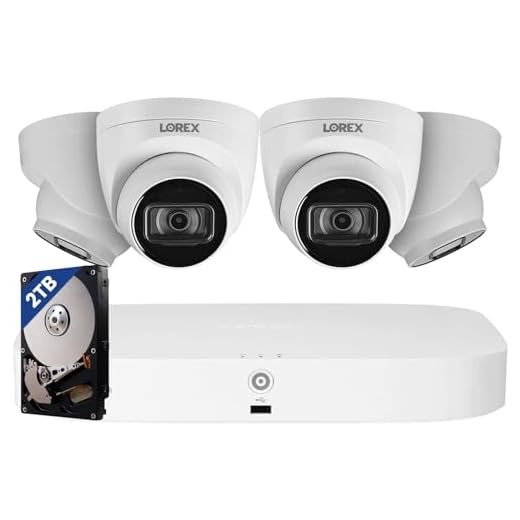

Step-by-step guide to reconnecting your Lorex security cameras to wifi
If your Lorex security cameras have lost connection to your wifi network, follow these steps to reconnect them:
Step 1: Check camera connections
Make sure that the camera is properly connected to power and that the cables are secure. If the camera is battery-powered, ensure that the battery is charged.
Step 2: Reset camera
Press and hold the reset button on the camera for 10 seconds to reset it to factory settings. The camera’s LED lights should flash to indicate that it has been reset.
For the full step-by-step guide, please refer to the Lorex security camera manual or contact Lorex customer support for assistance.
Assess your wifi connection
Before attempting to reconnect your Lorex security cameras to wifi, it is important to assess the strength and stability of your wifi connection. A weak or unstable wifi signal can cause connectivity issues with your cameras.
Here are some steps to assess your wifi connection:
1. Check wifi signal strength
Use your smartphone, tablet, or computer to check the wifi signal strength in the area where your cameras are installed. Make sure the signal strength is strong enough to support a stable connection.
2. Reboot your router
If you are experiencing connectivity issues, try rebooting your router. Sometimes a simple restart can help improve the performance of your wifi network.
Power cycle your security cameras
One of the most common troubleshooting steps for reconnecting your Lorex security cameras to your wifi network is to power cycle the cameras. This simple process can often resolve connectivity issues and help your cameras reconnect to the network successfully.
Here’s how you can power cycle your Lorex security cameras:
| 1. | Unplug the power adapter from the camera. |
| 2. | Wait for about 30 seconds to a minute. |
| 3. | Plug the power adapter back into the camera. |
| 4. | Wait for the camera to power up and reconnect to the wifi network. |
By power cycling your Lorex security cameras, you can often resolve connectivity issues and get them back online quickly.
Reset your security camera system
If you are facing connectivity issues with your Lorex security cameras and need to reset your system, follow these steps:
1. Power cycle the cameras
- Turn off the power to your security camera system by unplugging it from the power source.
- Wait for about 30 seconds before plugging it back in to power cycle the cameras.
2. Reset the cameras to factory settings
You may need to reset your cameras to their factory settings if the power cycle did not resolve the issue. Refer to the user manual for instructions on how to reset each camera individually.
By following these steps, you should be able to reset your Lorex security camera system and reconnect it to your WiFi network.
Update the firmware of your cameras
One important step to ensure the proper functioning of your Lorex security cameras is to regularly update the firmware. Firmware updates often include bug fixes, security patches, and new features that can enhance the performance and reliability of your cameras.
To update the firmware of your Lorex security cameras, you will need to access the camera’s settings through the Lorex mobile app or web interface. Check for any available firmware updates and follow the on-screen instructions to download and install the latest firmware version.
It is recommended to keep your cameras’ firmware up to date to ensure optimal performance and security. Make sure to check for firmware updates periodically and apply them as needed to keep your Lorex security cameras running smoothly.
Reconnect the cameras to your wifi network
If you need to reconnect your Lorex security cameras to your wifi network, follow these steps:
Step 1: Access camera settings
First, access the camera settings on your Lorex system. This can usually be done through the Lorex app or software interface.
Step 2: Connect to wifi
Within the camera settings, look for the option to connect to wifi. Select your wifi network from the list of available networks and enter the password when prompted.
Once you’ve successfully connected the cameras to your wifi network, you should be able to view the camera feeds remotely through the Lorex app or software.
Check the signal strength
One common reason for connectivity issues with Lorex security cameras is poor signal strength. To troubleshoot this, you can check the signal strength of your Wi-Fi network by accessing the settings on your router. Make sure that the camera is within the range of your Wi-Fi network and that there are no physical obstacles blocking the signal.
If the signal strength is weak, consider moving the camera closer to the router or installing a Wi-Fi extender to improve the coverage. You can also try changing the channel on your router to reduce interference from other devices.
Test the cameras for connectivity
After reconnecting your Lorex security cameras to your WiFi network, it is important to test them for connectivity to ensure they are working properly.
Check the live feed on your Lorex app or monitor to see if the cameras are transmitting video. Make sure you can view the footage from all cameras without any lag or interruptions.


I don't think power cycling is always effective. I've done it before, and it didn’t help. Sometimes, I think a full reset is what's needed instead.
I'm having trouble with my Lorex cameras disconnecting from WiFi. Do I really need to reset them every time? Seems like a hassle!
Resetting should be a last resort. Try power cycling the cameras and rebooting your router first before a full reset.
I recently reconnected my Lorex cameras after a disconnection. I followed the steps in the article, and it worked perfectly! Just make sure you have a solid WiFi signal; that was key for me. Also, I had to update the firmware first because it was outdated. Highly recommend checking that!
Does anyone know how often I should check for firmware updates? Is there a recommended schedule?
It's a good idea to check for firmware updates every few months or whenever you notice any issues with your cameras.
Just a tip: make sure your cameras are not too far from the router. I had signal issues until I moved one closer, and it made a huge difference!