
 Carmen J. Moore
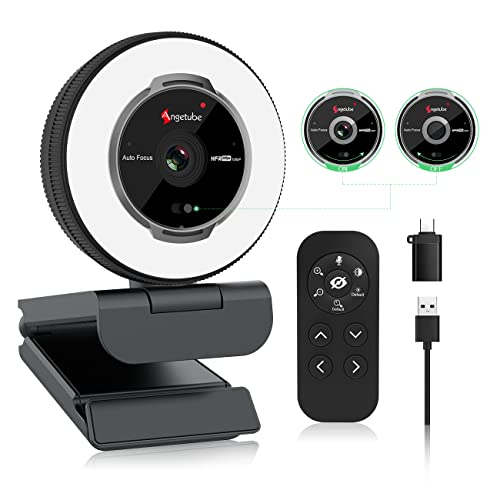
Are you looking for an affordable way to enhance the security of your home or office? If so, setting up your webcam as a security camera might be the perfect solution for you. With just a few simple steps, you can turn your webcam into a powerful surveillance tool that allows you to monitor your space remotely and keep an eye on any potential intruders.
Setting up your webcam as a security camera is easier than you might think, and it doesn’t require any specialized equipment or technical expertise. All you need is a computer with a webcam, an internet connection, and some basic software to get started. In this guide, we’ll walk you through the process of setting up your webcam as a security camera and show you how to configure it to meet your specific security needs.
Step-by-Step Guide to Setting Up
Step 1: Choose a suitable location for your webcam where it has a good view of the area you want to monitor.


Step 2: Connect your webcam to your computer using the USB cable provided.
Step 3: Install the webcam software that came with your device or download a reliable third-party webcam software.
Step 4: Open the webcam software and configure the settings to adjust the resolution, frame rate, and other preferences.
Step 5: Position the webcam in the desired location and adjust the angle to ensure optimal coverage.
Step 6: Set up motion detection or recording schedules in the webcam software to capture any activity.
Step 7: Test the webcam security camera by monitoring the live feed on your computer or mobile device.
Step 8: Secure the webcam by setting up a password and ensuring that only authorized users can access the footage.
Choose the Right Webcam
When setting up your webcam as a security camera, it’s important to choose the right webcam that meets your specific needs. Here are some factors to consider:
- Resolution: Look for a webcam with high resolution to ensure clear and crisp images.
- Field of view: Consider the field of view offered by the webcam to ensure it covers the desired area.
- Low-light performance: Opt for a webcam with good low-light performance for better visibility in dark conditions.
- Connectivity: Choose a webcam that can easily connect to your computer or network for seamless setup.
- Compatibility: Ensure the webcam is compatible with the software or app you plan to use for monitoring.
By considering these factors, you can select the right webcam that will effectively serve as a security camera for your needs.
Install the Necessary Software
To turn your webcam into a security camera, you will need to install specific software on your computer. There are several options available, such as iSpy, ContaCam, and ManyCam, which can help you set up your webcam for surveillance purposes.
Choose the software that best fits your needs and download it from the official website. Follow the installation instructions provided and make sure to configure the software according to your preferences.
Positioning Your Webcam
When setting up your webcam as a security camera, the positioning is crucial for optimal coverage and effectiveness. Here are some tips to help you position your webcam:
- Place the webcam at a higher vantage point to get a wider view of the room or area you want to monitor.
- Avoid pointing the webcam directly at windows or bright lights, as this can cause glare and affect the image quality.
- Ensure that the webcam is securely mounted or placed in a stable position to prevent it from moving or falling.
- Consider the angle at which the webcam is positioned to capture the most important areas and minimize blind spots.
- Test different positions and angles to find the optimal setup for your specific security needs.
Set Up Motion Detection
One of the key features of using your webcam as a security camera is the ability to set up motion detection. This allows your camera to automatically start recording when it detects any movement in its field of view.
To set up motion detection, you will need to install software that supports this feature. There are many free and paid options available, such as iSpy, Yawcam, and ContaCam. Once you have installed the software, you can configure the motion detection settings to your preference.
Make sure to adjust the sensitivity level of the motion detection to avoid false alarms. You can also set up alerts to be notified via email or text message when motion is detected. This way, you can stay informed of any suspicious activity in real-time.
Connect to a Power Source
Before setting up your webcam as a security camera, make sure to connect it to a reliable power source. This can be done either through a power outlet or a USB port on your computer. Ensure that the power source provides a stable and uninterrupted flow of electricity to keep your security camera running smoothly.
Adjust Camera Settings
Once you have set up your webcam as a security camera, it is important to adjust the camera settings to ensure optimal performance. Here are some key settings you may need to adjust:
| Resolution | Make sure to set the resolution of your camera to a level that provides clear and crisp images without taking up too much storage space. |
| Frame Rate | Adjust the frame rate of your camera to capture smooth video footage. A higher frame rate can result in smoother playback, but may also require more storage. |
| Exposure | Configure the exposure settings of your camera to ensure that the footage is well-lit and not too bright or too dark. |
| Motion Detection | Enable motion detection settings to trigger recording when motion is detected in the camera’s field of view. This can help save storage space by only recording when necessary. |
| Alerts | Set up alerts to notify you when motion is detected or when there are other security events captured by the camera. This can help you stay informed in real-time. |
Access Your Camera Remotely
To access your webcam remotely as a security camera, you will need to set up remote viewing capabilities. This will allow you to monitor your camera feed from anywhere with an internet connection.
1. Enable Remote Access
First, ensure that your webcam software or security camera system allows for remote access. You may need to enable this feature in the settings or configure port forwarding on your router.
2. Use a Dynamic DNS Service
Consider using a dynamic DNS service to assign a domain name to your camera’s IP address. This will make it easier to access your camera remotely without needing to remember the IP address.
Store and Review Footage
Once your webcam is set up as a security camera, it’s crucial to have a system in place for storing and reviewing the footage it captures. Here are some tips:
- Choose a reliable storage solution: Consider using a cloud-based storage service or an external hard drive to store your footage securely.
- Set up a schedule for reviewing footage: Regularly check the recordings to ensure everything is in order and to quickly address any security concerns.
- Organize your footage: Create folders or tags to categorize the footage based on date, time, or specific events for easy access and retrieval.
- Backup your footage: Make sure to regularly backup your footage to prevent loss in case of a system failure or data corruption.
Additional Security Measures
While setting up your webcam as a security camera is a great way to enhance your home security, it’s important to take additional measures to ensure the safety of your footage and privacy. Here are some tips to further secure your webcam:
1. Secure Your Network
Make sure your Wi-Fi network is secure with a strong password and encryption. Avoid using default passwords and regularly update your router’s firmware to protect against vulnerabilities.
2. Enable Two-Factor Authentication
Consider enabling two-factor authentication for your webcam’s software or app to add an extra layer of security. This will require a second form of verification, such as a code sent to your phone, before accessing the camera feed.
Remember: Always keep your webcam software up to date and change default settings to strengthen security.



I don’t think using a webcam is a practical long-term solution. They’re not as robust as dedicated security cameras. Plus, what happens if my computer crashes?
I see your point, but I think it's a great temporary solution for those on a budget or with a small space.
I set up my old webcam as a security camera a few months ago using iSpy. It was surprisingly easy! I placed it facing my front door, and the motion detection alerts have been really helpful. Just be sure to adjust the sensitivity settings to avoid false alarms from passing cars.
Can you clarify if I need to keep my computer on for the webcam to work as a security camera?
Yes, the computer needs to be on for the webcam to function as a security camera since the webcam software runs on the computer.
What specific webcam models do you recommend for setting up as a security camera? I’m looking for something with good low-light performance.
For low-light performance, consider the Logitech C920 or the Razer Kiyo. Both offer great image quality in various lighting conditions.