
 Carmen J. Moore

Swann motion security cameras are a popular choice for home and business owners looking to enhance their security measures. These cameras are easy to install and offer a range of features to help you monitor your property effectively. In this guide, we will walk you through the process of setting up Swann motion security cameras so you can enjoy peace of mind knowing your property is protected.
Before you begin the installation process, it is important to choose the right location for your Swann motion security camera. Consider areas where there is high foot traffic or where valuable items are stored. Once you have selected the ideal location, follow these steps to set up your camera:


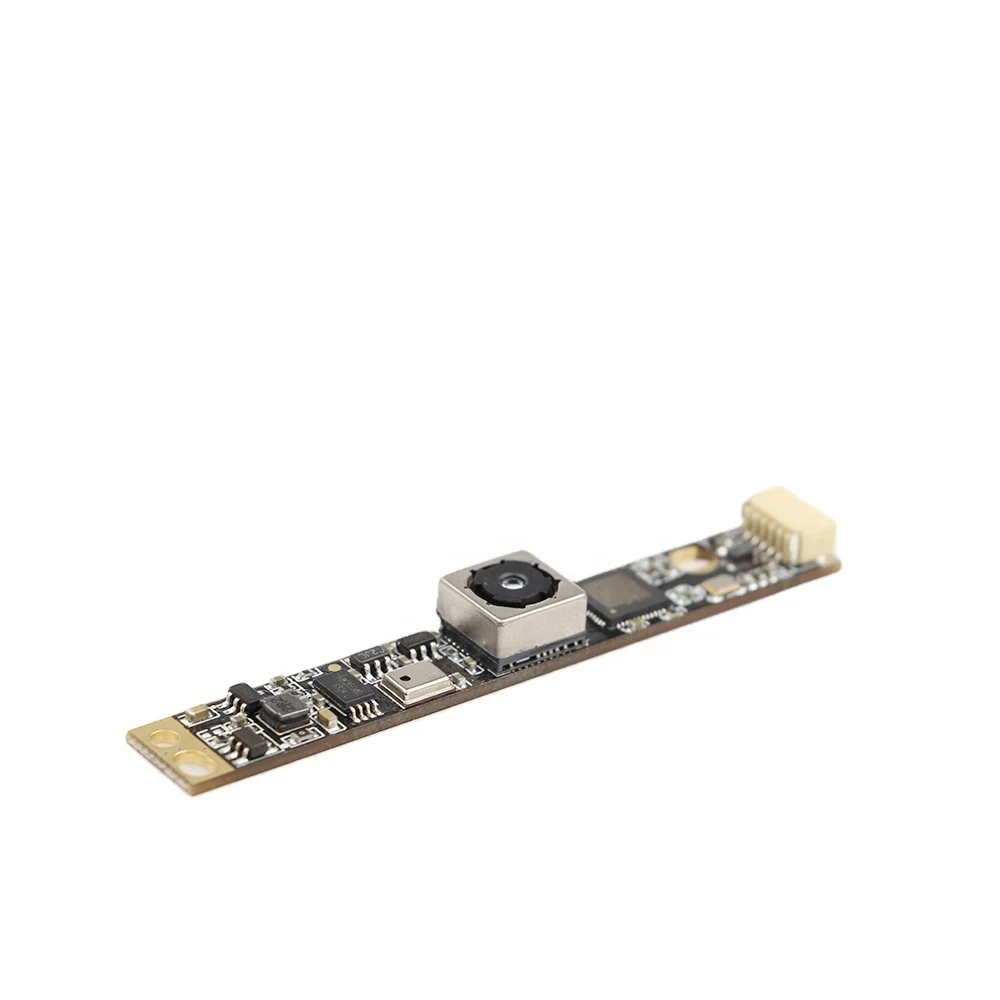
Step 1: Start by unpacking the Swann motion security camera and all the necessary accessories. Make sure you have the camera, mounting brackets, screws, and power adapter.
Step 2: Next, mount the camera in the chosen location using the provided mounting brackets and screws. Ensure that the camera is securely attached to the surface and is positioned at the desired angle for optimal coverage.
Choosing the Right Location
When setting up your Swann motion security cameras, it is crucial to choose the right location for optimal coverage and effectiveness. Here are some tips to help you select the best spot:
1. Consider the area you want to monitor: Identify the areas around your property that you want to keep an eye on, such as entrances, driveways, or blind spots.
2. Check for obstructions: Make sure there are no obstructions like trees, bushes, or walls that could block the camera’s view or trigger false alarms.
3. Look for a power source: Ensure that the chosen location is close to a power outlet or has access to a reliable power source for continuous operation.
4. Consider lighting conditions: Choose a spot that provides adequate lighting during both day and night to capture clear footage.
5. Install at a height: Mount the camera at a height that is out of reach but still allows for a wide viewing angle of the area.
By carefully selecting the right location for your Swann motion security cameras, you can enhance the security of your property and enjoy peace of mind knowing that your surveillance system is effectively monitoring your surroundings.
Installing the Camera Mount
Before you install your Swann motion security camera, you’ll need to set up the camera mount. Here’s how to do it:
- Locate a suitable mounting location that provides a clear view of the area you want to monitor.
- Use the included mounting template to mark the position of the mounting holes on the wall or ceiling.
- Drill holes for the mounting screws using a suitable drill bit and insert wall plugs if necessary.
- Attach the camera mount to the wall or ceiling using the mounting screws provided.
- Adjust the angle of the camera mount to ensure the camera will capture the desired area.
- Secure the camera to the mount using the included screws.
Once the camera mount is securely installed, you can proceed with setting up the Swann motion security camera according to the manufacturer’s instructions.
Connecting the Power Supply
Before setting up your Swann motion security cameras, you need to connect the power supply to ensure they have the necessary power to function. Here’s how to do it:
| 1. | Locate the power adapter that came with your Swann motion security cameras. |
| 2. | Connect one end of the power adapter to the power input port on the camera. |
| 3. | Plug the other end of the power adapter into a power outlet. |
| 4. | Ensure the power adapter is securely connected and that the camera’s power indicator light turns on. |
| 5. | If you have multiple cameras, repeat the above steps for each camera to connect them to the power supply. |
By following these steps, you will successfully connect the power supply to your Swann motion security cameras, allowing them to operate effectively.
Setting Up the Motion Detection
Setting up motion detection on your Swann security cameras is crucial for ensuring that you are alerted to any suspicious activity around your property. Follow these steps to configure the motion detection settings:
1. Access the Camera Settings
Log in to your Swann security camera system using the provided credentials. Navigate to the camera settings menu to access the motion detection settings.
2. Enable Motion Detection
Find the option to enable motion detection and toggle it on. You may have the option to customize the sensitivity level and detection zones to reduce false alarms.
3. Configure Notifications
Set up notifications to receive alerts on your mobile device or email whenever motion is detected. This will ensure that you are promptly informed of any potential security threats.
4. Test the Motion Detection
After configuring the settings, test the motion detection by walking in front of the camera to ensure that it triggers alerts as expected. Adjust the settings if needed to optimize the performance.
Adjusting the Camera Angle
Properly adjusting the camera angle is crucial to ensure optimal surveillance coverage. Follow these steps to adjust the angle of your Swann motion security camera:
- Locate the mounting bracket on which the camera is attached.
- Loosen the screws on the mounting bracket to allow for adjustment.
- Position the camera to the desired angle for surveillance coverage.
- Tighten the screws on the mounting bracket to secure the camera in place.
- Ensure that the camera is facing the intended area and test its view to confirm coverage.
By properly adjusting the camera angle, you can maximize the effectiveness of your Swann motion security camera system.
Connecting to a Monitoring Device
After setting up your Swann motion security cameras, you will need to connect them to a monitoring device to view the footage. Here’s how you can do it:
- Monitor and DVR Connection: Connect the DVR to your monitor using the HDMI or VGA cable provided. Make sure the monitor is powered on and set to the correct input source.
- Network Connection: Connect the DVR to your router using an Ethernet cable. Ensure that your router is connected to the internet for remote viewing.
- Mobile Device Connection: Download the SwannView Link app on your smartphone or tablet. Follow the app’s instructions to connect to your DVR and view the camera footage remotely.
- PC Connection: Install the SwannView Link software on your computer. Use the software to connect to your DVR and monitor the camera feeds on your PC.
By following these steps, you can easily connect your Swann motion security cameras to a monitoring device for easy access to the camera footage.
Testing the Camera Functionality
Before fully setting up your Swann motion security cameras, it is important to test the camera functionality to ensure they are working properly. Here are the steps to test the camera:
| 1. | Power on the camera by connecting it to a power source. |
| 2. | Check the camera’s indicator lights to ensure it is receiving power. |
| 3. | Connect the camera to a monitor or smartphone app to view the live feed. |
| 4. | Adjust the camera angle and position to capture the desired area. |
| 5. | Test the motion detection functionality by moving in front of the camera. |
| 6. | Ensure that the camera records video footage and saves it to the designated storage device. |
By following these steps, you can verify that your Swann motion security cameras are working correctly and capturing footage as intended.
Troubleshooting Common Issues
If you encounter any issues with your Swann motion security cameras, here are some common troubleshooting steps to help you resolve them:
1. Check Power Supply: Ensure that the cameras are receiving power from the appropriate power source. Check the cables and connections to make sure everything is securely plugged in.
2. Verify Camera Placement: Make sure the cameras are positioned correctly and have a clear line of sight. Adjust the angle and height if needed to optimize the camera’s field of view.
3. Test Motion Detection Settings: Check the motion detection settings on the camera and adjust the sensitivity level if necessary. Ensure that the motion detection zones are properly configured.
4. Update Firmware: Check if there are any firmware updates available for your Swann cameras. Updating the firmware can often resolve software-related issues and improve camera performance.
5. Reset Camera: If all else fails, you can try resetting the camera to its factory settings. Refer to the user manual for instructions on how to perform a reset.
By following these troubleshooting steps, you should be able to address most common issues with your Swann motion security cameras and ensure they are functioning properly.
Maintaining Your Swann Motion Security Camera
Proper maintenance of your Swann motion security camera is essential to ensure its optimal performance and longevity. Here are some tips to help you maintain your camera:
- Regularly clean the camera lens with a soft, dry cloth to remove any dirt, dust, or smudges that may affect the image quality.
- Check the camera mounting brackets and screws periodically to ensure they are secure and stable. Tighten any loose screws to prevent the camera from shifting or falling.
- Inspect the camera cables for any signs of damage or wear. Replace any frayed or damaged cables to prevent connectivity issues.
- Ensure that the camera’s software and firmware are up to date. Check for updates regularly on the Swann website and follow the instructions to update your camera’s software.
- Monitor the camera’s recording and storage capacity. Delete any unnecessary footage to free up storage space and prevent the camera from overwriting important recordings.
- Test the camera’s motion detection settings regularly to ensure they are configured correctly. Adjust the sensitivity and detection zones as needed to minimize false alarms.
By following these maintenance tips, you can help prolong the life of your Swann motion security camera and ensure reliable surveillance coverage for your property.


How do Swann cameras compare to Arlo cameras in terms of motion detection? I’m trying to decide between the two for my home.
I recently set up my Swann cameras, and I found that using the mounting template made a huge difference. I initially tried without it and ended up with crooked cameras. Also, I mounted one above my garage and another near my front door; both are working well so far! Just make sure to check the power outlets nearby before you start installing them.
Thanks for sharing your experience! Using the mounting template can definitely help ensure a straight installation. It's also great to hear that you're satisfied with the coverage from the locations you chose.
In the section about connecting to a monitoring device, do you need a separate DVR for each camera, or can multiple cameras connect to one DVR?
I disagree with the recommendation to mount at a height that's out of reach. I think it's better to mount them lower for easier access to adjust angles or check functionality. Just my opinion!
It's a valid point to consider access for adjustments. However, mounting at a height can help prevent tampering with the camera itself. Balancing accessibility with security is key.
Make sure to adjust the motion sensitivity settings! I had mine set too high initially and was getting too many false alarms from passing cars.
What is the best height to mount the Swann cameras for optimal viewing? I'm worried about missing important areas if I mount them too high or too low.