
 Carmen J. Moore

Security cameras are essential for monitoring your home or business, but not everyone wants to invest in a DVR (Digital Video Recorder) to store footage. Luckily, there are alternative ways to run security cameras without a DVR, saving you money and hassle.
One option is to use a cloud-based camera system, which allows you to store footage remotely on the cloud. This eliminates the need for a physical DVR and provides easy access to your footage from anywhere with an internet connection. Another option is to use a microSD card in the camera itself to store footage locally. This method is cost-effective and doesn’t require any additional equipment.
By exploring these alternatives, you can easily set up and run security cameras without a DVR, ensuring the safety and security of your property.


How to Run Security Cameras Without a DVR
Running security cameras without a DVR is possible by utilizing alternative methods such as cloud storage, network-attached storage (NAS), or using a computer as a recording device. Here are some steps to help you set up your security cameras without a DVR:
| 1. | Choose a cloud storage service that is compatible with your security cameras. Sign up for an account and set up the cameras to upload footage directly to the cloud. |
| 2. | Set up a network-attached storage device on your network and configure your security cameras to save recordings to the NAS. |
| 3. | Use a computer with recording software to capture and store footage from your security cameras. Make sure the computer has enough storage space and processing power to handle the recordings. |
| 4. | Regularly check the storage space on your chosen storage method and back up important footage to prevent data loss. |
| 5. | Ensure that your security cameras are connected to a stable network connection to ensure smooth operation and reliable recording. |
Setting Up an NVR System
Setting up a Network Video Recorder (NVR) system is a great way to run security cameras without a DVR. NVR systems are designed to work with IP cameras and offer advanced features for video recording and storage.
Steps to set up an NVR system:
| 1. | Choose an NVR system that is compatible with your IP cameras. |
| 2. | Connect the NVR to your network using an Ethernet cable. |
| 3. | Connect your IP cameras to the NVR using Ethernet cables or through a wireless connection. |
| 4. | Configure the NVR settings, including motion detection, recording schedules, and storage options. |
| 5. | Monitor your cameras and access recorded footage through the NVR’s interface or a connected device. |
Utilizing Cloud Storage Solutions
Another alternative to running security cameras without a DVR is to utilize cloud storage solutions. Cloud storage allows you to store your camera footage securely online, eliminating the need for a physical DVR. Here are some benefits of using cloud storage for your security cameras:
Benefits of Cloud Storage:
1. Remote Access: You can access your camera footage from anywhere with an internet connection, making it convenient for monitoring your property on the go.
2. Scalability: Cloud storage solutions often offer scalable storage options, allowing you to easily expand your storage capacity as needed.
| Cloud Storage Providers | Features |
|---|---|
| Google Drive | Offers free storage up to a certain limit and integrates well with other Google services. |
| Dropbox | Provides easy file sharing and collaboration tools in addition to storage solutions. |
| Amazon S3 | Scalable storage options with high durability and availability for reliable data storage. |
By leveraging cloud storage solutions, you can ensure that your security camera footage is securely stored and easily accessible whenever you need it.
Installing a MicroSD Card
One way to run security cameras without a DVR is to use cameras that support recording to a MicroSD card. Here’s how you can install a MicroSD card in your camera:
1. Locate the MicroSD card slot: Check your camera’s manual to find the location of the MicroSD card slot. It is usually located on the side or back of the camera.
2. Insert the MicroSD card: Make sure the camera is turned off before inserting the MicroSD card. Gently push the card into the slot until it clicks into place.
3. Format the MicroSD card: Once the card is inserted, turn on the camera and navigate to the settings menu. Look for an option to format the MicroSD card to prepare it for recording.
4. Set up recording settings: Configure the camera to record videos or images to the MicroSD card. You can usually set up recording schedules and motion detection settings in the camera’s settings menu.
5. Monitor your recordings: After setting up the MicroSD card, you can monitor and access the recordings directly from the camera or remove the card to view the footage on a computer.
By installing a MicroSD card in your security camera, you can effectively run the camera without the need for a DVR.
Using a Network-Attached Storage (NAS) Device
If you want to run security cameras without a DVR, one alternative is to use a Network-Attached Storage (NAS) device. A NAS device is a centralized storage solution that connects to your network and allows you to store footage from your security cameras.
With a NAS device, you can set up your security cameras to save footage directly to the NAS storage, eliminating the need for a separate DVR. This setup provides a convenient and secure way to store your video recordings while also allowing you to access them remotely over the network.
When choosing a NAS device for your security camera setup, make sure to select a model with enough storage capacity to accommodate your recording needs. Additionally, consider the compatibility of the NAS device with your security cameras to ensure seamless integration.
Accessing Cameras Remotely Through an App
One way to view your security cameras without a DVR is to access them remotely through an app. Many modern security camera systems come with mobile apps that allow you to view live footage, playback recordings, and even receive notifications on your smartphone or tablet.
Simply download the app provided by the camera manufacturer, log in with your credentials, and connect to your cameras. Make sure your cameras are connected to the internet for remote access to work properly. With the app, you can monitor your cameras from anywhere with an internet connection, giving you peace of mind and control over your security system.
Implementing Motion Detection Features
One way to run security cameras without a DVR is to implement motion detection features in the cameras themselves. Most modern security cameras come equipped with motion detection technology that allows them to start recording when they detect movement.
To set up motion detection, access the camera’s settings through the manufacturer’s app or web interface. Look for the motion detection settings and adjust the sensitivity levels to suit your needs. You can also set up specific zones where you want motion detection to be active.
When motion is detected, the camera will start recording and send alerts to your smartphone or email. This way, you can monitor your property in real-time and only review footage when necessary, saving storage space and eliminating the need for a DVR.
Securing Your Camera System with Encryption
One of the most important ways to protect your security camera system is by using encryption. Encryption ensures that the data transmitted between your cameras and the monitoring device is secure and cannot be intercepted by unauthorized users. There are several encryption protocols available, such as WPA2, WPA3, and AES, which provide different levels of security for your camera system.
Make sure to enable encryption on your cameras and monitoring devices to prevent hackers from accessing your footage. Additionally, regularly update the firmware on your cameras to ensure that they have the latest security patches and encryption protocols. By implementing encryption, you can significantly improve the security of your camera system and protect your privacy.
Regularly Updating Firmware for Security
Keeping your security cameras up-to-date with the latest firmware is crucial for maintaining the security of your system. Firmware updates often include patches for known vulnerabilities and security flaws that could be exploited by hackers.
To ensure your cameras are protected, regularly check for firmware updates on the manufacturer’s website or through the camera’s software interface. Follow the manufacturer’s instructions to download and install the latest firmware version.
It’s recommended to set up automatic firmware updates if your cameras support this feature. This way, you can ensure that your cameras are always running the most secure software without having to manually check for updates.
By staying current with firmware updates, you can reduce the risk of unauthorized access to your security cameras and keep your system protected from potential security threats.

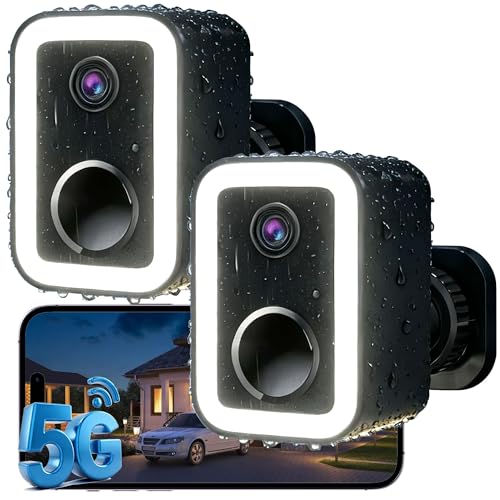


What are the main differences between using a cloud storage service and a microSD card for security camera footage? Which is more reliable?
Cloud storage allows for remote access and is often scalable, while microSD cards store footage locally and can be more cost-effective. Reliability can depend on internet connectivity for cloud storage, whereas microSD is limited to the camera's storage capacity.
I don't think relying on cloud storage is the best option for everyone. What if there's an internet outage? Local storage seems much more secure to me.
I still don’t quite understand how to set up an NVR system. Can someone explain the steps in a simpler way?
I switched to using NAS for my security cameras, and it's been great! I have multiple cameras set up, and I love that I can access everything from my phone. The setup took some time, but it really paid off. Just make sure to choose a NAS that can handle the amount of footage you're recording.
Using motion detection features has really helped me save storage space—definitely recommend it!