
 Carmen J. Moore

Forgetting the password to your security camera system can be a frustrating experience, but fear not, as there are ways to reset it and regain access to your system. In this guide, we will walk you through the steps to reset the password for your security camera system, ensuring that you can continue to monitor your property with peace of mind.
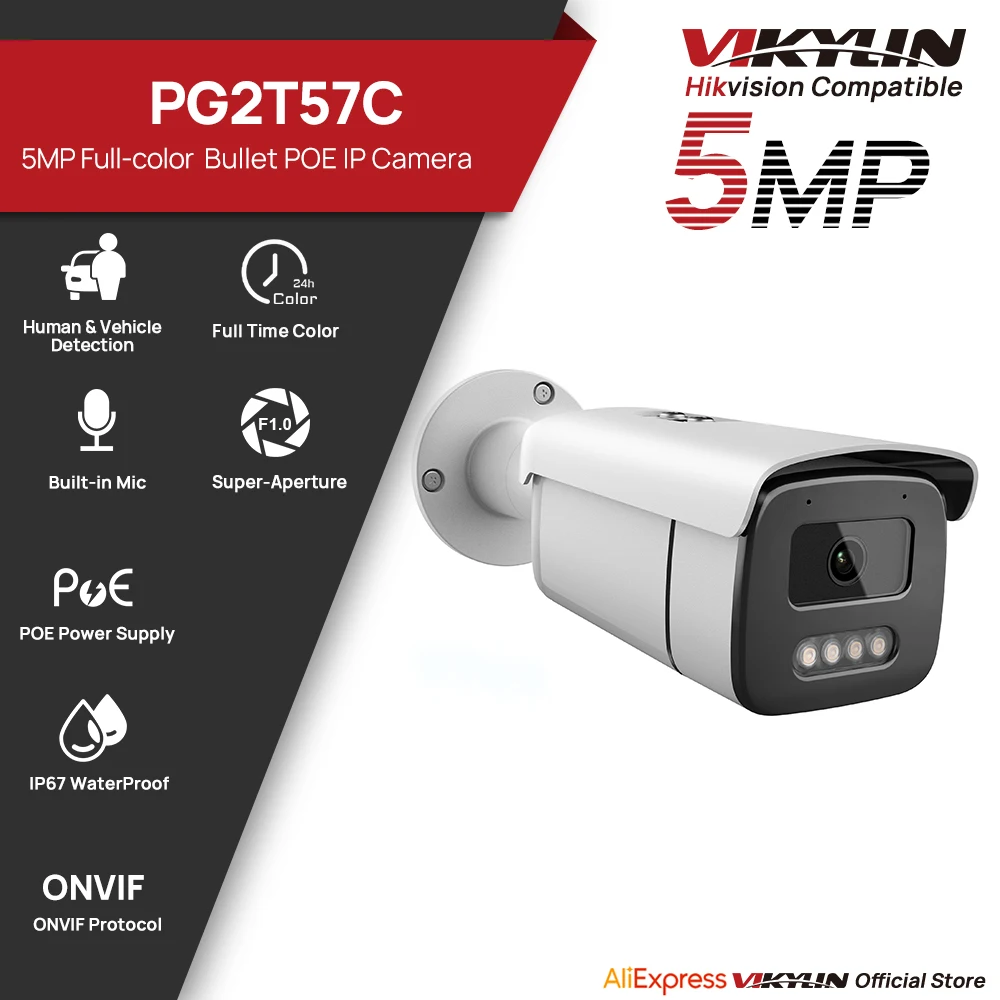

Whether you have a standalone security camera or a network of cameras, the process of resetting the password is similar across different brands and models. By following the instructions provided here, you can easily reset your security camera system password and restore its functionality.
From accessing the reset button on the camera itself to using the manufacturer’s software or contacting customer support, there are several methods you can employ to reset the password. We will outline each step in detail, helping you troubleshoot any issues and overcome the hurdle of a forgotten password.
Step-by-Step Guide to Resetting Security Camera System Password
If you have forgotten the password for your security camera system, don’t worry, you can easily reset it following these steps:
- Locate the reset button on your security camera system. It is usually a small button that can be pressed with a paperclip or a similar tool.
- Press and hold the reset button for about 10-15 seconds until you see the lights on the camera system flash or hear a beep sound.
- Release the reset button and wait for the system to restart. This may take a few minutes.
- Once the system has restarted, you can log in using the default username and password. Check the user manual or the manufacturer’s website for the default credentials.
- After logging in, make sure to change the password to a secure and unique one to protect your security camera system.
Following these steps will help you reset the password for your security camera system and regain access to your cameras.
Locate the Reset Button on the Camera
When you need to reset your security camera system because you forgot the password, the first step is to locate the reset button on the camera itself. The reset button is usually a small, recessed button that may be located on the back or bottom of the camera.
It is important to refer to the user manual or manufacturer’s website for your specific camera model to find the exact location of the reset button. Once you have located the reset button, you can proceed with the reset process to regain access to your security camera system.
Press and Hold the Reset Button
If you have forgotten the password for your security camera system, you can try resetting it by pressing and holding the reset button on the device. Here is a step-by-step guide on how to do it:
| 1. | Locate the reset button on your security camera system. It is usually a small hole that requires a pin or paperclip to press. |
| 2. | Use a pin or paperclip to press and hold the reset button for about 10-15 seconds. |
| 3. | Release the reset button and wait for the device to reboot. |
| 4. | Once the device has rebooted, the password should be reset to the default factory settings. |
| 5. | Access the security camera system using the default username and password provided by the manufacturer. |
Wait for the Camera to Reboot
After you have successfully reset the security camera system by following the previous steps, you will need to wait for the camera to reboot. This process can take a few minutes, so be patient and wait for the camera to fully restart.
During this time, make sure not to unplug the camera or interrupt the reboot process. Once the camera has rebooted, you can proceed with setting up the camera system again, including creating a new password to access the system.
Access the Camera’s Web Interface
Once you have connected your computer to the same network as the security camera system, open a web browser and enter the camera’s IP address in the address bar. You can find the camera’s IP address by checking the user manual or using a network scanning tool.
When prompted, enter the default username and password for the camera system. If you have not changed the default credentials, they are usually “admin” for the username and “admin” for the password. Once logged in, you can navigate to the settings or configuration page to reset the password for the system.
Enter the Default Username and Password
When you forget the password for your security camera system, the first step is to try the default username and password that came with the system. This information is usually provided in the user manual or on the manufacturer’s website. The default username and password are typically set to a standard combination for easy access.
If you have misplaced the user manual or cannot find the default credentials online, you can try using common default username and password combinations such as “admin/admin”, “admin/password”, or “admin/12345”. It’s important to note that using default credentials may pose a security risk, so be sure to change them once you regain access to your system.
Change the Password Settings
If you have forgotten the password for your security camera system, you will need to reset it to regain access to your system. Follow these steps to change the password settings:
- Access the login page of your security camera system using the default username and password.
- Once logged in, navigate to the settings or configuration section of the system.
- Look for the option to change the password and select it.
- Enter your current username and password, then create a new password that is secure and easy for you to remember.
- Save the changes and log out of the system.
It is important to choose a strong password that includes a combination of letters, numbers, and special characters to enhance the security of your system.
Test the New Password
After resetting the password, it’s important to test the new password to ensure it works properly. Use the new password to log in to the security camera system and make sure you can access all the features and settings.
If the new password works and you can successfully access the system, you have successfully reset the password. If you encounter any issues or difficulties, double-check the password and try again. If the problem persists, you may need to contact customer support for further assistance.



I disagree with resetting to factory settings. It's better to change the password regularly to avoid forgetting it rather than having to reset every time!
I followed the steps to reset my security camera system but nothing happened after holding the reset button. Any suggestions?
Make sure you're pressing the reset button for the full 10-15 seconds until you see a light change. If that doesn’t work, check if your camera model has a specific reset procedure.
Are the default username and password the same for all camera brands?
Not all brands use the same default credentials, but many common ones are 'admin/admin' or similar. It's best to check your specific camera's manual or website.
Just a tip: always keep a note of your passwords or use a password manager to avoid this hassle in the future!
I had the same issue last month. The reset button on my camera was really hard to find, but once I located it, I followed the steps and it worked! Just be patient with the reboot process. It took my camera a bit longer than expected to come back online.