
 Carmen J. Moore
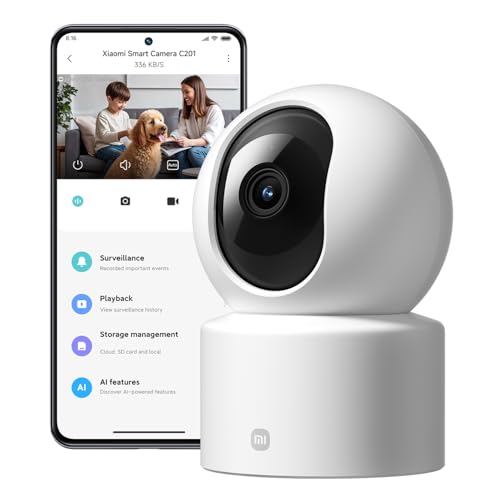
Are you experiencing issues with your Mi Home Security Camera Basic 1080p and need to reset it to its factory settings? Resetting the camera can help resolve various technical problems or security concerns. Whether you want to troubleshoot connectivity issues or prepare the camera for a new setup, a reset is often the go-to solution.


In this comprehensive guide, we will walk you through the step-by-step process of resetting your Mi Home Security Camera Basic 1080p. By following these instructions carefully, you can restore your camera to its default settings and start afresh with peace of mind.
Before proceeding with the reset, it’s important to understand the implications and backup any important data or settings associated with the camera. Once you are ready, let’s dive into the detailed instructions to reset your Mi Home Security Camera Basic 1080p.
Guide to Reset Mi Home Security Camera Basic 1080p
If you need to reset your Mi Home Security Camera Basic 1080p, follow these steps:
- Locate the reset button on the camera. It is usually a small hole that requires a pin or paperclip to press.
- Press and hold the reset button for about 5-10 seconds until you see the camera’s status light blink.
- Release the reset button and wait for the camera to restart. This process may take a minute or two.
- Once the camera has restarted, it will be reset to its factory settings, and you can set it up again as needed.
Remember to reconfigure your camera’s settings and connect it to your Mi Home app after resetting it.
Step-by-step instructions for resetting your camera
Follow these steps to reset your Mi Home Security Camera Basic 1080p:
| Step 1 | Locate the reset button on the camera. It is usually a small hole next to the power port. |
| Step 2 | Use a paperclip or a similar tool to press and hold the reset button for about 10 seconds. |
| Step 3 | Release the reset button when the camera’s status light starts blinking rapidly. |
| Step 4 | Wait for the camera to reset and restart. This may take a few minutes. |
| Step 5 | Once the camera has restarted, it is reset to its factory settings and ready to be set up again. |
Following these steps should help you successfully reset your Mi Home Security Camera Basic 1080p.
Check the camera’s power source
Before resetting your Mi Home Security Camera Basic 1080p, make sure that the camera is properly connected to a power source. Check if the power adapter is plugged in securely and that the outlet is functioning. You can also try using a different power outlet to rule out any issues with the current one.
If the camera is battery-operated, ensure that the battery is charged and inserted correctly. Low battery levels can sometimes cause connectivity issues and prevent the camera from resetting successfully.
Press and Hold the Reset Button on the Camera
To reset the Mi Home Security Camera Basic 1080p, locate the reset button on the camera. Press and hold the reset button for about 5 seconds until you hear a voice prompt indicating that the camera has been reset.
Wait for the camera to reset
After performing the reset process, give the camera some time to reboot and reset to its default settings. This may take a few minutes, so be patient and allow the camera to complete the reset process.
Reconnect the camera to your Mi Home app
If you have reset your Mi Home Security Camera Basic 1080p, you will need to reconnect it to your Mi Home app to start using it again. Here’s how you can do it:
1. Open the Mi Home app on your smartphone.
2. Tap on the “+” icon to add a new device.
3. Select “Camera” from the list of devices.
4. Follow the on-screen instructions to connect your camera to the app. Make sure to enter the correct Wi-Fi network details when prompted.
5. Once the camera is successfully connected, you can start using it to monitor your home.
Troubleshooting tips for resetting the camera
If you are experiencing issues with resetting your Mi Home Security Camera Basic 1080p, try the following troubleshooting tips:
1. Check the power source
Make sure the camera is properly connected to a power source and that the power adapter is working correctly. Try using a different power outlet to rule out any issues with the current one.
2. Reset the camera manually
If the camera is unresponsive, you can manually reset it by pressing and holding the reset button on the camera for about 10 seconds. This will restore the camera to its factory settings.
| Issue | Solution |
|---|---|
| Camera not connecting to Wi-Fi | Check your Wi-Fi network settings and ensure the camera is within range of the router. |
| Camera recording issues | Check the storage on the camera and ensure it has enough space to record videos. |
| Camera not responding to commands | Check the app settings and update the camera firmware if necessary. |
Ensure a stable internet connection
Before attempting to reset your Mi Home Security Camera Basic 1080p, make sure that your device is connected to a stable internet connection. A strong and reliable Wi-Fi signal is essential for the reset process to be successful. Check your router settings and ensure that there are no network issues that could interfere with the reset procedure. If necessary, restart your router or move the camera closer to the Wi-Fi router to improve the signal strength.
Contact Mi customer support for further assistance
If you are still unable to reset your Mi Home Security Camera Basic 1080p, it is recommended to reach out to Mi customer support for further assistance. You can contact their customer service team via phone, email, or live chat on their website. They will be able to guide you through the reset process or provide additional troubleshooting steps to help resolve the issue.


I’ve been having trouble with my Mi Home Security Camera not connecting to Wi-Fi. Would resetting it really help with that?
Yes, resetting the camera can often resolve connectivity issues. It restores the camera to factory settings, which may help it connect to your Wi-Fi again.
Remember to check your power source before resetting! It saved me a lot of hassle when my camera wouldn't respond.
I’m not sure if resetting is always the best first step. Sometimes it seems like there are easier fixes, like just reconnecting to the app. Anyone else feel that way?
The article mentions a voice prompt when resetting the camera. I'm not hearing any sound at all. Is that normal?
Not all models have a voice prompt. If you see the status light blink rapidly after holding the reset button, that typically means it's resetting, even without sound.
I recently had to reset my Mi Home Security Camera because it was acting up. I followed the steps in the article, and it worked like a charm! Just a heads up, make sure to hold the reset button for the full 10 seconds. I almost gave up too early because the camera didn’t reset right away.