
 Carmen J. Moore
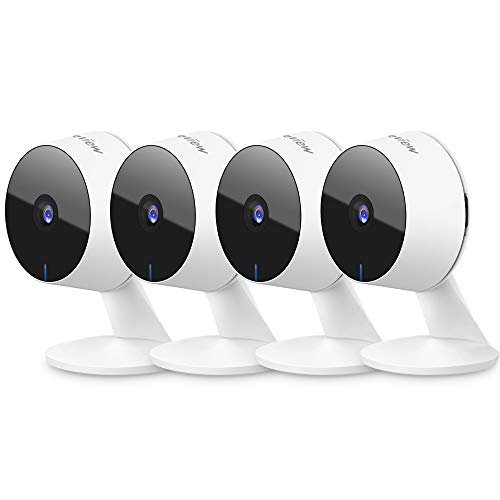
Security cameras are an essential component of any modern home security system, providing you with peace of mind and the ability to monitor your property remotely. With the advancement of technology, installing security cameras has become easier and more accessible than ever before. If you’re considering installing security cameras with Kasa, a popular brand known for its user-friendly devices, this step-by-step guide will walk you through the process.
Before you begin the installation process, it’s important to determine the best locations for your security cameras. Consider areas of your property that are vulnerable to break-ins or vandalism, as well as areas where you want to keep an eye on your family or pets. Once you’ve identified the ideal locations, you can proceed with the installation.


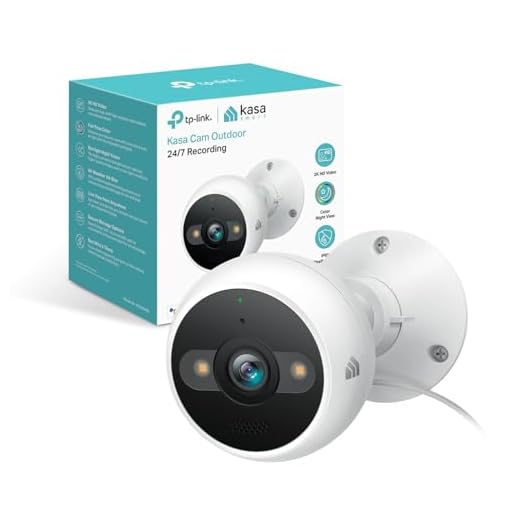
To start, unpack your Kasa security cameras and accessories, making sure you have all the necessary components. Follow the manufacturer’s instructions to set up your cameras and connect them to your home’s Wi-Fi network. Once your cameras are connected, you can position them in the predetermined locations and adjust the angles to ensure optimal coverage.
Step-by-Step Guide for Setting Up Kasa Security Cameras
Setting up Kasa security cameras is a straightforward process that can help you enhance the security of your home or office. Follow these steps to get your cameras up and running:
- Unbox your Kasa security camera and all included accessories.
- Download the Kasa Smart app on your smartphone from the App Store or Google Play Store.
- Open the app and create an account or log in if you already have one.
- Click on the “+” icon to add a new device and select “Security Cameras.”
- Follow the on-screen instructions to connect your camera to your Wi-Fi network.
- Position your camera in the desired location and adjust its angle for optimal coverage.
- Customize your camera settings, such as motion detection sensitivity and recording preferences.
- Access your camera’s live feed and recordings through the Kasa Smart app anytime, anywhere.
- Ensure your camera is securely mounted and regularly check for firmware updates to keep it running smoothly.
Choosing the Right Location for Your Kasa Security Camera
When installing your Kasa security camera, choosing the right location is crucial to ensure optimal performance and coverage. Here are some factors to consider when selecting the placement of your camera:
1. Line of Sight
Make sure the camera has a clear line of sight to the area you want to monitor. Avoid obstructions such as walls or trees that could block the camera’s view.
2. Height and Angle
Position the camera at an appropriate height and angle to capture the best view of the area. Mounting the camera at eye level or slightly above can provide a better perspective.
By carefully considering these factors, you can choose the right location for your Kasa security camera to enhance its effectiveness in monitoring your property.
Connecting Your Kasa Security Camera to Wi-Fi
After you have successfully installed your Kasa security camera, the next step is to connect it to your Wi-Fi network. Follow these steps to ensure a smooth connection:
| 1. | Open the Kasa app on your smartphone or tablet. |
| 2. | Tap on the camera icon to access the camera settings. |
| 3. | Click on the “Wi-Fi” option and select your home Wi-Fi network from the list. |
| 4. | Enter your Wi-Fi password when prompted. |
| 5. | Wait for the camera to connect to your Wi-Fi network. This may take a few minutes. |
| 6. | Once the camera is successfully connected, you will see a confirmation message on the app. |
Now your Kasa security camera is connected to your Wi-Fi network and ready to use for monitoring your home or office. Make sure to place it in a strategic location for optimal coverage.
Setting Up Motion Detection and Notifications on Kasa Cameras
Setting up motion detection and notifications on your Kasa camera is essential for enhancing the security of your home or office. Follow these steps to configure this feature:
Step 1: Access Camera Settings
Open the Kasa app on your smartphone and navigate to the camera you want to set up motion detection for. Tap on the camera to access its settings.
Step 2: Enable Motion Detection
In the camera settings menu, locate the motion detection option and toggle it on. You may need to adjust the sensitivity level to suit your preferences.
Note: Higher sensitivity levels may result in more frequent notifications.
Once motion detection is enabled, the camera will start monitoring for any movement within its field of view.
Step 3: Configure Notifications
To receive notifications when motion is detected, go to the notification settings within the camera settings menu. Enable notifications and customize the settings according to your preferences.
Tip: You can choose to receive push notifications, emails, or both when motion is detected.
With motion detection and notifications set up on your Kasa camera, you can stay informed about any unusual activity and take appropriate action promptly.
Accessing Live Feed and Recorded Footage on Kasa App
Once you have successfully installed your security cameras and set them up on the Kasa app, accessing the live feed and recorded footage is a simple process.
- Open the Kasa app on your smartphone or tablet.
- Sign in to your Kasa account if prompted.
- Locate the camera you want to view in the list of devices.
- Tap on the camera to access the live feed.
- To view recorded footage, navigate to the camera’s settings within the app.
- Look for the option to view recorded footage or events.
- You can also set up motion detection alerts to receive notifications when the camera detects activity.
With the Kasa app, you can easily monitor your security cameras from anywhere, ensuring the safety and security of your home or business.
Adjusting Camera Settings for Better Security Monitoring
After installing your Kasa security cameras, it’s important to adjust the settings to ensure optimal security monitoring. Here are some key settings you should consider:
1. Motion Detection Sensitivity
Adjust the motion detection sensitivity to avoid false alarms while ensuring that all relevant movements are captured. Set it to a level where it can detect any suspicious activity but not trigger alerts for minor movements.
2. Recording Schedule
Create a recording schedule based on your needs. You can set the camera to record continuously, on a specific schedule, or when motion is detected. This helps in capturing important footage without filling up the storage with unnecessary recordings.
By customizing these settings, you can enhance the effectiveness of your security monitoring system and ensure that your Kasa cameras provide maximum protection for your property.
Ensuring Proper Maintenance and Care for Kasa Security Cameras
Once you have installed your Kasa security cameras, it is crucial to ensure proper maintenance and care to keep them working effectively. Here are some tips to help you maintain your security cameras:
Regular Cleaning
Regularly clean the lenses of your Kasa security cameras to ensure clear and unobstructed footage. Use a soft, lint-free cloth to wipe away any dust or dirt that may accumulate on the lenses.
Check for Obstructions
Periodically check the area around your security cameras for any obstructions that may affect their field of view. Trim back any overgrown bushes or plants that could block the camera’s line of sight.
| Task | Frequency |
| Check camera connections | Monthly |
| Test camera functionality | Quarterly |
| Update camera firmware | Bi-annually |
By following these maintenance tips, you can ensure that your Kasa security cameras continue to provide you with reliable surveillance and peace of mind.
Troubleshooting Common Issues with Kasa Security Cameras
If you are experiencing issues with your Kasa security cameras, here are some common problems and solutions:
- Camera not connecting to Wi-Fi: Make sure your camera is within range of your Wi-Fi network and that the network is working properly. Try restarting your router and camera.
- Poor video quality: Check the camera’s positioning and adjust it to get a better view. Make sure the lens is clean and free from obstructions.
- Camera offline: Restart the camera and check the power source. Ensure the camera is connected to the internet and the Kasa app is working.
- Notifications not working: Check the app settings to ensure notifications are enabled for the camera. Restart the app and camera if needed.
- Recording issues: Check the storage capacity of your camera and ensure it has enough space to record. Delete old footage if needed.
If these troubleshooting steps do not resolve your issues, contact Kasa support for further assistance.





What are the best locations to install Kasa security cameras? Are there specific areas that are more effective for monitoring?
I recently installed Kasa security cameras at my house, and the process was pretty simple. I followed the steps outlined in the guide, but I had to adjust the motion sensitivity because it was triggering too many notifications. Overall, I'm pleased with the video quality and ease of use with the app.
I disagree that Kasa cameras are the best on the market. I had issues with connectivity and video quality compared to other brands I've used.
Thanks for sharing your experience. Different users have varied needs, and what works for one person might not work for another. What brand did you prefer for better quality?