
 Carmen J. Moore

Security cameras are an essential part of any modern security system, providing you with peace of mind and real-time monitoring of your property. However, if you want to view the live feed from your security cameras on multiple TVs throughout your home or office, you may need to set up a system that allows for this.
There are several ways to achieve this, depending on the type of security camera system you have and the number of TVs you want to connect. One common method is to use a video splitter or distribution amplifier to split the video signal from your security camera system and send it to multiple TVs simultaneously.
Another option is to use a network video recorder (NVR) that supports multiple channels and can stream the live feed to multiple devices, including TVs, over your network. This method typically requires a bit more setup and configuration but provides a more flexible and scalable solution.

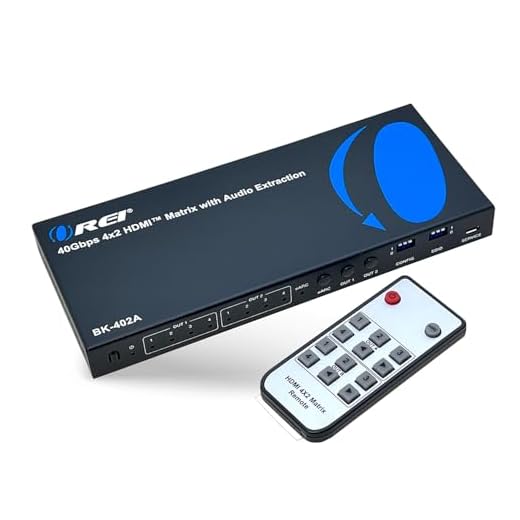

Step-by-step guide to connecting security camera live feed to multiple TVs
Connecting your security camera live feed to multiple TVs can provide enhanced surveillance coverage for your property. Follow these steps to set up this configuration:
Step 1: Choose a compatible security camera system
Ensure that your security camera system supports multiple TV connections. Look for systems with multiple output options, such as HDMI or VGA ports.
Step 2: Set up the security camera system
- Install and set up your security cameras in strategic locations around your property.
- Connect the security camera system to your network and configure it according to the manufacturer’s instructions.
Step 3: Connect the security camera system to a video distributor
Use a video distributor or HDMI splitter to split the video output from the security camera system to multiple TVs. Connect the video distributor to the output port of the security camera system.
Step 4: Connect the TVs to the video distributor
Connect each TV to the video distributor using HDMI cables. Make sure to label each cable to easily identify which camera feed is displayed on each TV.
Step 5: Adjust settings and test the setup
Adjust the settings on the security camera system to display the live feed on all connected TVs. Test the setup by monitoring the live feed on each TV to ensure proper functionality.
By following these steps, you can easily connect your security camera live feed to multiple TVs for comprehensive surveillance coverage.
Ensure compatibility of security cameras with multiple TVs
Before setting up your security camera system to display live feeds on multiple TVs, it is important to ensure that your security cameras are compatible with the TVs you plan to use. Check the specifications of both the cameras and the TVs to ensure they are compatible in terms of resolution, video output, and connectivity options.
Some security cameras may have specific requirements for connecting to multiple TVs, such as HDMI output or network streaming capabilities. Make sure your cameras support these features to enable seamless integration with multiple TVs.
Additionally, consider the distance between the cameras and the TVs, as well as any potential obstacles or interference that may affect the quality of the live feed. Investing in high-quality cameras and TVs with reliable connectivity options will help ensure a smooth and reliable viewing experience across multiple screens.
Select the right type of video distribution system
When it comes to distributing the live feed from security cameras to multiple TVs, it is crucial to select the right type of video distribution system. There are several options available, each with its own set of features and capabilities.
1. HDMI Matrix Switch
An HDMI matrix switch allows you to connect multiple sources (such as security cameras) to multiple displays (such as TVs) simultaneously. This type of system offers flexibility and control over which cameras are displayed on each TV.
2. Video Wall Controller
A video wall controller is another option for distributing the live feed to multiple TVs. This system allows you to create a large video wall by combining the outputs of multiple cameras onto a single display.
Consider the size of your installation, the number of TVs you need to connect, and the level of control you require when choosing the right video distribution system for your security camera live feed.
Install video distribution equipment for seamless feed transmission
One of the most effective ways to get security camera live feed to multiple TVs is by installing video distribution equipment. This equipment allows you to transmit the video feed from your security cameras to multiple TVs simultaneously, ensuring that everyone in your home or office can monitor the feed in real-time.
There are various video distribution systems available on the market, including HDMI splitters, video matrix switches, and IP-based video distribution systems. These systems allow you to connect multiple TVs to a central video source, such as a DVR or NVR, and distribute the video feed to each TV without any loss of quality.
By installing video distribution equipment, you can ensure that everyone in your home or office has access to the security camera live feed, making it easier to monitor your property and enhance security measures.
Connect security cameras to the video distribution system
To get the security camera live feed to multiple TVs, you need to connect the security cameras to a video distribution system. Here’s how you can do it:
- Choose a video distribution system: Select a video distribution system that supports multiple inputs from your security cameras and can distribute the feed to multiple TVs simultaneously.
- Connect the cameras: Use the appropriate cables to connect each security camera to the video distribution system. Make sure to follow the manufacturer’s instructions for the correct connections.
- Configure the system: Set up the video distribution system to recognize and display the live feed from each camera. This may involve assigning each camera a specific channel or input on the system.
- Connect the TVs: Once the cameras are connected and the system is configured, connect the video distribution system to the TVs using HDMI or other compatible cables. Ensure that each TV is set to the correct input to receive the camera feed.
- Test the setup: Verify that the live feed from the security cameras is displayed correctly on all connected TVs. Make any necessary adjustments to the system or connections to ensure smooth operation.
By following these steps, you can effectively connect your security cameras to a video distribution system and stream the live feed to multiple TVs for enhanced surveillance and monitoring.
Configure settings for simultaneous viewing on multiple TVs
To set up simultaneous viewing of your security camera live feed on multiple TVs, follow these steps:
- Ensure that your security camera system supports multiple display outputs.
- Connect each TV to the security camera system using the appropriate cables (HDMI, VGA, etc.).
- Access the settings menu on your security camera system and navigate to the display settings.
- Enable the option for multiple displays or simultaneous viewing.
- Select the TVs you want to display the live feed on from the list of connected devices.
- Adjust the layout and arrangement of the camera feeds on each TV for optimal viewing.
- Save your settings and exit the menu to start displaying the live feed on all connected TVs simultaneously.
Test the setup to ensure proper functioning and video quality
Once you have connected your security camera system to multiple TVs, it is crucial to test the setup to ensure everything is working correctly. Follow these steps to test the setup:
- Turn on all the TVs that are connected to the security camera system.
- Access the live feed from the security camera on each TV to verify that the video is being displayed properly.
- Check the video quality on each TV to ensure that there are no issues with clarity or resolution.
- Test the camera angles and make sure the views are optimal for monitoring the desired areas.
- Check the audio quality if your cameras have audio capabilities to ensure that sound is being transmitted correctly.
- Verify that the cameras switch between different views (if applicable) smoothly and without any lag.
- Test the night vision capabilities of the cameras in low-light conditions to ensure visibility during nighttime.
- Check the recording functionality to confirm that the system is capturing and storing footage properly.
By thoroughly testing the setup, you can identify any potential issues and make necessary adjustments to ensure reliable security monitoring on multiple TVs.





Can I use a standard HDMI cable for all connections, or do I need special cables for my security camera system?
Standard HDMI cables should work as long as your cameras and TVs support HDMI connections. Just ensure they meet the required specifications for video quality.
I recently installed a video distributor to connect my security camera feed to three TVs in my house. It was pretty straightforward! I used an HDMI splitter, and I labeled each cable for easy identification. The only issue I faced was adjusting the camera settings for simultaneous viewing, but once I figured that out, it worked perfectly. I'd recommend double-checking the quality of your cables as well, as that can affect the feed quality.
I don't think video distribution equipment is necessary for smaller setups. If you only have one or two TVs, a basic HDMI splitter should suffice without the added complexity.
True, a splitter might be enough for smaller setups, but I think having a dedicated video distribution system helps in the long run if you plan to expand.
I'm planning to set up security cameras in my home office. How do I know if my existing camera system is compatible with multiple TVs?
Check your camera system's specifications for output options like HDMI or VGA. It should specifically mention support for multiple displays or outputs.
I read about using an HDMI matrix switch versus a basic splitter. The matrix switch seems more flexible since you can choose which camera displays on which TV. Is it worth the extra cost?
Yes, an HDMI matrix switch offers more control over your displays, allowing you to customize which camera feeds appear on each TV. If you need that functionality, it can be worth the investment.