
 Carmen J. Moore

Wireless security cameras are a convenient and effective way to monitor your home or business. However, ensuring that your camera is recording when it needs to can be crucial for security purposes.


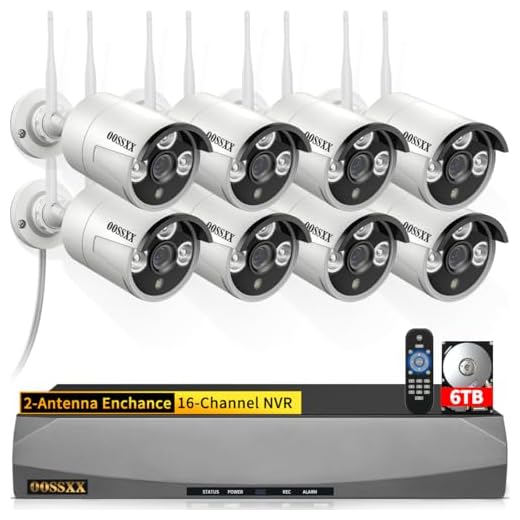
In this article, we will provide you with step-by-step instructions on how to set up your wireless security camera to record footage effectively. Whether you’re looking to keep an eye on your property while you’re away or want to enhance the security of your home, these tips will help you get the most out of your camera.
From choosing the right camera to configuring the settings for optimal recording, we’ll cover everything you need to know to ensure that your wireless security camera is capturing the footage you need.
Setting Up the Camera
Setting up a wireless security camera to record is a relatively straightforward process. Follow these steps to get your camera up and running:
- Choose a suitable location for your camera that provides a good view of the area you want to monitor.
- Make sure the camera is within range of your Wi-Fi network to ensure a stable connection.
- Install the camera according to the manufacturer’s instructions, making sure it is securely mounted and positioned correctly.
- Connect the camera to your Wi-Fi network using the provided app or software.
- Set up your recording preferences, such as motion detection settings or continuous recording, to capture the footage you need.
- Test the camera to ensure it is recording properly and adjust any settings as necessary.
By following these steps, you can easily set up your wireless security camera to record and enhance the security of your home or business.
Choosing the Right Location
When setting up a wireless security camera to record, choosing the right location is crucial for optimal performance. Here are some factors to consider:
1. Coverage Area
Ensure the camera is placed in a location that provides coverage of the area you want to monitor. Consider the camera’s field of view and adjust its position accordingly.
2. Power Source
Make sure the camera is located near a power source or has sufficient battery power to operate continuously. This will ensure uninterrupted recording and monitoring.
Connecting to Wi-Fi
Once you have set up your wireless security camera, the next step is to connect it to your Wi-Fi network. Here’s how you can do it:
Step 1: Make sure your camera is powered on and within range of your Wi-Fi router.
Step 2: Access the camera’s settings through the mobile app or web interface.
Step 3: Look for the Wi-Fi settings section and select your network from the list of available networks.
Step 4: Enter your Wi-Fi password when prompted and wait for the camera to connect to the network.
Step 5: Once the camera is successfully connected, you can start recording and monitoring your property remotely.
Configuring Recording Settings
Once you have set up your wireless security camera, you can configure the recording settings to ensure that it captures the footage you need. Here are the steps to configure the recording settings:
1. Log in to the camera’s web interface: Enter the camera’s IP address in your web browser and log in using the default username and password. If you have changed the credentials, use the new ones.
2. Navigate to the recording settings: Look for the “Recording” or “Storage” tab in the camera’s interface. Click on it to access the recording settings.
3. Choose the recording mode: Select the recording mode you prefer, such as continuous recording, motion-triggered recording, or scheduled recording.
4. Set the recording quality: Adjust the recording quality settings to optimize the video quality and file size based on your needs.
5. Configure the storage settings: Specify the storage location for the recorded footage, whether it’s on a microSD card, a network-attached storage (NAS) device, or a cloud storage service.
6. Save the settings: After configuring the recording settings, make sure to save the changes to apply them to the camera.
By following these steps, you can customize the recording settings of your wireless security camera to meet your specific requirements and ensure that it captures the footage you need for surveillance and monitoring purposes.
Testing the Camera
Once you have set up your wireless security camera, it is important to test it to ensure that it is working properly. Here are some steps you can take to test your camera:
- Check the connection: Make sure that the camera is connected to your Wi-Fi network and that it has a strong signal. You can do this by checking the camera’s settings or using a Wi-Fi analyzer app on your smartphone.
- Test the video feed: Open the camera’s live feed on your smartphone or computer to see if the video is clear and crisp. Make sure that the camera is capturing the area you want to monitor.
- Trigger a motion detection event: Walk in front of the camera to trigger the motion detection feature. Check to see if the camera records the event and sends you a notification.
- Test the recording: Check if the camera is recording the video footage properly. You can review the recorded footage on the camera’s app or on a connected device.
- Check the night vision: Test the camera’s night vision feature in low light conditions to see if it captures clear footage. Make sure that the night vision mode is working as expected.
By following these steps, you can ensure that your wireless security camera is set up correctly and functioning as intended.
Troubleshooting Tips
If you are having trouble getting your wireless security camera to record, try these troubleshooting tips:
1. Check the camera’s power source and make sure it is properly connected.
2. Verify that the camera is connected to your Wi-Fi network and has a strong signal.
3. Ensure that the camera’s memory card is inserted correctly and has enough storage space.
4. Check the camera’s settings to make sure recording is enabled and set up correctly.
5. Restart the camera and your Wi-Fi router to refresh the connection.
6. Update the camera’s firmware to the latest version to fix any bugs or issues.
7. If the problem persists, contact the manufacturer’s customer support for further assistance.



Can you clarify how to set the recording quality? Is it just a simple toggle, or are there different settings I need to configure?
What's the best way to test the night vision feature of a wireless security camera? I want to make sure it captures clear footage in low light before I rely on it for security purposes.
I just set up my wireless security camera following these steps, and I have to say, the clarity of the video is impressive! I chose a corner of my living room that gives a good view of the entrance. My only issue was connecting to Wi-Fi; I had to move it closer to the router to get a strong signal. Now it works perfectly with motion detection enabled!
I disagree with the idea that placement isn’t crucial. From my experience, if the camera isn’t positioned well, it can miss important footage. I had to adjust mine multiple times before getting it right. It's definitely worth taking the time to find the perfect spot!
Good point! Placement significantly affects performance. Taking the time to find the right spot can definitely enhance your camera's effectiveness.