
 Carmen J. Moore
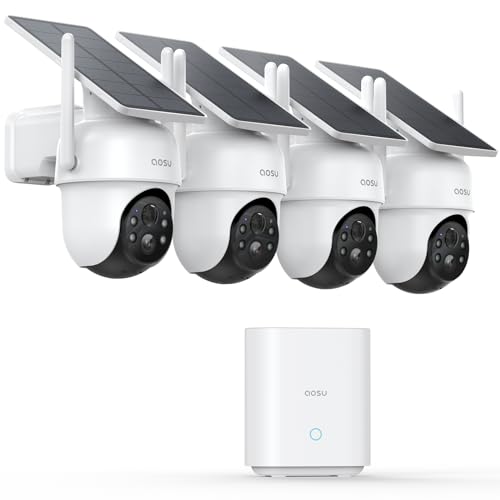
Wifi security cameras have become increasingly popular for home and business surveillance. While these cameras offer peace of mind and enhanced security, there may be situations where you need to disable them temporarily or permanently. Whether you want to troubleshoot connectivity issues, maintain privacy, or simply turn off the camera for a specific period, knowing how to disable a wifi security camera is essential.
It’s important to note that disabling a wifi security camera may vary depending on the brand and model you are using. In this article, we will provide you with general guidelines on how to disable a wifi security camera. However, we recommend consulting the user manual or contacting the manufacturer for specific instructions.
Before proceeding with the steps to disable your wifi security camera, make sure to consider the legal implications and privacy concerns associated with surveillance devices. Ensure that you have the necessary permissions and understand the consequences of disabling the camera in your specific situation.
Steps to Disable a WiFi Security Camera
Step 1: Locate the power source of the WiFi security camera and unplug it to turn off the camera.


Step 2: Access the camera’s settings through the camera’s app or web interface.
Step 3: Look for the option to disable or turn off the camera within the settings menu.
Step 4: Follow the prompts to confirm the disabling of the camera.
Step 5: Once the camera is disabled, ensure that it is no longer transmitting any data or recording footage.
Identify the Security Camera Model
Before attempting to disable a WiFi security camera, it is important to identify the model of the camera. This information can usually be found on the camera itself or in the user manual that came with the device. Knowing the model of the camera will help you determine the specific steps needed to disable it, as different models may have different methods for disabling or turning off the camera.
| Step | Description |
|---|---|
| 1 | Locate the security camera and look for any identifying labels or markings on the device. |
| 2 | If the model number is not visible on the camera itself, check the user manual or packaging that came with the camera. |
| 3 | Once you have identified the model of the security camera, you can proceed to research the specific steps needed to disable it. |
Access the Camera’s Control Panel
To disable a wifi security camera, you will need to access the camera’s control panel. This can usually be done by logging into the camera’s web interface using a web browser on a computer or mobile device connected to the same network as the camera.
Once you have accessed the control panel, navigate to the settings or configuration section where you can find options to disable the camera or turn off specific features such as motion detection or recording. Make sure to save any changes you make before exiting the control panel.
Locate the Security Camera Settings
Before disabling your wifi security camera, you need to locate the settings of the camera. This can usually be done by accessing the camera’s web interface or using a mobile app provided by the camera manufacturer. Look for options related to security settings, network configuration, or camera operation.
Disable the WiFi Connection
If you want to disable the WiFi connection of your security camera, you can do so by accessing the camera’s settings through the mobile app or web interface. Follow these steps:
- Access the camera settings: Open the mobile app or web interface of your security camera and navigate to the settings menu.
- Locate the WiFi settings: Look for the WiFi settings option in the menu. It is usually found under the network or connectivity settings.
- Disable the WiFi connection: Toggle off the WiFi connection option to disable the camera’s connection to your WiFi network. Save the changes if prompted.
- Verify the connection: Once the WiFi connection is disabled, check if the camera is no longer connected to the network by trying to access the live feed or viewing the camera status.
By following these steps, you can easily disable the WiFi connection of your security camera to ensure privacy and security.
Confirm the Disconnection
Once you have successfully disabled the wifi security camera, it is important to confirm that it is no longer connected to the network. You can do this by checking the list of connected devices on your router’s settings page or using a network scanning tool to identify all devices connected to your network.
Tip: Make sure to also physically disconnect the camera from its power source to ensure that it is completely offline.
Reset the Camera if Necessary
If you are unable to access the camera settings to disable it or if the camera is unresponsive, you may need to reset it to its factory settings. Here are general steps to reset a wifi security camera:
- Locate the reset button on the camera. It is usually a small hole that requires a paperclip or a similar tool to press.
- Press and hold the reset button for about 10-15 seconds until you see the camera’s lights blink or hear a beep sound.
- Release the reset button and wait for the camera to reboot. This process may take a few minutes.
- Once the camera has reset to its factory settings, you will need to set it up again as if it were a new device, including connecting it to your wifi network and configuring any settings you require.
Remember that resetting the camera will erase all previous settings and recordings, so make sure to back up any important data before proceeding with the reset.
Secure Your Network
Securing your network is crucial to prevent unauthorized access to your wifi security camera. Here are some tips to help you secure your network:
1. Change Default Passwords
Make sure to change the default passwords on your wifi security camera and your router. Using strong, unique passwords will help prevent unauthorized access.
2. Enable Encryption
Enable encryption on your wifi network to protect your data from eavesdropping. Use WPA2 or WPA3 encryption for better security.
- Use a strong encryption key that is hard to guess.
- Regularly update your encryption settings to stay ahead of potential threats.
By following these tips, you can help secure your network and protect your wifi security camera from unauthorized access.


I disagree with the suggestion to unplug the camera entirely. If someone has access to the power source, they could easily turn it back on without your permission. It's better to disable the WiFi connection instead.
I recently had to disable my wifi camera due to privacy concerns. I followed the steps you mentioned, but my camera didn't have a reset button. Instead, I had to remove the battery to fully turn it off. It's a bit frustrating when models vary so much. Make sure to check your manual just in case!
Thanks for sharing your experience! It's true that different camera models can have various methods of disabling. Consulting the manual often provides the most reliable guidance.
Good article! Could you clarify if all security cameras have a similar process for disabling them? Specifically, do older models require different steps?
The article mentions identifying the model first. Does anyone know the best way to quickly find the model information if it's not on the camera? I lost my manual.
I had a similar issue. You can usually find it on the original packaging or look online using the brand name and a few features.
I'm trying to disable my security camera, but I'm not sure where to find the settings. Is it easier to do this through the app or web interface?
Remember to change the default passwords! I learned the hard way when a friend accessed my camera by guessing the password.
I had to disable my camera once because it kept sending notifications for nothing. I found the app really helpful for it!
What happens if I reset the camera? Will I lose all my previous settings and recordings?
Yes, resetting the camera will erase all previous settings and recordings. It's important to back up any important data before proceeding.
I don't think disabling the WiFi connection is sufficient for privacy. It still might be able to record locally, right?
That's a valid concern. Disabling the WiFi stops it from transmitting data, but to ensure complete privacy, physically unplugging the camera is the best option.