
 Carmen J. Moore
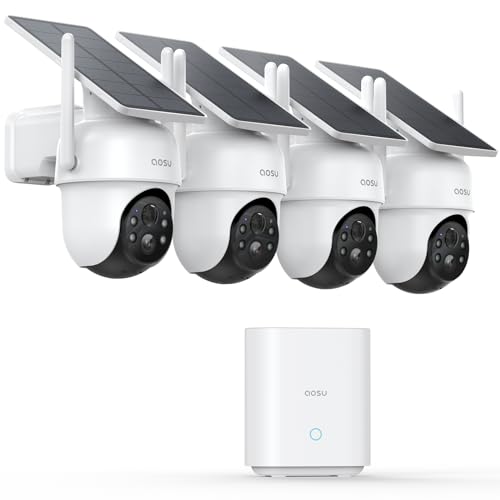
Security cameras are an essential tool in keeping your home or business safe and secure. By connecting security cameras to your PC, you can monitor your property from anywhere and ensure peace of mind.
In this article, we will guide you through the process of connecting security cameras to your PC, providing you with step-by-step instructions and tips to make the setup process as smooth as possible.
Whether you are a home user looking to enhance your security or a business owner wanting to keep an eye on your premises, connecting security cameras to your PC is a practical and cost-effective solution.
Step-by-step Guide to Connect Security Cameras to PC
1. Determine the type of security camera you have and the connection options available (e.g., USB, Ethernet, Wi-Fi).


2. Install the necessary software or drivers for the security camera on your PC.
3. Connect the security camera to your PC using the appropriate cable or wireless connection.
4. Open the software or app for the security camera on your PC and follow the on-screen instructions to set up the camera.
5. Adjust the camera settings as needed (e.g., resolution, recording options) to meet your security needs.
6. Test the connection and camera functionality to ensure everything is working properly.
7. Once the camera is successfully connected to your PC, you can monitor and manage it from your computer.
Choose the Right Security Camera
When selecting a security camera for your PC, it’s important to consider a few key factors to ensure you get the best fit for your needs. Here are some tips to help you choose the right security camera:
1. Determine Your Surveillance Needs
Before purchasing a security camera, identify the specific areas you want to monitor and the level of detail you require. Consider factors such as the size of the area, lighting conditions, and whether you need features like night vision or motion detection.
2. Select the Right Camera Type
There are various types of security cameras available, including dome cameras, bullet cameras, and PTZ cameras. Choose a camera type that best suits your surveillance needs and the installation location. Dome cameras are discreet and suitable for indoor use, while bullet cameras are more visible and ideal for outdoor monitoring.
Install Camera Software on Your PC
Once you have connected your security camera to your PC, you will need to install the necessary software to view and manage the camera feed. Follow these steps to install the camera software:
| 1. | Insert the installation CD that came with your camera into your PC’s CD drive. If your camera didn’t come with a CD, you can usually download the software from the manufacturer’s website. |
| 2. | Follow the on-screen instructions to install the software. This may involve selecting the language, agreeing to the terms and conditions, and choosing the installation location. |
| 3. | Once the installation is complete, launch the camera software. You may need to create an account or log in to access the camera feed. |
| 4. | Configure the camera settings within the software. This may include setting up motion detection, adjusting video quality, and creating recording schedules. |
| 5. | After configuring the settings, you should be able to view the camera feed on your PC. You can also access additional features such as remote viewing, notifications, and camera management. |
By following these steps, you can easily install the camera software on your PC and start using your security camera system to monitor your property.
Connect the Camera to Your PC
Once you have installed the necessary software on your PC, you can connect the security camera to your computer using a USB cable or through a wireless connection, depending on the type of camera you have.
USB Connection:
If your camera has a USB port, simply connect one end of the USB cable to the camera and the other end to a USB port on your PC. Your computer should automatically detect the camera and install any necessary drivers.
Set Up Camera Settings on Your PC
Once you have connected your security cameras to your PC, you will need to set up the camera settings to ensure they are functioning properly. Here are the steps to follow:
1. Install the Camera Software: Make sure you have installed the necessary software that came with your security cameras. This software will allow you to access the camera settings and make any adjustments.
2. Access the Camera Interface: Open the camera software on your PC and navigate to the camera interface. This is where you can adjust settings such as resolution, frame rate, and motion detection.
3. Adjust Camera Settings: Depending on your needs, you can adjust the camera settings to optimize the video quality and performance. You can also set up alerts and notifications for any motion detected by the cameras.
4. Test the Cameras: Once you have adjusted the settings, test the cameras to ensure they are working correctly. Check the video feed, motion detection, and any other features you have set up.
5. Save the Settings: Once you are satisfied with the camera settings, make sure to save them so they are stored for future use. This will ensure that your security cameras are always set up the way you want them.
Access Camera Feed on Your PC
Once you have successfully connected your security cameras to your PC, you can access the camera feeds directly on your computer. Follow these steps to view the live feed:
| 1. | Open the software or app that came with your security camera system on your PC. |
| 2. | Log in using the credentials provided during the setup process. |
| 3. | Once logged in, you should see a list of all connected cameras. |
| 4. | Select the camera you want to view and click on the live feed option. |
| 5. | You should now be able to see the live video feed from the selected camera on your PC screen. |
By following these simple steps, you can easily access and monitor your security camera feeds directly on your PC for added convenience and security.
Ensure Security and Privacy of Your Camera System
When setting up security cameras on your PC, it is crucial to prioritize the security and privacy of your camera system. Here are some key tips to ensure the safety of your surveillance setup:
1. Use strong passwords: Make sure to set unique and complex passwords for your camera system to prevent unauthorized access.
2. Regularly update firmware: Keep your camera’s firmware up to date to patch any security vulnerabilities and ensure optimal performance.
3. Enable encryption: Use encryption protocols like WPA2 for wireless cameras to secure the data transmission and prevent eavesdropping.
4. Secure your network: Set up a secure network with firewalls and strong encryption to protect your camera system from external threats.
5. Disable remote access: Unless necessary, disable remote access to your camera system to minimize the risk of unauthorized access.
By following these security measures, you can enhance the overall security and privacy of your camera system and enjoy peace of mind knowing that your surveillance setup is well-protected.


In step 3 of the setup, it says to connect via USB or wireless. If I choose wireless, do I need to do anything special to secure the connection?
Great question! Yes, when connecting wirelessly, ensure you use strong encryption like WPA2 and update your camera's firmware regularly to maintain security.
I'm trying to decide between a dome camera and a bullet camera for my outdoor setup. Do you think one is better than the other for visibility?
I recently set up my security camera using this guide, and it was super helpful! I had a bit of trouble with the software installation at first, but following the steps made it much easier. I especially liked the tips on adjusting camera settings – my video quality improved dramatically after tweaking the resolution.
Good article! I’m wondering if I can connect multiple security cameras to the same PC. Is there a limit to how many I can add?
I've connected up to four cameras to my PC without issues, as long as it has enough USB ports. Just make sure your PC can handle the data.
I don't think you need to disable remote access entirely. It's helpful for viewing cameras when you're away from home.
While remote access is convenient, we recommend disabling it unless necessary to reduce potential security risks. You can always enable it when needed.