
 Carmen J. Moore

With the advancement of technology, monitoring your security cameras remotely has become easier than ever. Gone are the days when you had to be physically present to check on your security footage. Now, you can simply use your smartphone to keep an eye on your property from anywhere in the world.
But how can you watch your security cameras on your phone? There are several ways to do this, depending on the type of security system you have. Whether you have a Wi-Fi-enabled security camera or a traditional CCTV system, there are options available to help you access your camera feeds on your mobile device.
In this article, we will explore some of the most common methods for watching your security cameras on your phone, including using dedicated mobile apps, accessing the cameras through a web browser, and setting up remote viewing through a DVR or NVR system.
Step-by-Step Guide to Accessing Security Cameras on Your Phone
Accessing your security cameras on your phone is a convenient way to monitor your property remotely. Follow these steps to set up and access your security cameras on your phone:


Step 1: Install the Camera App
Start by downloading and installing the camera app provided by your security camera manufacturer on your phone. Make sure to choose the correct app for your specific camera model.
Step 2: Connect to Your Camera
Open the camera app and follow the on-screen instructions to connect your security cameras to your phone. This usually involves scanning a QR code or entering the camera’s unique ID and password.
Once your cameras are connected, you should be able to view live footage, access recordings, and adjust camera settings directly from your phone.
Download the App for Your Security Camera System
One of the key steps in watching your security cameras on your phone is to download the corresponding app for your security camera system. Most security camera manufacturers offer mobile apps that allow you to easily access your camera feeds from anywhere.
To find the right app for your security camera system, you can visit the official website of the manufacturer or search for the app in the Apple App Store or Google Play Store. Make sure to download the app that is compatible with your specific camera model.
After downloading the app, follow the instructions to set it up and connect it to your security cameras. You may need to enter your account credentials or scan a QR code to link the app to your cameras.
Once the app is set up, you can easily view live feeds, playback recordings, adjust camera settings, and receive notifications directly on your phone. This convenient access to your security cameras ensures that you can monitor your property at any time, no matter where you are.
Connect Your Security Cameras to Your Phone
Connecting your security cameras to your phone is a convenient way to monitor your home or business remotely. Follow these steps to set up the connection:
Step 1: Install the App
First, download and install the app provided by your camera manufacturer on your phone. Make sure to choose the correct app for your specific camera model.
Step 2: Connect to Wi-Fi
Ensure that your security cameras are connected to a stable Wi-Fi network. This will enable the cameras to communicate with your phone through the app.
Note: Make sure your Wi-Fi network has a strong signal in the areas where your cameras are installed to avoid connectivity issues.
Once your cameras are connected to Wi-Fi, open the app on your phone and follow the on-screen instructions to pair the cameras with your device.
Set Up Remote Viewing on Your Mobile Device
Setting up remote viewing on your mobile device is a convenient way to monitor your security cameras on the go. Follow these steps to access your cameras from anywhere:
- Download the mobile app provided by your security camera system manufacturer from the App Store or Google Play Store.
- Install the app on your mobile device and open it.
- Follow the app’s instructions to connect your cameras to the app. This usually involves scanning a QR code or entering the camera’s unique ID.
- Create an account or sign in to your existing account to access your cameras remotely.
- Once connected, you can view live or recorded footage from your security cameras on your mobile device.
Tips:
- Ensure your security cameras have a stable internet connection for remote viewing.
- Set up notifications on the app to receive alerts for motion detection or other events.
Access Your Security Cameras Anywhere, Anytime
With the advancement of technology, it is now easier than ever to monitor your security cameras on your phone from anywhere in the world. Whether you are at home, at work, or on vacation, you can keep an eye on your property and loved ones with just a few taps on your smartphone.
1. Download the App
To access your security cameras on your phone, you first need to download the corresponding app provided by the manufacturer of your security system. These apps are usually available for both iOS and Android devices and can be easily found in the App Store or Google Play Store.
2. Connect to Your Cameras
Once you have downloaded the app, you can easily connect to your security cameras by logging in with your credentials. Make sure your cameras are connected to the internet and that you have a stable Wi-Fi or cellular connection on your phone to view the live feed.
By following these simple steps, you can have peace of mind knowing that you can access your security cameras anytime, anywhere, right from the palm of your hand.
Customize Settings for Mobile Viewing
When viewing your security cameras on your phone, it’s important to customize the settings for optimal viewing experience. Here are some tips:
1. Adjust Video Quality
Tip: Depending on your internet connection, you may want to adjust the video quality to ensure smooth streaming without buffering.
2. Enable Push Notifications
Tip: Enable push notifications on your mobile device to receive alerts when motion is detected or when there is a security breach.
Troubleshooting Tips for Remote Camera Access
If you are having trouble accessing your security cameras on your phone, here are some troubleshooting tips to help you resolve the issue:
- Check your internet connection: Make sure you have a stable internet connection on your phone to access the cameras remotely.
- Verify camera settings: Ensure that the camera settings are correctly configured for remote access.
- Update camera firmware: Check if there are any firmware updates available for your cameras and install them if needed.
- Restart the cameras: Sometimes a simple restart of the cameras can help resolve connectivity issues.
- Reboot your phone: Restarting your phone can also help refresh the connection to the cameras.
- Check app settings: Verify that the security camera app on your phone has the necessary permissions and settings enabled for remote access.
- Contact support: If you have tried all the above steps and still cannot access your cameras, contact the camera manufacturer’s support for further assistance.

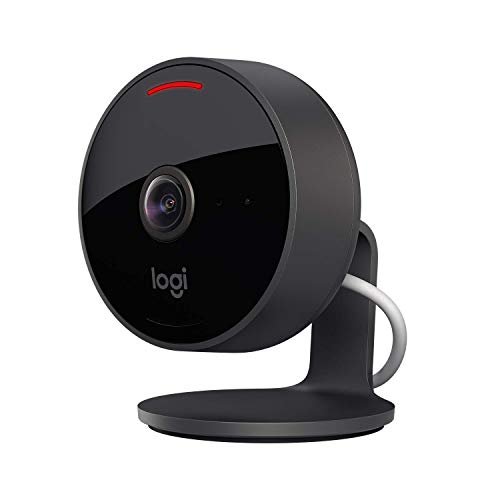


I recently set up my cameras to view on my phone, and it was super easy! I used the app from my camera brand, connected it to Wi-Fi, and it worked perfectly. I love getting notifications when there's motion detected. Just a heads up though, make sure your Wi-Fi signal is strong where the cameras are installed, or you might run into issues.
I’m not sure about relying solely on mobile apps for security. What if my phone dies or I lose signal? I think having a physical monitor is still crucial.
Remember to keep your app updated! I had issues with viewing until I updated it last week.
What do you mean by 'setting up remote viewing'? Is it different from just connecting the app to the cameras?
Setting up remote viewing typically involves configuring your camera settings and ensuring that your app is linked correctly to your cameras. It might also include creating an account if your camera system requires one.
Can anyone explain how to find the right app for my specific security camera model? I’m unsure which one to download.