
 Carmen J. Moore

Have you ever wondered how to keep an eye on your home or business while on the go? With the advancement of technology, it is now easier than ever to access your security cameras from your smartphone. Whether you want to check in on your property while traveling or simply keep an eye on your kids playing in the backyard, accessing your security cameras on your phone is a convenient and practical solution.
In this article, we will explore the various ways you can view your security cameras on your phone, from using dedicated mobile apps to setting up remote access through your security system’s software.

By following these simple steps, you can ensure that you always have peace of mind knowing that you can monitor your property at any time, from anywhere.
How to access security cameras remotely
Accessing your security cameras remotely is essential for monitoring your property while you are away. Follow these steps to access your security cameras on your phone:
| Step 1: | Make sure your security cameras are connected to a reliable Wi-Fi network. |
| Step 2: | Download the corresponding mobile app for your security camera system from the App Store or Google Play Store. |
| Step 3: | Open the app and log in using your account credentials. |
| Step 4: | Once logged in, you should be able to view live footage from your security cameras on your phone. |
| Step 5: | Explore the app’s features to control camera settings, receive notifications, and playback recorded footage. |
Step-by-step guide for viewing cameras on your phone
1. Download the mobile app provided by your security camera manufacturer from the App Store or Google Play Store.
2. Install the app on your smartphone and open it.
3. Create an account or log in with your existing credentials.
4. Follow the app’s instructions to add your security cameras to the app by scanning the QR code or entering the camera’s details.
5. Once the cameras are added, you can view live footage, playback recordings, and adjust settings directly from your phone.
6. Make sure your phone is connected to the internet for remote viewing capabilities.
7. You can now monitor your security cameras on your phone anytime, anywhere.
Choosing the right mobile app for camera access
When it comes to accessing your security cameras on your phone, selecting the right mobile app is crucial. Here are a few key considerations to keep in mind:
Compatibility
Make sure the mobile app you choose is compatible with your security camera system. Some apps may only work with specific brands or models, so double-check before downloading.
Features
Look for a mobile app that offers the features you need, such as live streaming, motion detection alerts, and remote access. Consider your priorities and choose an app that aligns with your requirements.
Setting up remote access for security cameras
Setting up remote access for your security cameras allows you to view live feeds and recordings from your cameras on your phone from anywhere in the world. Follow these steps to set up remote access:
- Ensure that your security cameras are connected to a network with internet access.
- Install the corresponding mobile app for your security camera system on your smartphone.
- Create an account or log in to the app using your existing credentials.
- Follow the app’s instructions to add your security cameras to the app.
- Configure remote access settings within the app to enable viewing on your phone.
- Test the remote access functionality by accessing your security cameras from a different network.
By following these steps, you can easily set up remote access for your security cameras and monitor your property from your phone at any time.
Connecting your phone to the security camera system
Connecting your phone to your security camera system allows you to monitor your property remotely and stay informed about any suspicious activities. Here are the steps to connect your phone to the security camera system:
Step 1: Download the App
First, download the app provided by the security camera system manufacturer on your smartphone. The app will allow you to access the camera feeds and control settings remotely.
Step 2: Connect to the Same Network
Ensure that your phone and the security cameras are connected to the same Wi-Fi network. This will enable a seamless connection between the devices.
Step 3: Add Cameras to the App
- Open the app on your phone and follow the on-screen instructions to add your security cameras to the app.
- Enter the camera’s unique ID or scan the QR code provided with the camera to add it to the app.
Step 4: Access Camera Feeds
- Once the cameras are added to the app, you can access the live camera feeds from your phone anytime, anywhere.
- You can also adjust camera settings, view recorded footage, and receive notifications of any detected motion.
By following these steps, you can easily connect your phone to the security camera system and enhance the security of your property.
Tips for optimizing camera viewing on your phone
Viewing your security cameras on your phone can provide peace of mind and added security to your property. Here are some tips to optimize your camera viewing experience:
1. Ensure a stable internet connection
A stable internet connection is crucial for smooth video streaming. Make sure you have a strong Wi-Fi signal or use mobile data with a good signal strength.
2. Adjust camera settings
Adjust camera settings such as resolution and frame rate to optimize viewing on your phone. Lowering the resolution can improve streaming quality on slower internet connections.
| Resolution: Lower resolution for smoother streaming |
| Frame Rate: Adjust frame rate for optimal viewing experience |
Ensuring security and privacy when accessing cameras remotely
1. Use strong passwords: Make sure to set unique, complex passwords for your camera system and avoid using default passwords. This will help prevent unauthorized access to your cameras.
2. Enable encryption: Ensure that your camera system uses encryption protocols like WPA2 to secure the data transmitted between your cameras and your phone.
3. Keep software up to date: Regularly update the firmware and software of your camera system to patch any security vulnerabilities that could be exploited by hackers.
4. Use a secure network: Connect your cameras and phone to a secure, private network to minimize the risk of interception or hacking on public Wi-Fi networks.
5. Enable two-factor authentication: Add an extra layer of security by enabling two-factor authentication for accessing your camera system on your phone. This will require a verification code in addition to your password.
6. Limit access: Only grant access to your camera system to trusted users and regularly review and revoke access for any unauthorized users.
7. Monitor access logs: Keep track of who accesses your camera system and review logs for any suspicious activity that could indicate a security breach.
8. Secure physical access: Ensure that your cameras are installed in secure locations to prevent physical tampering or unauthorized access.
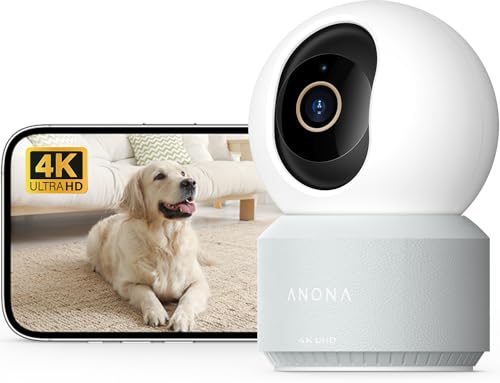


Remember to change the default passwords on your cameras. Security is key!
I have to disagree about relying solely on the app for monitoring. I had an incident where the app crashed and I missed an important alert. It’s essential to have backups like local recording and notifications on another device.
That's a valid concern. Having multiple methods of monitoring, such as local storage and different alert systems, can enhance your overall security.
I’ve been using my camera system's app for a few months now, and it’s been a lifesaver. The motion alerts really help me keep an eye on my kids outside. Just a tip—make sure to lower the resolution if your internet is slow; it makes a huge difference in streaming quality!
What if my security camera app doesn't connect to the cameras? I’ve followed the steps, but I still can’t see any footage on my phone. Any troubleshooting tips?
Make sure your cameras are connected to the right Wi-Fi network and that the app is up to date. Also, check if your permissions are set to allow the app to access the camera feeds.