
 Carmen J. Moore
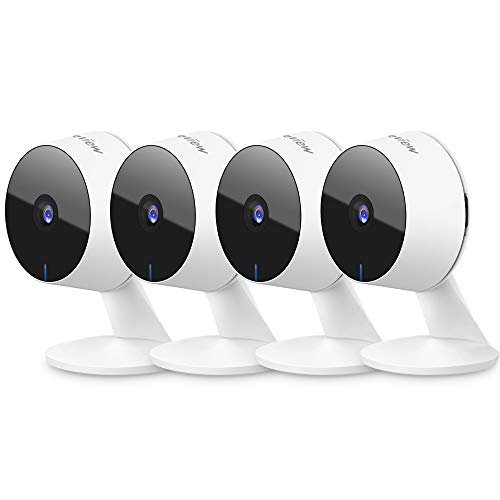
If you’re looking to enhance the security of your home or business, setting up a surveillance system with Blue Iris software is a great option. Blue Iris offers powerful features for monitoring multiple cameras and recording footage. But what if you want to stream the live feed from your security cameras to your Chromecast device?
Streaming security cameras from Blue Iris to Chromecast can provide you with the convenience of viewing your camera feeds on a larger screen. By setting up the proper configurations, you can easily cast the live video feed from your Blue Iris cameras to your Chromecast-connected TV or monitor.
In this article, we will explore the steps involved in streaming security cameras from Blue Iris to Chromecast. We will guide you through the setup process and help you make the most of your surveillance system by leveraging the capabilities of Chromecast.


How to Stream Security Cameras
Streaming security cameras to devices like Chromecast can provide real-time monitoring and surveillance capabilities. Here’s a simple guide on how to do it:
Step 1: Set up Blue Iris software
First, make sure you have Blue Iris software installed on your computer. This software is compatible with a wide range of security cameras and allows you to manage and monitor them efficiently.
Step 2: Configure Blue Iris for streaming
Within the Blue Iris software, configure your security cameras and set up the streaming settings. Ensure that the cameras are connected and properly functioning before proceeding.
Tip: Check the network settings and make sure they are optimized for streaming to ensure a smooth experience.
Once the cameras are set up and configured, you can start the streaming process to view the camera feeds on your desired devices, such as Chromecast.
By following these steps, you can easily stream security cameras from Blue Iris to devices like Chromecast for convenient monitoring and surveillance.
Streaming Security Cameras from Blue Iris
Blue Iris is a popular software for managing and recording security camera footage. One of the features that users often look for is the ability to stream their camera feeds to other devices, such as a Chromecast.
Fortunately, Blue Iris does support streaming to Chromecast devices, allowing you to view your camera feeds on a larger screen. To set up streaming from Blue Iris to Chromecast, follow these steps:
- Make sure your Chromecast device is set up and connected to the same network as your Blue Iris server.
- In the Blue Iris interface, navigate to the camera feed you want to stream.
- Click on the camera feed to open the camera settings.
- Look for the option to enable streaming or share the camera feed.
- Choose the Chromecast device you want to stream to from the list of available devices.
- Once selected, the camera feed should start streaming to your Chromecast device.
With these steps, you can easily stream your security camera feeds from Blue Iris to a Chromecast, allowing you to monitor your cameras on a larger screen and keep an eye on your property more conveniently.
Streaming Security Cameras from Blue Iris to Chromecast
Streaming security camera feeds from Blue Iris to your Chromecast device is a convenient way to monitor your property on a larger screen. By using the Blue Iris software and the Chromecast casting feature, you can easily view live camera footage on your TV or monitor.
Steps to Stream Security Cameras to Chromecast:
| 1. | Ensure that your Blue Iris software is set up and running with your security cameras connected. |
| 2. | On your mobile device or computer, open the Google Home app and connect your Chromecast device to the same Wi-Fi network as your Blue Iris system. |
| 3. | Open the Blue Iris app on your mobile device or computer and select the camera feed you want to stream. |
| 4. | Look for the casting icon in the Blue Iris app and select your Chromecast device from the list of available devices. |
| 5. | Your security camera feed should now be streaming on your Chromecast-connected TV or monitor. |
Step-by-Step Guide
To stream security cameras from Blue Iris to Chromecast, follow these steps:
Step 1: Set up Blue Iris
Ensure that your security cameras are properly set up and configured in Blue Iris. Make sure you can view the camera feeds within the Blue Iris software.
Step 2: Install Google Home App
Download and install the Google Home app on your mobile device or computer.
For the complete guide, please visit the official resources or contact the customer support of the mentioned devices.
Requirements and Setup
In order to stream security cameras from Blue Iris to Chromecast, you will need the following:
- Blue Iris software installed on a Windows computer: Ensure that you have Blue Iris software set up and configured on a Windows computer where your security cameras are connected.
- Google Chromecast device: You will need a Google Chromecast device connected to your TV or monitor where you want to stream the security camera footage.
- Local network connection: Both the Windows computer running Blue Iris and the Chromecast device need to be connected to the same local network for streaming to work.
Once you have all the requirements in place, you can proceed with setting up the streaming of security camera footage from Blue Iris to Chromecast.
Troubleshooting Tips
Here are some troubleshooting tips if you encounter issues while streaming security cameras from Blue Iris to Chromecast:
- Ensure that both your Blue Iris software and Chromecast device are updated to the latest versions.
- Check the network connection between your Blue Iris server and the Chromecast device to ensure they are on the same network.
- Verify that the security camera feeds are properly configured and accessible within the Blue Iris software.
- Restart both the Blue Iris server and the Chromecast device to refresh the connection.
- Try streaming a different camera feed to see if the issue is specific to a particular camera.
- Check the settings in Blue Iris to make sure the streaming format is compatible with Chromecast.
- Ensure that there are no firewall or security settings blocking the connection between Blue Iris and Chromecast.
- If all else fails, consider reaching out to Blue Iris support or Chromecast support for further assistance.


I'm trying to stream my camera feeds from Blue Iris to Chromecast but keep running into connection issues. Any specific settings I should check in Blue Iris?
I recently set up Blue Iris to stream to my Chromecast, and it was pretty straightforward. After installing the Google Home app and ensuring both devices were on the same network, I used the casting icon in Blue Iris to select my Chromecast. It worked like a charm! The video quality was great, and I could monitor my cameras easily on the TV. I did face a minor hiccup where one camera wouldn’t connect, but restarting the Blue Iris server fixed it.