
 Carmen J. Moore
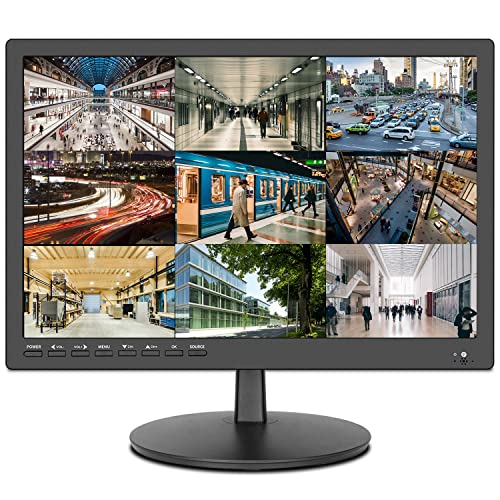
Security cameras are an essential tool for monitoring and protecting your home or business. They provide a sense of security and peace of mind by allowing you to keep an eye on your property, even when you’re not there.
But can you add a security camera to your computer monitor? The answer is yes! With the right equipment and software, you can easily connect a security camera to your computer monitor and view live footage directly on your screen.
By integrating your security camera with your computer monitor, you can conveniently monitor multiple cameras at once, easily access recordings, and even set up alerts for motion detection. This setup can enhance the security of your property and provide you with a comprehensive surveillance system.


Is it possible to connect a security camera to a computer monitor?
Yes, it is possible to connect a security camera to a computer monitor. Most security cameras come with outputs that allow you to connect them to various types of monitors, including computer monitors. You can typically use an HDMI, VGA, or RCA cable to establish the connection between the camera and the monitor.
Once you have connected the security camera to the computer monitor, you can view the camera’s feed directly on the monitor screen. This setup is commonly used for monitoring surveillance footage in real-time or reviewing recorded footage.
Understanding the compatibility
When considering adding a security camera to a computer monitor, it is essential to understand the compatibility between the two devices. Security cameras typically use different types of video outputs, such as HDMI, VGA, or RCA, to connect to a monitor. Your computer monitor must have the corresponding input port to be able to display the video feed from the security camera.
It is also crucial to check the resolution and aspect ratio supported by both the security camera and the computer monitor. Ensuring that they are compatible will help you achieve the best quality of video output without any distortion or loss of image clarity.
Connecting the camera to the monitor
Once you have your security camera set up, you can easily connect it to your computer monitor for viewing. Here’s how:
- Locate the video output port on your security camera. This can be HDMI, VGA, or another type of port.
- Identify the corresponding input port on your computer monitor.
- Use the appropriate cable to connect the video output port of the camera to the input port of the monitor.
- Power on both the camera and the monitor.
- Switch the monitor input source to the port where the camera is connected.
- You should now see the live feed from your security camera on the monitor.
By following these simple steps, you can easily view the footage from your security camera directly on your computer monitor for added convenience and security.
Benefits of using a computer monitor for security camera
There are several advantages to using a computer monitor for your security camera system:
- Cost-effective: Using a computer monitor that you already own can save you money compared to buying a separate monitor for your security camera.
- Convenience: Having your security camera feed displayed on your computer monitor allows for easy monitoring without the need to switch between screens.
- Customization: Computer monitors often offer more options for adjusting display settings, allowing you to optimize the viewing experience for your security camera footage.
- Integration: By connecting your security camera to your computer monitor, you can easily integrate your surveillance system with other computer applications or software for enhanced security monitoring.
- Space-saving: Using a computer monitor eliminates the need for an additional monitor, saving space and reducing clutter in your surveillance setup.
Key considerations before setting up
Before setting up a security camera on your computer monitor, there are several key considerations to keep in mind:
Compatibility
Ensure that the security camera you are planning to use is compatible with your computer monitor. Check for any necessary adapters or converters that may be required to connect the camera to the monitor.
Resolution and Display
Consider the resolution and display capabilities of your computer monitor when setting up a security camera. Make sure the monitor can support the video quality and resolution of the camera for optimal viewing experience.
| Important Factors: | Details: |
| Connection Options | Check if the security camera can be connected to the monitor via HDMI, VGA, or other compatible ports. |
| Power Source | Determine if the camera requires a separate power source or if it can be powered through the monitor. |
| Software Compatibility | Ensure that the camera’s software is compatible with your computer’s operating system for seamless integration. |
Alternative solutions for monitoring security cameras
While adding security cameras to a computer monitor is a common and effective way to monitor your surroundings, there are also alternative solutions available:
1. Mobile apps
Many security camera systems come with mobile apps that allow you to monitor your cameras from your smartphone or tablet. This gives you the flexibility to keep an eye on your property even when you’re not at home.
2. Cloud storage
Some security camera systems offer cloud storage options, allowing you to store and access footage remotely. This can be useful for reviewing footage or sharing it with authorities if needed.
These alternative solutions can complement your existing security camera setup and provide additional convenience and peace of mind.


I recently set up a security camera with my computer monitor, and it's been great. The integration was straightforward since I had an HDMI port. Watching live feeds while working on my computer is super convenient. Just a heads up, though—make sure your camera’s resolution matches your monitor for the best picture quality.
That's good to know! Did you have to change any settings on your monitor to get it working?
Can you connect a security camera to a computer monitor without any special software? How does that work?
You can connect a security camera directly to a monitor using cables like HDMI or VGA, but some setups may require specific software to access features like motion detection or recording.