
 Carmen J. Moore

Having trouble with your iPhone’s back camera? It can be frustrating when your iPhone’s back camera stops working, as it can limit your ability to take photos, record videos, and use various apps that rely on the camera functionality. There are several reasons why your iPhone’s back camera may not be working properly, from software glitches to hardware issues.

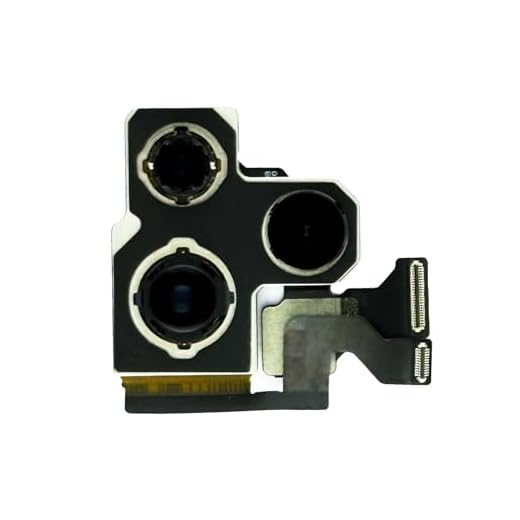
One common reason for the back camera not working on an iPhone is a software problem. This can be caused by a recent software update, a glitch in the camera app, or other software-related issues. In some cases, simply restarting your iPhone or updating the software to the latest version can resolve the problem.
However, if the issue persists, it may be due to a hardware problem. This could be caused by a damaged camera lens, a faulty camera sensor, or other internal components. In such cases, it is recommended to contact Apple Support or visit an authorized service center for further assistance.
Common reasons for iPhone back camera not working
There could be several reasons why the back camera on your iPhone is not working. Here are some common issues to consider:
1. Software glitches:
Software bugs or glitches can sometimes cause the camera to malfunction. Try restarting your iPhone or updating to the latest iOS version to see if that resolves the issue.
2. Hardware issues:
If there is physical damage to the camera lens or sensor, it may prevent the camera from working properly. Check for any visible damage and consider getting it repaired by a professional.
Software issues
If your back camera is not working on your iPhone, it could be due to software issues. Sometimes, a software glitch or bug can cause the camera to malfunction. Here are a few steps you can try to troubleshoot the problem:
Restart your iPhone
One of the simplest solutions to fix software issues is to restart your iPhone. This can help refresh the system and clear any temporary glitches that may be affecting the camera.
Update your iOS
Make sure your iPhone is running the latest version of iOS. Apple regularly releases software updates that include bug fixes and improvements. Updating your iOS can help resolve any software issues that may be causing the camera problem.
Physical damage to the camera
If your back camera is not working on your iPhone, it could be due to physical damage. The camera lens may be scratched, cracked, or damaged in some way, preventing it from functioning properly. Physical impact or dropping the phone can cause damage to the camera module, leading to issues with capturing photos or videos.
If you suspect physical damage to the camera, you may need to have it repaired or replaced by a professional technician. Avoid trying to fix it yourself as it may cause further damage to the device. Contact Apple Support or visit an authorized service center for assistance with repairing or replacing the camera on your iPhone.
Problems with the camera app
When your back camera is not working on your iPhone, it could be due to issues with the camera app itself. Here are some common problems related to the camera app:
1. Software glitches: Sometimes the camera app may experience software glitches that prevent it from functioning properly. Try restarting the app or resetting your phone to see if the issue resolves.
2. Outdated app version: Make sure your camera app is up to date. Check the App Store for any available updates and install them to ensure optimal performance.
3. Permissions: Check if the camera app has the necessary permissions to access the camera on your iPhone. Go to Settings > Privacy > Camera and ensure that the camera app is enabled.
4. Storage space: Insufficient storage space on your iPhone can also affect the camera app’s performance. Clear out unnecessary files and apps to free up space for the camera app to function properly.
By troubleshooting these common problems with the camera app, you may be able to resolve issues with your back camera not working on your iPhone.
Outdated iOS version
If your iPhone’s back camera is not working, it could be due to an outdated iOS version. Make sure that your device is running the latest version of iOS. Apple regularly releases software updates that include bug fixes and improvements that can help resolve issues with the camera.
To check for updates, go to Settings > General > Software Update on your iPhone. If an update is available, follow the on-screen instructions to download and install it. This may help resolve any software-related issues that are causing the back camera to not work properly.
Hardware malfunction
One common reason why your back camera may not be working on your iPhone is due to a hardware malfunction. This could be caused by physical damage to the camera lens or sensor, a loose connection inside the phone, or a malfunctioning camera module. In some cases, the issue may be resolved by cleaning the lens or restarting the phone. However, if the problem persists, you may need to contact Apple support or visit an authorized service center for further assistance.
Settings and permissions
Before troubleshooting the issue with your iPhone’s back camera not working, it’s important to check your device’s settings and permissions. Here are some steps you can take:
- Make sure the camera app has permission to access the camera. Go to Settings > Privacy > Camera and ensure the camera app is enabled.
- Restart your iPhone to refresh the system and potentially resolve any software glitches that may be causing the camera to malfunction.
- Check for any pending software updates. Go to Settings > General > Software Update and install any available updates.
- Reset your iPhone’s settings by going to Settings > General > Reset > Reset All Settings. This will not erase your data but will reset all settings to default.
- If none of the above steps work, you may need to contact Apple Support or visit an authorized service center for further assistance.


Is it true that not having enough storage can affect camera performance? My phone's almost full, and I'm worried that might be the issue.
Yes, insufficient storage can impact app performance, including the camera. Freeing up space may help improve functionality.
I had problems with my back camera after an iOS update. It was super frustrating! I eventually had to reset all my settings—thankfully, it worked! Just make sure to back up your data first, just in case. Has anyone else had to do this, or is resetting not always necessary?
I had to reset my settings too after an update. It was tedious, but my camera works great now!
I'm having trouble with my back camera on my iPhone. It was working fine, but now it just shows a black screen. Any tips on what might be causing this?