
 Carmen J. Moore
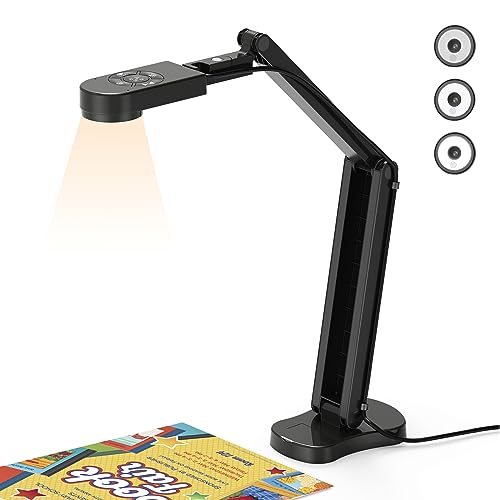
Using your iPhone as a document camera can be a game-changer for online learning, presentations, or even just capturing notes on the go. With the right setup and apps, you can easily turn your iPhone into a versatile tool for displaying documents, images, and more.
Why use your iPhone as a document camera?
There are several benefits to using your iPhone as a document camera. It provides a portable and convenient way to share physical documents or objects with others, especially in virtual settings. Additionally, the high-quality camera on your iPhone can capture details with clarity, making it an excellent tool for demonstrations or tutorials.


Ready to learn how to set up your iPhone as a document camera? Let’s dive in!
Step-by-Step Guide to Using iPhone as Document Camera
Using your iPhone as a document camera can be a convenient way to share documents, notes, or sketches during virtual meetings or presentations. Follow these steps to set up your iPhone as a document camera:
- Download a document camera app from the App Store, such as CamScanner, Genius Scan, or Office Lens.
- Place your iPhone on a stable surface with a clear view of the document you want to share.
- Open the document camera app and position the camera over the document. Make sure the document is well-lit and in focus.
- Adjust the settings in the app to enhance the image quality, such as adjusting brightness, contrast, or color settings.
- Once you have the document in view, you can start sharing your screen during a virtual meeting or presentation.
- Use the app’s features to annotate, highlight, or draw on the document in real-time if needed.
- Remember to keep the document and your iPhone steady to ensure a clear and stable image for viewers.
Setting Up Your iPhone for Document Camera Use
To use your iPhone as a document camera, you need to follow these steps:
| Step 1: | Position your iPhone on a stable surface or use a stand to keep it steady. |
| Step 2: | Open the camera app on your iPhone. |
| Step 3: | Switch to the rear camera by tapping on the camera switch icon. |
| Step 4: | Adjust the focus and exposure settings by tapping and holding on the screen until you see the AE/AF Lock notification. |
| Step 5: | Place the document or object you want to display under the camera lens. |
| Step 6: | Ensure proper lighting for clear visibility. |
| Step 7: | You can use additional apps or features to annotate, highlight, or edit the captured image. |
Choosing the Right Apps for Document Camera Functionality
When using your iPhone as a document camera, the right apps can make all the difference in the quality of your presentations and demonstrations. Here are some key factors to consider when choosing the right apps for document camera functionality:
1. Compatibility
Make sure the app you choose is compatible with your iPhone model and operating system. Some apps may only work with specific iPhone models or require a certain version of iOS to function properly.
2. Features
- Look for apps that offer a wide range of features to enhance your document camera experience. This could include tools for adjusting focus, adding annotations, capturing images, and more.
- Consider whether you need additional features like video recording, live streaming, or integration with other apps or platforms.
By considering compatibility and features, you can find the right apps to maximize the functionality of your iPhone as a document camera.
Positioning Your iPhone for Optimal Document Viewing
When using your iPhone as a document camera, it is important to position it correctly to ensure optimal viewing. Here are some tips to help you position your iPhone for the best results:
1. Use a stable surface: Place your iPhone on a stable surface such as a desk or table to prevent shaking and ensure a clear image.
2. Adjust the angle: Position your iPhone at a slight angle to the document you want to capture to avoid reflections and glare.
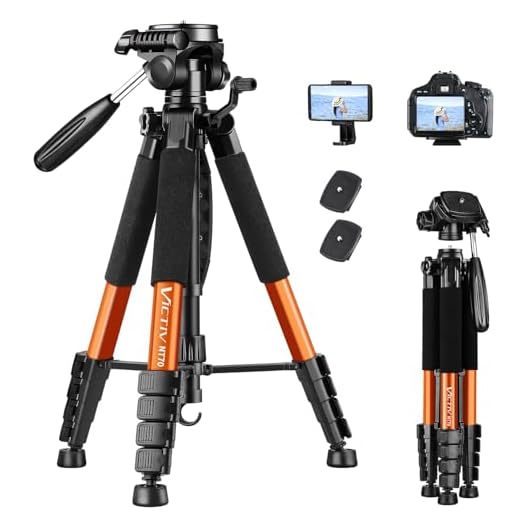
3. Use a stand or holder: Consider using a stand or holder to keep your iPhone steady and at the right height for capturing documents.
4. Ensure good lighting: Make sure the document is well-lit to improve the quality of the image captured by your iPhone.
By following these tips, you can easily position your iPhone for optimal document viewing and make the most of its camera capabilities.
Adjusting Camera Settings for Clear Document Capture
When using your iPhone as a document camera, it’s important to adjust the camera settings to ensure clear and high-quality document capture. Here are some tips on how to optimize your camera settings:
1. Focus
Make sure the document you are capturing is in focus. To adjust the focus on your iPhone camera, simply tap on the area of the screen where you want to focus. This will help ensure that the text and images on the document appear sharp and clear.
2. Exposure
Adjust the exposure settings on your iPhone camera to ensure that the document is properly lit. You can adjust the exposure by tapping on the screen and sliding your finger up or down to increase or decrease the exposure level. Proper exposure will help prevent the document from appearing too dark or too bright.
By adjusting the focus and exposure settings on your iPhone camera, you can capture clear and high-quality images of documents for presentations, lectures, or sharing with others.
Utilizing Additional Features for Enhanced Document Viewing
When using your iPhone as a document camera, there are several additional features you can utilize to enhance your document viewing experience:
1. Zoom In and Out
Take advantage of the zoom feature on your iPhone camera to get a closer look at text or details on your document. Pinch in or out on the screen to zoom in or out, allowing you to focus on specific areas of the document.
2. Adjust Brightness and Contrast
For better visibility, you can adjust the brightness and contrast settings on your iPhone camera. Tap on the screen to bring up the exposure and focus controls, then slide the brightness and contrast sliders to achieve the desired look for your document.
By using these additional features, you can make the most of your iPhone as a document camera and improve the quality of your document viewing experience.
Tips and Tricks for Making the Most of Your iPhone Document Camera
If you’re looking to use your iPhone as a document camera, here are some tips and tricks to help you make the most of this versatile tool:
1. Positioning is key: Make sure your iPhone is positioned directly over the document or object you want to capture. This will ensure clear and focused images.
2. Use a stable surface: Place your iPhone on a stable surface or use a tripod to prevent shaky footage and ensure steady images.
3. Adjust lighting: Good lighting is essential for clear images. Make sure the area is well-lit to avoid shadows and improve image quality.
4. Use the camera app: Take advantage of the features in your iPhone’s camera app, such as autofocus and exposure adjustment, to enhance the quality of your document camera images.
5. Experiment with angles: Try capturing images from different angles to find the best perspective for your document camera setup.
6. Utilize editing tools: After capturing images, use editing tools available on your iPhone to enhance the quality of the photos, adjust colors, and crop as needed.
7. Explore third-party apps: Consider exploring third-party camera apps that offer additional features and functionalities to further enhance your document camera experience.
8. Practice and experiment: The more you use your iPhone as a document camera, the better you’ll become at capturing clear and professional-looking images. Practice and experiment with different settings to find what works best for you.


I'm curious about the best apps to use for turning my iPhone into a document camera. Are there any specific features I should look for?
Great question! Look for apps that offer good image quality, annotation tools, and ease of use. Popular options include CamScanner and Office Lens, which have features for adjusting focus and brightness.
I started using my iPhone as a document camera for teaching, and it's been a game-changer! I set up a small tripod to keep it steady, and using an app like Genius Scan really helps with clarity. Lighting is crucial, though; I found that natural light works best to avoid shadows.