
 Carmen J. Moore

Are you a Twitch streamer looking to enhance your content with high-quality visuals? Using your iPhone camera on your Mac can be a game-changer, allowing you to capture crisp, clear video and take your streaming to the next level. In this article, we’ll walk you through the steps to set up and use your iPhone camera on your Mac for Twitch streaming.
With the increasing popularity of live streaming platforms like Twitch, having a professional-looking setup is essential to stand out from the crowd. By leveraging the power of your iPhone camera and your Mac, you can create a visually appealing stream that keeps your viewers engaged and coming back for more.


Step-by-Step Guide to Connect iPhone Camera to Mac for Twitch Streaming
If you want to enhance your Twitch streaming experience by using your iPhone camera on your Mac, follow these simple steps:
Step 1:
Make sure your iPhone and Mac are connected to the same Wi-Fi network.
Step 2:
Download and install the EpocCam app on your iPhone from the App Store.
Step 3:
Download and install the EpocCam drivers for Mac from the Kinoni website.
Step 4:
Launch the EpocCam app on your iPhone and the EpocCam viewer on your Mac.
Step 5:
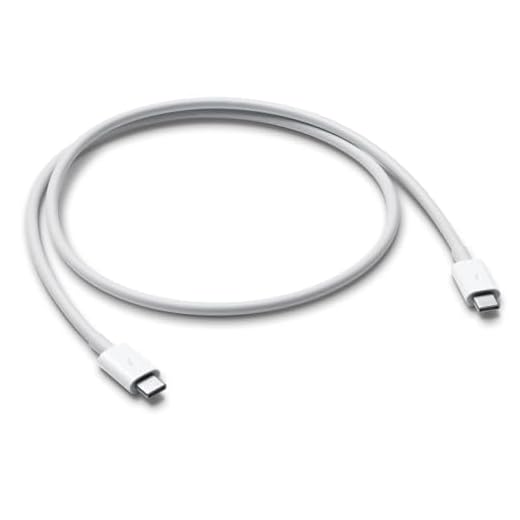
Connect your iPhone to your Mac using a USB cable.
Step 6:
In the EpocCam viewer on your Mac, select your iPhone as the camera source.
Step 7:
You can now use your iPhone camera as a webcam for Twitch streaming on your Mac.
Enjoy high-quality video and improve your Twitch broadcasts with your iPhone camera!
Download and Install the Latest Version of OBS Studio
In order to use your iPhone camera on Mac with Twitch, you will need to download and install the OBS Studio software. OBS Studio is a popular open-source software for live streaming and recording that is compatible with both Mac and Windows operating systems.
To download OBS Studio, visit the official website at https://obsproject.com and click on the “Download” button. Choose the version that is compatible with your Mac operating system and follow the on-screen instructions to install the software.
Once OBS Studio is installed on your Mac, you can configure it to capture video from your iPhone camera and stream it to Twitch. OBS Studio offers a variety of settings and features that allow you to customize your stream and create professional-looking broadcasts.
Connect Your iPhone to Your Mac Using a Lightning Cable
To use your iPhone camera on your Mac with Twitch, you need to connect your iPhone to your Mac using a Lightning cable. Follow these steps:
- Step 1: Plug one end of the Lightning cable into your iPhone and the other end into a USB port on your Mac.
- Step 2: Unlock your iPhone and trust the connection if prompted.
- Step 3: Open QuickTime Player on your Mac.
- Step 4: In QuickTime Player, go to “File” and select “New Movie Recording.”
- Step 5: Click on the arrow next to the record button and select your iPhone as the camera source.
- Step 6: Your iPhone camera feed should now appear on your Mac screen.
Now you can use your iPhone camera on your Mac with Twitch for streaming or recording videos!
Enable Trust This Computer on Your iPhone
Before you can use your iPhone camera on your Mac with Twitch, you need to enable the “Trust This Computer” option on your iPhone. Here’s how you can do it:
- Connect your iPhone to your Mac using a USB cable.
- Unlock your iPhone and check for a pop-up message asking if you trust this computer.
- Tap “Trust” on your iPhone to establish a connection between your devices.
- If the pop-up message doesn’t appear, go to your iPhone’s Settings, then General, and choose “Trust This Computer” under the “Trust” section.
- Once you’ve enabled the trust connection, your iPhone camera should be ready to use on your Mac with Twitch.
Open QuickTime Player on Your Mac
To start using your iPhone camera on your Mac with Twitch, you need to open QuickTime Player. Here’s how:
- Click on the Spotlight search icon in the top-right corner of your Mac screen.
- Type “QuickTime Player” in the search bar and hit Enter.
- Click on the QuickTime Player icon to open the application.
Select New Movie Recording from the File Menu
To use your iPhone camera on your Mac with Twitch, you can select “New Movie Recording” from the File menu in QuickTime Player. This will open a window where you can choose your iPhone as the camera source. Simply connect your iPhone to your Mac, open QuickTime Player, go to the File menu, and select “New Movie Recording.” Then, choose your iPhone from the dropdown menu next to the record button. You can now use your iPhone camera on your Mac for streaming on Twitch!
Choose Your iPhone as the Camera Source
To use your iPhone camera on your Mac with Twitch, you need to select your iPhone as the camera source. Here’s how you can do it:
Step 1: Connect Your iPhone to Your Mac
First, connect your iPhone to your Mac using a Lightning cable. Make sure your iPhone is unlocked and trust the connection if prompted.
Step 2: Open Twitch on Your Mac
Launch the Twitch app on your Mac and start a new stream or video call where you want to use your iPhone camera.
Tip: Make sure your iPhone is positioned correctly and has good lighting for the best results.
Once you have the Twitch app open on your Mac, you should see the option to choose your iPhone as the camera source. Select your iPhone from the list of available cameras, and you’re all set to start streaming or video calling with your iPhone camera.
Adjust the Settings in OBS Studio for Twitch Streaming
Once you have set up your iPhone camera on your Mac using OBS Studio, you need to adjust the settings to ensure smooth streaming on Twitch. Here are some key settings to consider:
1. Video Settings:
Make sure to set the video resolution, frame rate, and bitrate according to your internet connection speed and the capabilities of your iPhone camera. Lower resolution and frame rate settings can help improve streaming quality if you have a slow internet connection.
2. Audio Settings:
Configure the audio settings in OBS Studio to ensure that your microphone and iPhone audio are properly synced and balanced. You can adjust the audio levels and choose the right audio input sources for a professional streaming experience.


Does anyone know if the EpocCam app works well with older iPhone models? I'm using an iPhone 7 and I'm not sure if it'll support high-quality video.
I've tried it on an iPhone 8 and it worked fine. I think the quality will be decent on your iPhone 7 too, but you might want to test it out first.
I just set up my iPhone camera with OBS for the first time and it looks amazing! The clarity is so much better compared to my old webcam. I followed all the steps in this article and it worked seamlessly. Just make sure your lighting is good, as it really makes a difference. I did have one hiccup where I forgot to trust the computer on my iPhone, so it didn't connect at first. Once I figured that out, everything was smooth sailing!
Thanks for sharing your experience! Lighting is indeed crucial for good video quality. If you encounter any other issues or have more tips, feel free to share!