
 Carmen J. Moore

With the rise of remote work and virtual meetings, utilizing your iPhone camera for Zoom on your Mac can be a game-changer. Instead of relying on your computer’s built-in webcam, you can take advantage of the higher-quality camera on your iPhone for a clearer and more professional video conferencing experience.
In this guide, we will walk you through the steps to connect your iPhone to your Mac and use it as a camera for Zoom meetings. Whether you’re looking to improve the video quality or need a more flexible camera setup, using your iPhone can enhance your virtual communication.
By following these simple steps, you can easily set up your iPhone as a camera for Zoom on your Mac and enjoy a more polished video conferencing experience. Say goodbye to grainy webcam footage and hello to crisp, high-definition video with the help of your iPhone camera.
How to Use iPhone Camera for Zoom on Mac
If you want to use your iPhone camera for zoom on your Mac, you can easily do so by following these steps:


Step 1: Connect Your iPhone to Your Mac
Make sure your iPhone and Mac are connected to the same Wi-Fi network. Then, open the Zoom app on your Mac.
Step 2: Enable iPhone Camera as a Webcam
In the Zoom app on your Mac, go to Preferences > Video > Camera. Select your iPhone as the camera source.
Once you’ve completed these steps, you can now use your iPhone camera for zoom on your Mac during Zoom meetings or video calls. Enjoy the enhanced video quality and flexibility!
Connect Your iPhone to Mac
To use your iPhone camera for Zoom on your Mac, you first need to connect your iPhone to your Mac. Here’s how you can do it:
Step 1: Use a USB cable
Connect your iPhone to your Mac using a USB cable. Make sure both devices are unlocked and trust each other.
Step 2: Open QuickTime Player
On your Mac, open QuickTime Player. Go to “File” and select “New Movie Recording.”
Open the Zoom App on Your Mac
To use your iPhone camera as a webcam for Zoom on your Mac, you will need to have the Zoom app installed on your Mac. If you don’t already have the Zoom app, you can download it from the Zoom website or the Mac App Store.
Once you have the Zoom app installed, open it on your Mac. You can find the Zoom app in your Applications folder or by searching for it in Spotlight. Click on the Zoom app icon to launch the app.
Select iPhone Camera as Video Source
To use your iPhone camera for Zoom on Mac, you need to select it as the video source. Here’s how you can do it:
- Connect your iPhone to your Mac using a lightning cable.
- Open the Zoom app on your Mac.
- Click on the “Settings” icon in the top right corner of the Zoom window.
- Go to the “Video” tab in the Settings window.
- Under the “Camera” section, select your iPhone camera from the dropdown menu.
- Your iPhone camera will now be set as the video source for Zoom on your Mac.
Adjust Camera Settings on iPhone
When using your iPhone camera for Zoom on your Mac, it’s important to adjust the camera settings to ensure the best video quality. Here’s how you can do it:
Step 1: Open Settings
Go to the Settings app on your iPhone and scroll down to find the Camera option.
Step 2: Adjust Camera Settings
| 1. Resolution | Choose the resolution settings that suit your needs. Higher resolution may result in better quality but requires more bandwidth. |
| 2. Frame Rate | Adjust the frame rate to balance video smoothness and data usage. |
| 3. Exposure | Experiment with exposure settings to ensure proper lighting in your video feed. |
| 4. Focus | Set the focus manually or let the camera adjust automatically. |
By adjusting these camera settings on your iPhone, you can optimize your video feed for Zoom meetings on your Mac.
Position Your iPhone for Best View
When using your iPhone camera for Zoom on your Mac, it’s important to position your iPhone properly for the best view. Here are some tips:
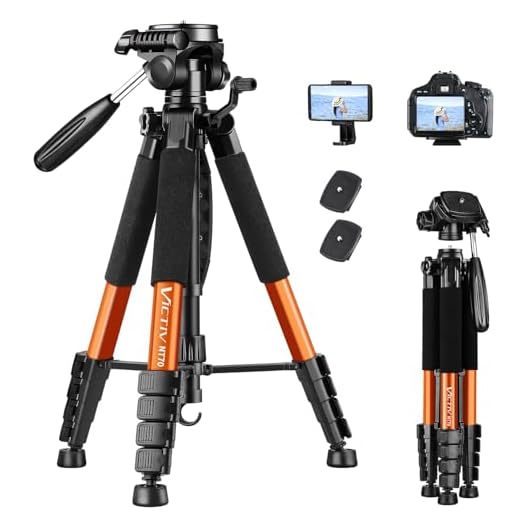
- Place your iPhone on a stable surface or use a tripod to avoid shaky footage.
- Make sure the camera lens is clean and free from any obstructions.
- Position the iPhone at eye level or slightly above to achieve a flattering angle.
- Avoid backlighting and try to have even lighting on your face for a clearer image.
- Consider using a phone stand or holder to keep your hands free during the call.
Start Zoom Meeting on Mac
To start a Zoom meeting on your Mac, follow these simple steps:
- Open the Zoom app on your Mac.
- Click on “Sign In” if you have a Zoom account, or “Join a Meeting” if you want to join an existing meeting as a guest.
- If you are hosting a meeting, click on “New Meeting” to start a new meeting.
- Enter the necessary meeting details like the meeting ID, topic, and password (if required).
- Click on “Start” to begin the meeting.
- Adjust your camera and audio settings as needed.
- You are now ready to host or join a Zoom meeting on your Mac!
Use iPhone Camera Features During Zoom
When using your iPhone camera for Zoom on your Mac, you can take advantage of various features to enhance your video conferencing experience. Here are some tips to make the most of your iPhone camera:
1. Proper Lighting
Make sure you have good lighting when using your iPhone camera for Zoom. Natural light or a well-lit room can help improve the quality of your video.
2. Camera Angle
Adjust the camera angle on your iPhone to capture the best view of yourself during Zoom meetings. Experiment with different angles to find the most flattering one.
By utilizing these iPhone camera features, you can enhance your Zoom experience and make your video conferences more professional and engaging.
End the Zoom Meeting and Disconnect iPhone
Once your Zoom meeting is finished, you can easily disconnect your iPhone from your Mac. Simply click on the “Stop” button on the Zoom app on your iPhone to end the meeting. Then, on your Mac, click on the “Disconnect” button to disconnect your iPhone from the Zoom session.
If you no longer need to use your iPhone as a camera for Zoom, you can also close the Camera app on your iPhone to stop the connection.


Is it possible to use this setup for other video conferencing apps, or is it just limited to Zoom?
I tried this method recently and found it really improved my video quality for meetings. I used a tripod to stabilize my iPhone, and it made a huge difference! The only challenge I faced was adjusting the lighting. I had to rearrange my setup a bit to avoid shadows.
I don't think using the iPhone camera is necessary for everyone. The built-in webcam on my Mac has worked fine for me.
I tried using my iPhone for Zoom, and the quality was incredible! Just make sure to adjust the settings for the best results. I found lowering the resolution helped with bandwidth at times.
Can you explain more about adjusting the camera settings on the iPhone? I’m not sure what the best resolution and frame rate would be for video calls, especially if bandwidth is limited.
Great tips! I found that using 720p worked well for my calls, too. Just make sure to test it out before important meetings!
For video calls, a resolution of 720p is generally sufficient and won't use too much bandwidth. A frame rate of 30fps is ideal for smooth video. Adjust based on your internet speed to ensure a clear feed.
Is it necessary to use a USB cable, or can I connect my iPhone to my Mac wirelessly?
You can connect wirelessly, but using a USB cable often provides a more stable connection and better video quality.
You can connect wirelessly, but using a USB cable often provides a more stable connection and better video quality.