
 Carmen J. Moore
Are you looking to enhance your live streams or video calls with better video quality? Using your iPhone camera as an OBS cam can be a game-changer. OBS (Open Broadcaster Software) is a popular tool for live streaming and recording videos, and with the high-quality camera on your iPhone, you can take your content to the next level.
In this guide, we will walk you through the steps to set up your iPhone camera as an OBS cam, allowing you to capture crisp and clear footage for your audience.
Whether you’re a content creator, gamer, or just looking to improve your video conferencing experience, using your iPhone camera with OBS can provide you with professional-quality video without the need for expensive equipment.

Step-by-step guide to using iPhone camera as OBS cam
Using your iPhone camera as an OBS cam can enhance your livestreams and video recordings. Follow these steps to set it up:
- Download OBS Camera App: Install the OBS Camera app on your iPhone from the App Store.
- Connect iPhone to Computer: Make sure your iPhone and computer are connected to the same Wi-Fi network.
- Open OBS on Computer: Launch OBS Studio on your computer.
- Set Up iPhone Camera: Open the OBS Camera app on your iPhone and select your computer from the list of available devices.
- Add iPhone Camera as Source: In OBS Studio, click on the “+” icon in the Sources box and select “iOS Camera” as the source.
- Adjust Settings: Configure the settings for the iPhone camera source, such as resolution and frame rate, to match your preferences.
- Position and Resize: Drag and resize the iPhone camera source within the OBS Studio window to fit your desired layout.
- Start Recording or Streaming: Once everything is set up, start recording or streaming using your iPhone camera as the source in OBS.
Preparation for connecting iPhone camera to OBS
Before you connect your iPhone camera to OBS, you need to make sure you have the necessary equipment and software ready. Here are the steps you should take to prepare:
Step 1: Install OBS on your computer
Make sure you have OBS (Open Broadcaster Software) installed on your computer. You can download OBS for free from the official website and install it following the instructions provided.
Step 2: Download OBS Camera app on your iPhone
Go to the App Store on your iPhone and download the OBS Camera app. This app will allow you to use your iPhone camera as a webcam in OBS.
By completing these two steps, you will be ready to connect your iPhone camera to OBS and start using it for your live streams or recordings.
Installing necessary software on iPhone and computer
Before using your iPhone camera as an OBS cam, you need to install the required software on both your iPhone and computer. Follow these steps to get started:
On iPhone:
1. Open the App Store on your iPhone and search for the “EpocCam” app.
2. Download and install the EpocCam app on your iPhone.
3. Launch the app and follow the on-screen instructions to set it up.
On Computer:
1. Visit the Kinoni website and download the EpocCam driver for your computer’s operating system (Windows or Mac).
2. Install the EpocCam driver on your computer and follow the installation wizard prompts.
3. Once the driver is installed, restart your computer to ensure it is properly configured.
Setting up OBS for iPhone camera input
Using your iPhone as a camera input in OBS can add versatility to your livestreams or recordings. Here’s how to set it up:
Step 1: Download and install the OBS Camera app on your iPhone from the App Store.
Step 2: Connect your iPhone to your computer using a USB cable.
Step 3: Open OBS on your computer and go to the Sources section.
Step 4: Click the “+” button and choose “Video Capture Device”.
Step 5: Name your source and select “OBS Camera” as the device.
Step 6: Adjust the settings like resolution and frame rate to your preference.
Step 7: Position and resize the iPhone camera input in your OBS scene.
Step 8: You’re now ready to use your iPhone camera as a source in OBS for your livestreams or recordings!
Connecting iPhone camera to OBS via Wi-Fi
Step 1: Download and install the OBS Camera app on your iPhone from the App Store.
Step 2: Make sure both your iPhone and computer are connected to the same Wi-Fi network.
Step 3: Open the OBS software on your computer.
Step 4: Go to the “Sources” section in OBS and click the “+” button.
Step 5: Select “iOS Camera” from the drop-down menu.
Step 6: Enter the IP address displayed on your iPhone’s OBS Camera app into OBS on your computer.
Step 7: Click “OK” to connect your iPhone camera to OBS via Wi-Fi.
Step 8: You can now use your iPhone camera as a source in OBS for live streaming or recording.
Connecting iPhone camera to OBS via USB
To use your iPhone camera as a webcam in OBS, you can connect it to your computer via USB. Follow these steps:
- Install OBS Camera App: Download and install the OBS Camera app on your iPhone from the App Store.
- Connect iPhone to Computer: Use a USB cable to connect your iPhone to your computer.
- Open OBS: Launch OBS on your computer.
- Add Video Capture Device: In OBS, add a new source by selecting “Video Capture Device.”
- Select iPhone Camera: Choose your iPhone camera as the video source in OBS.
- Adjust Settings: Configure the settings for your iPhone camera source in OBS as needed.
- Start Recording or Streaming: Once everything is set up, you can start recording or streaming with your iPhone camera in OBS.
Adjusting iPhone camera settings for optimal performance
When using your iPhone camera as an OBS cam, it’s important to adjust the settings to ensure optimal performance. Here are some tips to help you get the best results:
1. Camera Resolution
Make sure to set the camera resolution to the highest quality possible for better image clarity. You can adjust the resolution in the camera settings on your iPhone.
2. Exposure and Focus
Manually adjust the exposure and focus settings on your iPhone camera to avoid overexposed or blurry images. You can tap on the screen to adjust the focus and exposure levels.
| Exposure: | Tap on the screen to adjust the exposure level. |
| Focus: | Tap on the screen to adjust the focus point. |
“`html
Troubleshooting common issues when using iPhone camera with OBS
If you are experiencing issues when using your iPhone camera with OBS, here are some common troubleshooting steps to help you resolve them:
1. Check your connection
Ensure that your iPhone is connected to the same Wi-Fi network as your computer running OBS. A stable and fast connection is essential for smooth video streaming.
2. Update OBS and iPhone software
Make sure you are using the latest versions of OBS Studio and iOS on your iPhone. Updates often include bug fixes and improvements that can help with compatibility.
3. Restart your devices
Try restarting both your iPhone and computer to refresh their systems. This simple step can often resolve minor technical issues.
4. Check camera permissions
Ensure that OBS has permission to access your iPhone camera. You can check this in the settings of your iPhone under Privacy > Camera.
Enhancing video quality when using iPhone camera as OBS cam
When using your iPhone camera as an OBS cam, you want to ensure that your video quality is top-notch. Here are some tips to enhance the video quality:
1. Lighting
Good lighting is essential for high-quality video. Make sure you have adequate lighting in your filming area to avoid grainy or dark footage. Natural light or soft box lighting can greatly improve the overall look of your video.
2. Stability
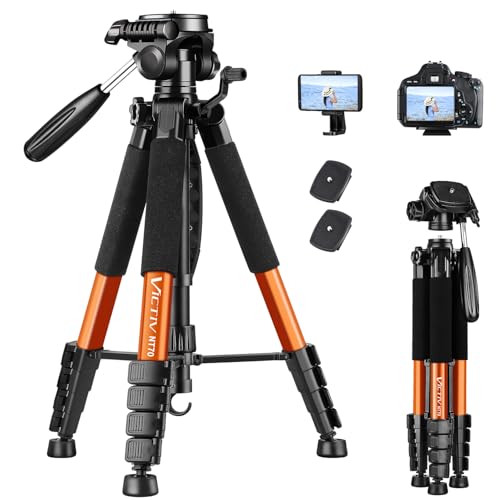
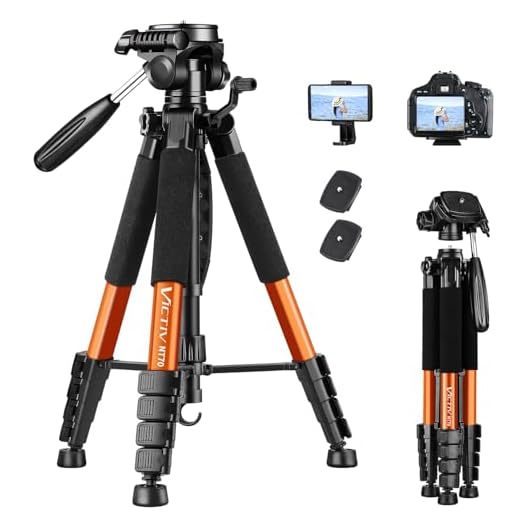
To prevent shaky footage, use a tripod or stabilizer for your iPhone. This will help keep your video steady and professional-looking. Avoid holding the phone in your hand for extended periods to maintain a stable image.
- Use a tripod
- Invest in a stabilizer
By following these tips, you can enhance the video quality when using your iPhone camera as an OBS cam, resulting in a more polished and professional-looking stream.


Can you clarify if I need to download both the OBS Camera app and the EpocCam app? Or just one of them will suffice?
You only need to download the OBS Camera app to use your iPhone as a camera in OBS. The EpocCam app is an alternative but not necessary for this setup.
I'm curious if the OBS Camera app works with older iPhone models? I have an iPhone 7, and I want to ensure it's compatible before downloading.
Yes, the OBS Camera app is compatible with older iPhone models, including the iPhone 7. Just make sure you have the latest iOS version for optimal performance.
I don't think using an iPhone as a camera can match the quality of dedicated webcams. I've tried it, and while it's good, it doesn't compare to my Logitech. Maybe it's just my setup?
I disagree; it really depends on the lighting and settings. I think an iPhone can produce amazing results if configured properly.
I tried using my iPhone as an OBS cam, and it was surprisingly easy! I set it up wirelessly without any issues. The video quality was great, but I did have to tweak the resolution settings to get it just right. Definitely recommend using a tripod for stability!