
 Carmen J. Moore

If you own a Samsung smart camera and want to effortlessly transfer your precious photos to your iPhone, you’ve come to the right place. The process of moving images from one device to another may seem daunting at first, but with the right tools and instructions, it can be a seamless experience.
With the advancement of technology, there are now several methods available to transfer photos between different devices. In this guide, we will explore various ways to transfer your photos from your Samsung smart camera to your iPhone, allowing you to easily share and access your memories on the go.
Whether you’re looking to transfer a few select photos or an entire album, we’ll walk you through the steps to ensure a smooth and efficient transfer process. Say goodbye to the hassle of emailing or texting photos to yourself – with these simple methods, you’ll be able to transfer photos from your Samsung smart camera to your iPhone in no time.
Steps to transfer photos from Samsung smart camera to iPhone
Step 1: Connect your Samsung smart camera to your computer using a USB cable.
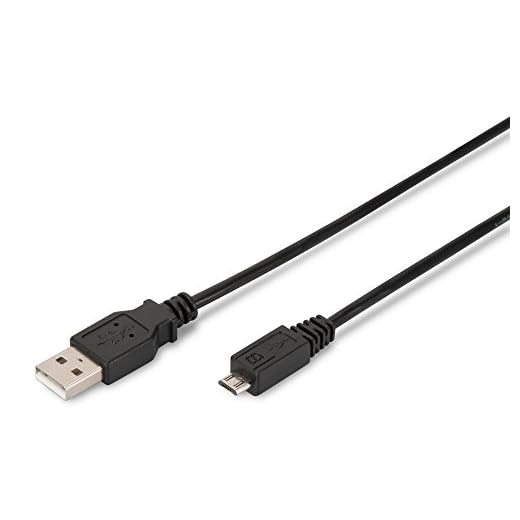


Step 2: Copy the photos you want to transfer from the camera to your computer.
Step 3: Disconnect the camera from your computer and connect your iPhone to the computer using a USB cable.
Step 4: Open iTunes on your computer and select your iPhone.
Step 5: Go to the “Photos” tab in iTunes and check the box next to “Sync Photos.”
Step 6: Choose the folder where you saved the photos from your Samsung smart camera.
Step 7: Click “Apply” to start syncing the photos to your iPhone.
Step 8: Once the sync is complete, disconnect your iPhone from the computer and you will find the transferred photos in your iPhone’s Photos app.
Connect your Samsung smart camera to your computer
Before transferring photos from your Samsung smart camera to your iPhone, you need to connect your camera to your computer. Follow these steps:
- Turn on your Samsung smart camera
- Use the USB cable: Connect one end of the USB cable to your camera and the other end to a USB port on your computer.
- Access your camera’s storage: Once connected, your computer should recognize the camera as a removable storage device. You can access your photos by navigating to the camera’s storage location.
- Copy photos to your computer: Select the photos you want to transfer and copy them to a folder on your computer for easier access.
Once you have transferred the photos to your computer, you can proceed to transfer them to your iPhone using the appropriate method.
Transfer photos from the camera to your computer
To transfer photos from your Samsung Smart Camera to your computer, you can use a USB cable or a memory card reader. Here’s how:
Using a USB cable:
Step 1: Connect one end of the USB cable to the camera and the other end to a USB port on your computer.
Step 2: Turn on the camera and set it to the appropriate mode for transferring photos.
Step 3: Your computer should recognize the camera as a removable storage device. Open the file explorer or Finder on your computer.
Step 4: Locate the folder containing your photos on the camera and copy them to a folder on your computer.
Using a memory card reader:
Step 1: Remove the memory card from your Samsung Smart Camera.
Step 2: Insert the memory card into a memory card reader and connect it to a USB port on your computer.
Step 3: Open the file explorer or Finder and locate the memory card. Copy the photos from the card to a folder on your computer.
Now you have successfully transferred photos from your Samsung Smart Camera to your computer for further viewing or editing.
Install the Samsung Smart Camera app on your iPhone
To transfer photos from your Samsung smart camera to your iPhone, you will need to download and install the Samsung Smart Camera app on your iPhone. Follow these steps to get the app on your device:
- Open the App Store on your iPhone.
- Search for “Samsung Smart Camera” in the search bar.
- Locate the official Samsung Smart Camera app and tap on “Install” to download it.
- Once the app is installed, open it and follow the on-screen instructions to set it up and connect it to your Samsung smart camera.
Connect your iPhone to the same Wi-Fi network as your camera
Before you can transfer photos from your Samsung smart camera to your iPhone, make sure both devices are connected to the same Wi-Fi network. This will allow them to communicate with each other seamlessly.
Open the Samsung Smart Camera app on your iPhone
After downloading and installing the Samsung Smart Camera app on your iPhone from the App Store, open the app by tapping on its icon. The app should launch and prompt you to sign in with your Samsung account or create a new one if you don’t have an account yet.
Select the photos you want to transfer to your iPhone
Before transferring photos from your Samsung smart camera to your iPhone, you need to select the specific photos that you want to transfer. This will help streamline the transfer process and ensure that only the desired photos are copied to your iPhone.
Steps to select photos:
| 1. | Turn on your Samsung smart camera and access the gallery or photo storage where your photos are located. |
| 2. | Browse through the photos and select the ones you want to transfer by tapping on them. You can select multiple photos by tapping and holding on one photo, then tapping on the rest. |
| 3. | Once you have selected all the photos you want to transfer, look for the “Share” or “Transfer” option in the camera’s menu. |
| 4. | Select the method of transfer, such as Wi-Fi Direct or Bluetooth, and follow the on-screen instructions to initiate the transfer process to your iPhone. |
Tap the “Download” button in the app
Once the photos are selected, tap on the “Download” button within the app on your Samsung smart camera. This will initiate the transfer process and start downloading the selected photos to your Samsung smart camera. Make sure your iPhone is connected to the same Wi-Fi network as your Samsung smart camera to ensure a smooth transfer process. After the download is complete, you can access the photos on your iPhone’s camera roll or gallery.
Wait for the transfer process to complete
Once you have selected the photos you want to transfer and initiated the transfer process, be patient and wait for the transfer to complete. The speed of the transfer may vary depending on the number and size of the photos being transferred, as well as the connection speed between your Samsung smart camera and iPhone.
Do not interrupt the transfer process or disconnect any cables until the transfer is complete to avoid any data loss or corruption. You may see a progress indicator on both devices to track the status of the transfer. Once the transfer is finished, you should see the photos appear in the designated location on your iPhone, ready for you to access and view.
Access the transferred photos on your iPhone’s camera roll
Once you have successfully transferred the photos from your Samsung smart camera to your iPhone, you can easily access them in your iPhone’s camera roll. Here’s how:
Step 1: Open the Photos app
Locate the Photos app on your iPhone and tap on it to open.
Step 2: View the transferred photos
In the Photos app, navigate to the “Albums” tab and look for the album where the transferred photos are stored. You should see the photos from your Samsung smart camera within this album.
Enjoy your Samsung smart camera photos on your iPhone
If you have captured some amazing photos with your Samsung smart camera and want to transfer them to your iPhone to enjoy them on a larger screen or share them with friends and family, you’re in luck! With a few simple steps, you can easily transfer your photos from your Samsung smart camera to your iPhone.
Step 1: Connect your Samsung smart camera to your computer
First, connect your Samsung smart camera to your computer using a USB cable. Once connected, you can access the photos stored on your camera from your computer.


I tried transferring photos from my Samsung camera to my iPhone using the USB method, and it worked pretty well. Just make sure you have the latest version of iTunes, otherwise it can get a bit tricky. I almost gave up when I faced some syncing issues, but everything went smoothly once I updated iTunes.
I don’t think using a computer is necessary at all. The app should be enough to transfer photos directly. Why complicate things?
I hear you, but sometimes having a computer as an intermediary can help with larger files or backups.
Can I transfer photos directly from my Samsung smart camera to my iPhone without using a computer? I want to avoid the extra steps if possible.
I think you can use the Samsung Smart Camera app for direct transfers, but both devices need to be on the same Wi-Fi network.
Make sure your camera and iPhone are on the same Wi-Fi network before starting any transfer. It makes a big difference!
Do you need to install the Samsung Smart Camera app on your iPhone first before transferring photos? Just want to confirm.
How does transferring photos with the Samsung app compare to using Bluetooth? Is one method faster or more reliable than the other?