
 Carmen J. Moore

Are you looking to up your selfie game with a selfie stick? Setting up your iPhone camera for a selfie stick can make taking photos and videos easier and more fun. Whether you’re a selfie pro or just getting started, these tips will help you make the most of your selfie stick.
First, make sure your iPhone is securely attached to the selfie stick. Most selfie sticks come with an adjustable clamp that can hold your phone in place. Adjust the clamp to fit your iPhone securely, making sure it’s tight enough to hold your phone in place but not so tight that it damages your device.
Next, connect your iPhone to the selfie stick’s Bluetooth remote if it has one. This will allow you to easily take photos and videos without having to touch your phone. Follow the instructions that come with your selfie stick to pair it with your iPhone’s Bluetooth settings.
Step-by-Step Guide to Setting Up iPhone Camera for Selfie Stick
Using a selfie stick with your iPhone can help you capture great selfies and group photos. Follow these steps to set up your iPhone camera for a selfie stick:
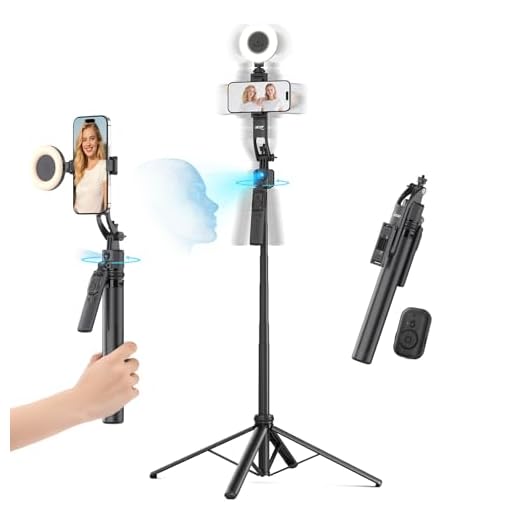


- Attach your iPhone to the selfie stick holder securely.
- Extend the selfie stick to your desired length.
- Open the camera app on your iPhone.
- Switch the camera to the front-facing (selfie) mode if you want to take selfies.
- Position your iPhone securely in the holder to ensure stability.
- Adjust the angle of the selfie stick to frame your shot perfectly.
- Use the selfie stick’s remote shutter button or timer to capture your photos.
- Review your photos and make any necessary adjustments before taking more shots.
With these simple steps, you can easily set up your iPhone camera for a selfie stick and start capturing amazing selfies and group photos with ease.
Prepare Your iPhone
Before attaching your iPhone to a selfie stick, make sure to prepare it properly for the best results. Here are some steps to follow:
1. Remove the Case
Take off any protective case or cover from your iPhone to ensure a secure connection with the selfie stick.
2. Clean the Lens
Wipe the camera lens on your iPhone with a soft, clean cloth to remove any dust or smudges that could affect the quality of your photos.
Attach the Selfie Stick
Once you have extended the selfie stick to your desired length, locate the phone holder at the top of the stick. Most selfie sticks come with an adjustable phone holder that can accommodate various phone sizes.
Insert your iPhone into the phone holder and adjust the holder’s grip so that your phone is securely in place. Make sure the phone is positioned properly to capture the best angle for your selfies.
Ensure that the phone holder is tightened securely to prevent your phone from accidentally slipping out while you are taking photos. Once your phone is securely attached, you are ready to start using your selfie stick to take amazing selfies with your iPhone!
Adjust the Angle
Once you have attached your iPhone to the selfie stick, make sure to adjust the angle of the camera for the perfect shot. Experiment with different angles by tilting the stick and rotating the phone until you find the best position. It’s important to position the camera at eye level for a flattering selfie. You can also use the front-facing camera for easier framing and better visibility. Don’t be afraid to try different angles to capture the best selfie!
Set the Timer
To take a hands-free selfie using a selfie stick with your iPhone camera, you can utilize the timer feature. Here’s how to set the timer:
Step 1: Open the Camera app on your iPhone.
Step 2: Tap on the timer icon located at the top of the screen next to the flash icon.
Step 3: Choose the desired timer delay (usually 3 or 10 seconds).
Step 4: Position your iPhone on the selfie stick and extend it to the desired length.
Step 5: Press the shutter button and strike your pose within the timer countdown.
Tip: Make sure to frame your shot properly before the timer starts to capture the perfect selfie.
Use the Volume Button
Another way to take a selfie with your iPhone using a selfie stick is to use the volume button on the stick as a remote shutter. This feature comes in handy when you want to capture a photo without touching the phone screen. Here’s how to set it up:
| 1. | Connect your iPhone to the selfie stick’s Bluetooth remote or plug in the cable. |
| 2. | Open the Camera app on your iPhone. |
| 3. | Position your phone on the selfie stick and extend it to your desired angle. |
| 4. | Press the volume button on the selfie stick’s remote to capture the photo. |
Using the volume button as a remote shutter allows you to take selfies more easily and with better stability, ensuring you get the perfect shot every time.
Enable Grid Lines
Grid lines can help you compose better selfies by following the rule of thirds. To enable grid lines on your iPhone camera, follow these steps:
- Open the Settings app on your iPhone.
- Scroll down and tap on “Camera”.
- Toggle on the “Grid” option.
Once you have enabled grid lines, you will see a 3×3 grid on your camera screen. This grid can help you align your subject and create more balanced and visually appealing selfies.
Experiment with Lighting
Lighting plays a crucial role in capturing great selfies. When using a selfie stick, you have the flexibility to adjust the angle and distance of the camera to experiment with different lighting conditions. Try taking selfies in natural light, like near a window or outside, to achieve a soft and flattering glow. Avoid harsh overhead lighting that can create unflattering shadows.
For indoor selfies, consider using a ring light or a softbox to create a well-lit environment. Experiment with different light sources and positions to find the best lighting setup that enhances your features and creates a polished look.
Adjusting the lighting can dramatically improve the quality of your selfies and make your photos stand out. Don’t be afraid to play around with different lighting setups until you find the perfect one that works for you.


I just got my selfie stick and followed these steps. It was super helpful to clean the lens first! I took my selfies outside in natural light, and the quality was way better than I expected. Just a quick note—make sure you're not standing too far away from the camera if you're using the timer! I missed a few good shots because I didn’t strike my pose in time.
Good tips! I was wondering, do I really need to remove my iPhone case to use a selfie stick, or can I keep it on if it’s not too bulky?
I usually keep mine on if it fits snugly. Just depends on the design of the case. I’ve had no issues so far!