
 Carmen J. Moore

Have you accidentally deleted precious photos from your iPhone’s camera roll? Don’t panic! There are ways to restore those pictures and bring back those memories. In this article, we will guide you through the process of recovering camera roll pictures on your iPhone.
Backup is Key: Before attempting any recovery method, always check if you have a backup of your iPhone. If you regularly back up your device using iCloud or iTunes, recovering deleted photos becomes much easier. Restoring from a backup is the safest way to retrieve lost pictures without risking permanent data loss.
Explore Restoration Options: If you don’t have a backup, don’t worry. There are still options available to recover deleted photos. From utilizing third-party software to seeking help from Apple support, we will explore different methods to help you retrieve your camera roll pictures.
Step-by-step guide to recover lost photos from iPhone camera roll
Accidentally deleting photos from your iPhone camera roll can be a frustrating experience, but there are ways to recover them. Follow these steps to retrieve your lost pictures:


| 1. | Check Recently Deleted Album |
| 2. | Use iCloud Photo Library |
| 3. | Restore from an iTunes or iCloud Backup |
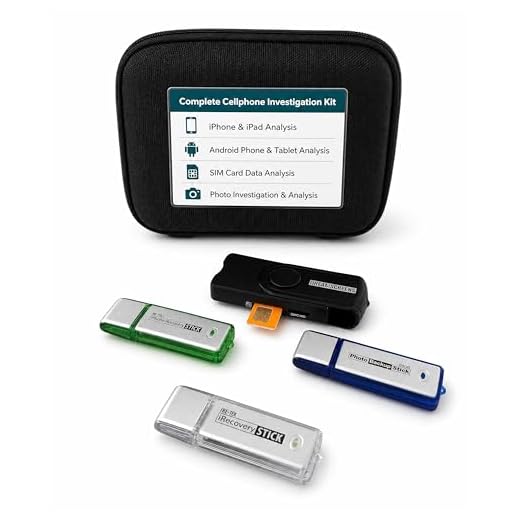
| 4. | Use a Third-party Data Recovery Tool |
By following these steps, you should be able to recover your lost photos from your iPhone camera roll. Make sure to act quickly to increase the chances of successful recovery.
Check Recently Deleted Album
If you have accidentally deleted photos from your camera roll, there is a chance that they might still be recoverable. The first place to check is the “Recently Deleted” album on your iPhone. This album stores photos that have been deleted within the last 30 days.
To access the Recently Deleted album, open the Photos app on your iPhone and navigate to the Albums tab. Scroll down until you find the Recently Deleted album and tap on it to view its contents.
Here, you will see all the photos that have been deleted in the past month. If you find the photos you want to restore, simply tap on them, then select “Recover” to restore them to your camera roll.
It’s important to note that photos in the Recently Deleted album are automatically permanently deleted after 30 days, so make sure to act quickly if you want to recover them.
Use iCloud Photo Library
If you have enabled iCloud Photo Library on your iPhone, your pictures may be backed up to iCloud. You can easily restore your camera roll pictures by accessing iCloud Photo Library on your device. Simply go to Settings, tap on your name, select iCloud, then tap on Photos. Make sure iCloud Photo Library is turned on and your photos should start syncing back to your device. This method is convenient and ensures that your pictures are safely stored in the cloud.
Restore from iTunes Backup
If you have previously backed up your iPhone to iTunes, you can easily restore your camera roll pictures from the backup. Follow these steps:
Step 1: Connect your iPhone to your computer and open iTunes.
Step 2: Select your iPhone when it appears in iTunes.
Step 3: Click on the “Restore Backup” button.
Step 4: Choose the backup that contains the camera roll pictures you want to restore.
Step 5: Click “Restore” and wait for the process to complete.
Note: Restoring from iTunes backup will replace all data on your iPhone with the data from the selected backup, so make sure to back up any new data before proceeding.
Try Third-party Data Recovery Software
If you have tried the previous methods and still can’t restore your camera roll pictures on iPhone, you may want to consider using third-party data recovery software. There are many reputable software options available that can help you recover lost or deleted photos from your device.
Before using any third-party software, make sure to read reviews and choose a trusted program to avoid potential risks. Follow the instructions provided by the software to scan your device and recover your lost pictures.
| Pros | Cons |
|---|---|
| Easy to use | Some software may be paid |
| Effective in recovering lost data | May not guarantee 100% success |
| Can recover various file types | Requires installation on a computer |
Contact Apple Support
If you have tried all the methods mentioned above and still couldn’t restore your camera roll pictures on your iPhone, it might be time to contact Apple Support for further assistance. You can reach out to Apple Support through their website, by phone, or by visiting an Apple Store near you. Apple’s support team is knowledgeable and experienced in dealing with iPhone-related issues, and they will be able to provide you with the necessary guidance to help you recover your lost photos.
Utilize Photo Recovery Apps
If you are unable to restore your camera roll pictures using traditional methods, you can try utilizing photo recovery apps. These apps are designed to scan your iPhone and recover deleted photos, including those from the camera roll. There are several photo recovery apps available on the App Store, such as Disk Drill, Tenorshare UltData, and Wondershare Dr.Fone. You can download and install one of these apps on your iPhone and follow the instructions to recover your lost camera roll pictures.
| App Name | Description |
|---|---|
| Disk Drill | Disk Drill is a powerful data recovery tool that can help you recover lost photos from your iPhone’s camera roll. |
| Tenorshare UltData | Tenorshare UltData is a comprehensive data recovery tool that can recover deleted photos, messages, and other data from your iPhone. |
| Wondershare Dr.Fone | Wondershare Dr.Fone is a popular data recovery tool that can help you recover lost photos and other data from your iPhone. |
Explore Data Recovery Services
If you have lost your camera roll pictures on your iPhone and need help recovering them, consider exploring data recovery services. These services specialize in retrieving lost or deleted data from various devices, including smartphones, tablets, and computers.
By utilizing data recovery services, you can increase your chances of recovering your precious photos and videos from your iPhone’s camera roll. These experts have the knowledge and tools necessary to extract and restore data that may seem lost forever.
Take Preventive Measures for Future Data Loss
1. Regularly backup your iPhone data to iCloud or iTunes to ensure that you always have a copy of your important photos and videos.
2. Avoid installing suspicious apps or downloading files from untrusted sources to prevent malware or virus attacks that could lead to data loss.
3. Enable the “Find My iPhone” feature to locate your device in case it gets lost or stolen, and remotely erase your data to protect your privacy.
4. Use a strong passcode or Touch ID/Face ID to secure your device and prevent unauthorized access to your camera roll pictures.
5. Keep your iPhone software up to date to benefit from the latest security patches and bug fixes that can help prevent data loss due to software vulnerabilities.


What if I didn't back up my iPhone? Can I still recover my photos?
Make sure to check your iCloud settings! If you're backing up to iCloud, it might save you a lot of hassle.
I tried both iCloud and iTunes for recovery, and honestly, iCloud was way easier. The syncing feature is just so convenient.
Many users find iCloud easier since it automatically syncs your photos. iTunes requires a manual backup process, which can be more cumbersome.
When using iTunes to restore from a backup, does it erase all my current data? I’m worried about losing some recent photos that I didn't take the time to back up.
Yes, restoring from an iTunes backup will replace all current data on your iPhone with what was in the backup. It's essential to back up any new data before you proceed.
I accidentally deleted some photos last week and was able to recover them from the Recently Deleted album. It was super easy and saved me a lot of stress!
I don't think third-party recovery software is very reliable. I've had bad experiences with quite a few of them.
I've had better luck with some of them, like Tenorshare UltData. It worked for me when nothing else did!