
 Carmen J. Moore
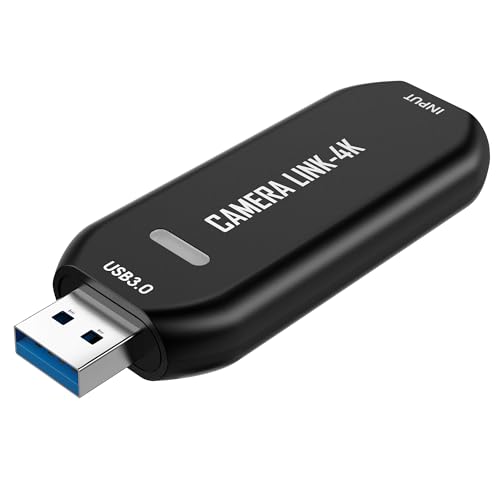
Are you looking for a way to transfer your photos from your camera to your iPhone? With the advancement of technology, it has become easier than ever to import pictures from a camera to an iPhone. Whether you want to share your stunning photographs on social media or simply keep them safe on your device, this guide will walk you through the process step by step.
There are several methods you can use to import pictures from your camera to your iPhone. One of the simplest ways is to use a Lightning to USB Camera Adapter, which allows you to connect your camera directly to your iPhone. Another option is to use a memory card reader that is compatible with your iPhone. Whichever method you choose, the following steps will help you transfer your photos effortlessly.
Step-by-step guide to Import Photos from Camera to iPhone
Transferring photos from your camera to your iPhone can be a convenient way to store and share your images. Follow these simple steps to import photos from your camera to your iPhone:
- Connect your camera to your computer using a USB cable and transfer the photos to your computer.
- Open the Photos app on your iPhone.
- Tap on the “Import” option at the bottom of the screen.
- Select the photos you want to import from your camera.
- Tap on “Import Selected” to transfer the photos to your iPhone.
- You can now view the imported photos in the “Imported” album in the Photos app on your iPhone.
By following these steps, you can easily import photos from your camera to your iPhone and have them readily available on your device.


Prepare your Camera and iPhone
Before you start importing pictures from your camera to your iPhone, make sure both devices are ready for the process.
Camera: Check to see if your camera is fully charged or has fresh batteries. Make sure the memory card in the camera has enough space to store the pictures you want to transfer. If needed, delete any unnecessary photos to free up space.
iPhone: Ensure your iPhone has sufficient battery life or is connected to a power source. Make sure your iPhone is unlocked and has enough storage space to accommodate the imported pictures. If necessary, delete any unwanted files or apps to create space.
Connect the Camera to iPhone
Before you can import pictures from your camera to your iPhone, you need to establish a connection between the two devices. Follow these steps to connect your camera to your iPhone:
- Turn on your camera and ensure it is in the appropriate mode for transferring photos.
- Use the appropriate cable (usually a USB cable) to connect your camera to your iPhone.
- On your iPhone, unlock the screen and navigate to the Photos app.
- Look for an option to import photos and select your camera as the source device.
- Follow the on-screen instructions to complete the import process.
Once the connection is established and the import is complete, you can access your camera photos on your iPhone and manage them as needed.
Launch the Photos App
Once you have connected your camera to your iPhone, the next step is to launch the Photos app on your device. This app is where you can view, organize, and edit your photos and videos. Simply tap on the Photos icon on your home screen to open the app.
Import Photos to iPhone
To import photos from your camera to your iPhone, you can use the built-in Photos app. Follow these steps:
- Connect your camera to your computer using a USB cable.
- Transfer the photos from your camera to your computer using the appropriate software or by manually copying the files.
- Open the Photos app on your iPhone.
- Connect your iPhone to your computer using a USB cable.
- Import the photos from your computer to your iPhone using the Photos app.
Once the photos are imported, you can view and organize them in the Photos app on your iPhone.
Organize Imported Photos
Once you have imported your photos from your camera to your iPhone, it’s important to organize them properly to make it easier to find and view them later. Here are some tips on how to organize your imported photos:
1. Create Albums
Create albums on your iPhone to categorize your imported photos. You can create albums based on different criteria such as date, event, location, or subject. This will help you quickly locate specific photos when you need them.
2. Add Tags and Descriptions
Adding tags and descriptions to your imported photos can also help you organize them. You can add keywords, names, or descriptions to your photos to make them searchable. This way, you can easily find photos by searching for specific tags or keywords.
| Tips for Organizing Imported Photos: |
|---|
| Create albums to categorize photos |
| Add tags and descriptions to photos |
Safely Disconnect the Camera
After you have imported all the photos from your camera to your iPhone, it is important to safely disconnect the camera to avoid any data loss or corruption. Follow these steps to safely disconnect your camera:
| 1. Close any open applications or programs that are accessing the camera. |
| 2. Eject the camera from your computer using the appropriate method (e.g., safely remove hardware). |
| 3. Power off the camera and disconnect it from the computer. |
| 4. Store the camera and its accessories in a safe place to prevent damage. |
By following these steps, you can ensure that your camera and data remain safe after transferring photos to your iPhone.



I have a DSLR camera, will the Lightning to USB Camera Adapter work for it? I read somewhere that not all cameras are compatible.
The Lightning to USB Camera Adapter generally works with most DSLR cameras that support USB transfer, but it's always good to check your camera's documentation for compatibility.
I've used the memory card reader for transferring photos, and it's so much quicker than connecting the camera directly.
I tried both methods, the Lightning adapter and the memory card reader. The adapter was a bit more cumbersome, but it was nice not to remove the card from my camera. The card reader is faster, though, especially with bulk uploads.
The article mentions checking battery life on both devices. Does that mean I need to charge my camera and iPhone before starting the import process?
I disagree about the organization tips. I find it easier just to scroll through everything rather than create albums.
Make sure to back up your photos on a computer first, just in case something goes wrong during the transfer.