
 Carmen J. Moore

If you own an iPhone 5 and have been experiencing issues with the camera flash not working properly, you’re not alone. Many users have reported this problem, but fortunately, there are some simple solutions you can try to fix it. In this guide, we’ll walk you through the steps to troubleshoot and resolve the iPhone 5 camera flash issue.
Check for Software Updates: The first thing you should do is check if your iPhone 5 is running the latest version of iOS. Sometimes, software bugs can cause issues with the camera flash. Go to Settings > General > Software Update to see if there are any updates available for your device.
Reset Settings: If updating the software doesn’t fix the problem, you can try resetting the settings on your iPhone 5. Go to Settings > General > Reset > Reset All Settings. This will not erase your data, but it will reset all settings to their default values. After resetting, check if the camera flash is working properly.
How to Fix iPhone 5 Camera Flash Issue
If you are experiencing issues with the camera flash on your iPhone 5, there are a few steps you can take to try and resolve the problem. Here are some troubleshooting tips to help you fix the iPhone 5 camera flash issue:

- Restart your iPhone: Sometimes a simple restart can fix minor software glitches that may be causing the camera flash to malfunction. Press and hold the Power button until the slider appears, then slide to power off. Wait a few seconds, then press the Power button again to turn your iPhone back on.
- Check the flash settings: Make sure that the flash is turned on in the camera app. Open the Camera app, tap the flash icon, and select “On” to enable the flash. You can also try switching between different flash modes to see if that resolves the issue.
- Clean the flash lens: If the flash lens is dirty or obstructed, it may not function properly. Use a soft, lint-free cloth to gently clean the flash lens and remove any dirt or debris that may be blocking the light.
- Update your iPhone software: Make sure that your iPhone is running the latest version of iOS. Go to Settings > General > Software Update to check for and install any available updates. Updating your software can fix bugs and improve the overall performance of your device.
- Contact Apple Support: If none of the above steps work, there may be a hardware issue with your iPhone’s flash. Contact Apple Support or visit an Apple Store for further assistance and possible repairs.
By following these troubleshooting tips, you can hopefully resolve the camera flash issue on your iPhone 5 and start capturing bright, clear photos once again.
Solution 1: Check Flash Settings
One common reason for the iPhone 5 camera flash not working is incorrect flash settings. To troubleshoot this issue, follow these steps:
- Open the Camera app on your iPhone 5.
- Tap on the lightning bolt icon at the top of the screen.
- Check if the flash is set to “Auto” or “On.” If it is set to “Off,” tap on it to change the setting.
- Try taking a photo with the flash enabled to see if it works properly.
If the issue persists, proceed to the next troubleshooting solution.
Solution 2: Restart Your iPhone
If the camera flash issue persists, try restarting your iPhone. Sometimes a simple restart can fix minor software glitches that may be causing the problem.
To restart your iPhone, press and hold the power button until you see the slider to power off. Slide the slider to power off your device. Wait a few seconds, then press and hold the power button again until the Apple logo appears.
Solution 3: Update iOS Software
If your iPhone 5 camera flash issue persists, updating the iOS software may help resolve the problem. Here’s how you can update your iOS software:
| 1. | Make sure your iPhone is connected to a Wi-Fi network. |
| 2. | Go to Settings on your iPhone. |
| 3. | Tap on General. |
| 4. | Tap on Software Update. |
| 5. | If an update is available, tap Download and Install. |
After updating your iOS software, check if the iPhone 5 camera flash issue has been resolved. If not, you may need to consider other solutions or seek assistance from Apple Support.
Solution 4: Clean Camera Lens
If the camera flash issue persists on your iPhone 5, it could be due to a dirty or smudged camera lens. Dust, fingerprints, or other debris on the lens can affect the quality of the flash and result in dim or blurry photos. To resolve this issue, you can clean the camera lens using a soft, lint-free cloth. Gently wipe the lens in a circular motion to remove any dirt or smudges. Avoid using harsh chemicals or abrasive materials that can scratch the lens.
Solution 5: Reset All Settings
If none of the above solutions work, you can try resetting all settings on your iPhone 5. This will not erase your data, but it will reset all your settings to their default values. To do this, go to Settings > General > Reset > Reset All Settings. Confirm the action and wait for your iPhone to restart. Check if the camera flash issue is resolved after the reset.
Solution 6: Restore iPhone to Factory Settings
If none of the above solutions work, you may need to restore your iPhone to factory settings. This will erase all data on your device, so be sure to back up your important files before proceeding.
To restore your iPhone, go to Settings > General > Reset > Erase All Content and Settings. Follow the on-screen instructions to complete the process. Once your iPhone has been restored to factory settings, set it up as a new device and test the camera flash to see if the issue has been resolved.
Solution 7: Contact Apple Support
If none of the above solutions work and your iPhone 5 camera flash issue persists, it may be time to contact Apple Support for further assistance. They have a dedicated team of experts who can help diagnose the problem and provide guidance on how to fix it. You can reach out to Apple Support through their website, phone, or visit an Apple Store near you for in-person assistance.
Solution 8: Use Third-Party Camera Apps
If the built-in camera app on your iPhone 5 is still having issues with the flash, you can try using third-party camera apps available on the App Store. These apps often come with different features and settings that may help resolve the flash problem you are experiencing. Here are some popular third-party camera apps you can consider:
| App Name | Description |
|---|---|
| ProCamera | Offers advanced camera controls and settings, including options for adjusting flash intensity. |
| Camera+ 2 | Provides various shooting modes and editing tools, along with flash customization options. |
| Halide | A professional-grade camera app with manual controls for flash and exposure settings. |
Instructions:
1. Download and install the third-party camera app of your choice from the App Store.
2. Open the app and navigate to the settings or preferences to adjust the flash settings as needed.
3. Use the third-party camera app to take photos or videos and see if the flash issue is resolved.
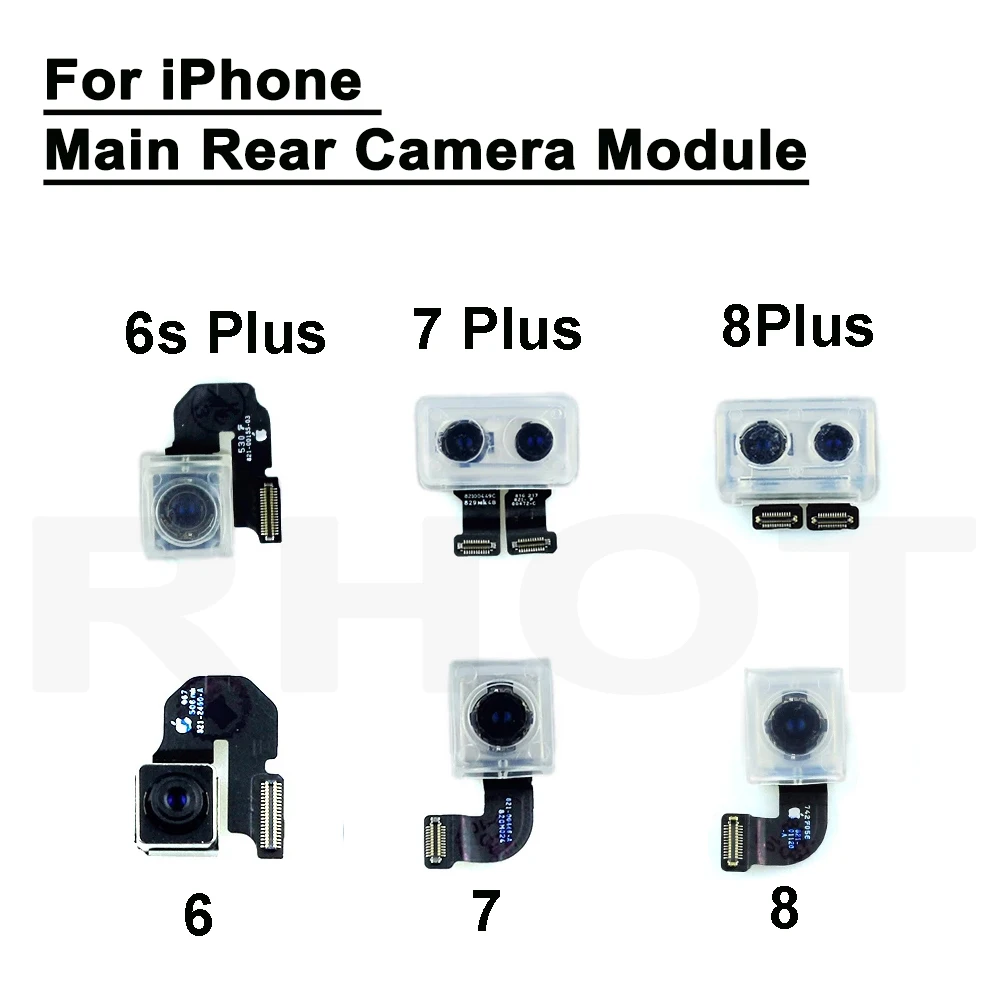
Solution 9: Replace the Camera Module
If none of the above solutions work, it may be time to consider replacing the camera module in your iPhone 5. This is a more advanced solution that may require professional help, as it involves opening up the device and replacing the camera hardware. If you are not comfortable with this process, it is best to take your phone to an authorized Apple service center or a trusted repair shop.
Replacing the camera module can often solve issues related to the camera flash not working, as it addresses any hardware malfunctions that may be causing the problem. Make sure to use genuine replacement parts to ensure the best performance and compatibility with your iPhone 5.



I've been having trouble with my iPhone 5 camera flash not working. I've checked the flash settings and restarted the phone, but it still won't work. Could the issue be software-related?
I had a similar issue! Updating my iOS helped fix the problem. Might be worth a try.
I had the same flash issue a few months ago. Cleaning the flash lens really did the trick for me! Sometimes it’s just a little dirt blocking it.
Has anyone tried using third-party camera apps? I heard they might solve flash issues better than the standard app.
When resetting all settings, will I lose any data? I want to ensure I don't accidentally wipe my photos or contacts.
I disagree about replacing the camera module. If you can fix it with a software update, why go through the hassle of a replacement?
Don't forget to check for obstructions on the lens too! Even a small smudge can cause issues.