
 Carmen J. Moore

Is your iPhone camera roll filled with blurry photos? It can be frustrating when your precious memories are not captured as clearly as you’d like. Blurriness in photos can be caused by a variety of factors, from camera settings to hardware issues. But fear not, there are several steps you can take to improve the quality of your iPhone camera roll.
First and foremost, make sure your lens is clean and free from smudges or dirt. A dirty lens can greatly affect the clarity of your photos. Use a soft, lint-free cloth to gently wipe the lens clean. Additionally, check for any protective film or case that may be obstructing the lens and causing blurriness.
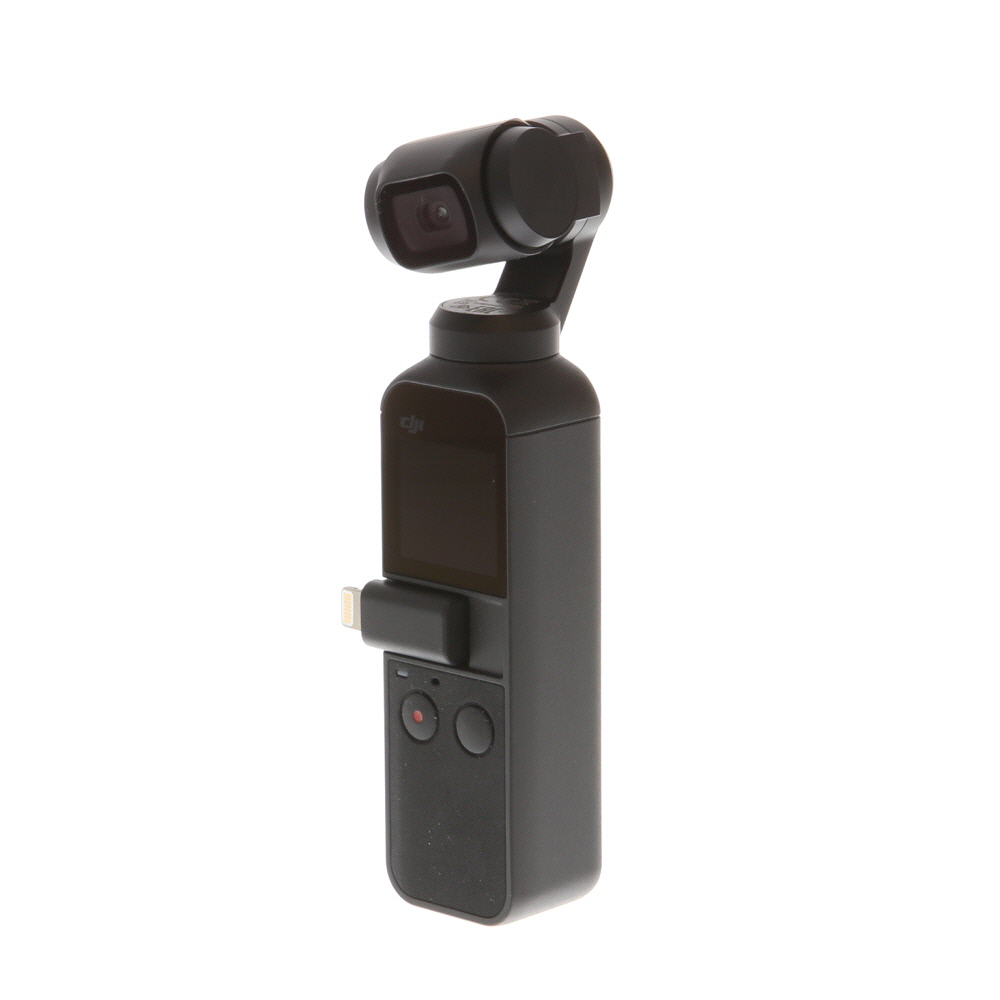
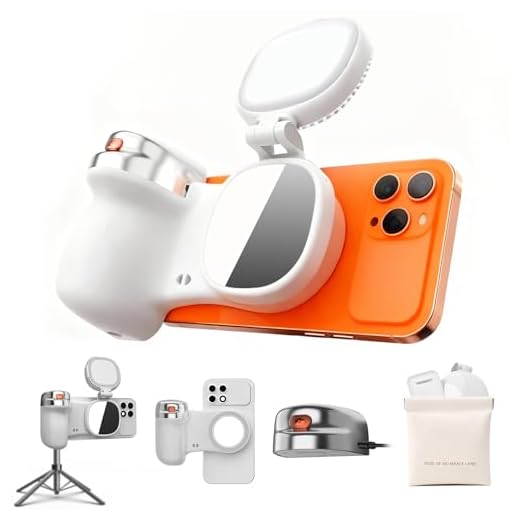
Another common cause of blurry photos is camera shake or movement during the shot. To prevent this, try stabilizing your iPhone by using a tripod or a steady surface to rest it on. If you’re taking photos in low light conditions, consider using the built-in flash or increasing the ISO setting to reduce motion blur.
Troubleshooting blurry iPhone camera roll
If your iPhone camera roll photos are coming out blurry, there are a few troubleshooting steps you can try to fix the issue:

1. Clean the camera lens: Sometimes, a dirty lens can cause photos to appear blurry. Use a soft, lint-free cloth to gently clean the lens of your iPhone camera.
2. Restart your iPhone: Restarting your iPhone can sometimes resolve software issues that may be causing the camera to produce blurry photos.
3. Check for software updates: Make sure your iPhone is running the latest version of iOS. Software updates often include bug fixes that can improve camera performance.
4. Reset camera settings: If the issue persists, you can reset the camera settings on your iPhone. Go to Settings > General > Reset > Reset All Settings. Note that this will reset all settings on your iPhone, not just the camera settings.
5. Contact Apple Support: If none of the above steps resolve the issue, you may need to contact Apple Support for further assistance. There may be a hardware issue with your iPhone camera that requires professional repair.
Clean the camera lens
One common reason for blurry photos in your iPhone camera roll is a dirty or smudged camera lens. Dust, fingerprints, and other debris can accumulate on the lens, affecting the quality of your pictures. To fix this issue, follow these steps to clean the camera lens:
- Use a microfiber cloth: Gently wipe the lens with a clean, soft microfiber cloth to remove any dirt or smudges. Avoid using harsh chemicals or abrasive materials that can scratch the lens.
- Breath on the lens: Another trick is to breathe onto the lens to create condensation, then wipe it with the microfiber cloth. This can help remove stubborn smudges.
- Check the lens for dirt: Inspect the lens carefully under good lighting to ensure that it is clean and free of any debris. If you notice any dirt or smudges, repeat the cleaning process until the lens is clear.
By keeping your iPhone camera lens clean, you can improve the quality of your photos and avoid blurry images in your camera roll.
Update the iOS software
One common reason for a blurry camera roll on an iPhone is outdated iOS software. Make sure your device is running the latest version of iOS by following these steps:
- Go to Settings on your iPhone.
- Tap on General.
- Scroll down and select Software Update.
- If an update is available, tap Download and Install.
- Follow the on-screen instructions to complete the update process.
Updating the iOS software can often fix bugs and improve the overall performance of your iPhone’s camera, potentially resolving any blurriness issues in your camera roll.
Check for software updates
One common reason for blurry photos on an iPhone camera roll is outdated software. Make sure your iPhone is running the latest version of iOS by following these steps:
- Go to Settings on your iPhone.
- Tap on General.
- Select Software Update.
- If an update is available, tap Download and Install.
Updating your software can often resolve camera issues and improve the overall performance of your iPhone camera. After updating, check if the blurry photos issue has been resolved.
Restart your iPhone
If your iPhone camera roll is blurry, one of the simplest solutions is to restart your device. This can help clear any temporary glitches or issues that may be affecting the camera performance. Here’s how you can restart your iPhone:
For iPhone X or later:
Press and hold the side button and either volume button until the slider appears. Drag the slider to turn off your device. To turn it back on, press and hold the side button until the Apple logo appears.
For iPhone 8 or earlier:
Press and hold the top or side button until the slider appears. Drag the slider to turn off your device. To turn it back on, press and hold the top or side button until the Apple logo appears.
Restart the Camera app
If your iPhone camera roll is blurry, one simple solution is to restart the Camera app. Sometimes, the app may be experiencing a temporary glitch that is causing the blurriness. Here’s how you can restart the Camera app:
1. Close the Camera app
Swipe up from the bottom of your iPhone screen to open the app switcher. Find the Camera app and swipe up to close it.
2. Reopen the Camera app
Go back to your home screen and tap on the Camera app to reopen it. Check if the blurriness issue has been resolved.
Reset the camera settings
If your iPhone camera roll is still blurry, you may need to reset the camera settings to default. Here’s how you can do it:
Step 1: Open the Settings app
Go to your iPhone’s Settings app and scroll down to find the “Camera” option.
Step 2: Reset camera settings
Tap on “Camera” and then select “Reset Settings.” Confirm the action by tapping on “Reset All Settings.”
After resetting the camera settings, try taking photos again to see if the issue has been resolved.
Use a third-party camera app
If the built-in Camera app on your iPhone is still producing blurry photos, consider using a third-party camera app from the App Store. These apps often offer additional features and settings that can help you capture sharper images. Look for apps with manual focus, image stabilization, and other advanced settings that can improve the quality of your photos.
Contact Apple Support
If you have tried all the troubleshooting steps and your iPhone camera roll is still blurry, it may be time to contact Apple Support for further assistance. You can reach out to Apple Support through various channels, such as phone, chat, or visiting an Apple Store in person. They have a team of experts who can help diagnose the issue and provide you with the appropriate solution.
Before contacting Apple Support, make sure to have your iPhone model information, serial number, and any relevant details about the issue you are facing. This will help the support team assist you more effectively and efficiently.


I had a similar problem, and cleaning the lens made a huge difference! I also learned to hold my phone steadier, especially in low light. I used to shake it too much.
Don't forget to close and reopen the Camera app if you run into blurriness. It can really help clear up any glitches!
I often notice my photos come out blurry when I take them in low light. Any tips specifically for nighttime photos?
I've had the same issue! I usually increase the ISO but sometimes it still doesn't help. Maybe I should try using a tripod?
I'm not sure cleaning the lens is that effective. My lens was clean, but my photos were still blurry until I updated my iOS. That fixed it for me.
What do you mean by 'reset camera settings'? Does it erase my photos?
Resetting camera settings will not erase your photos, but it will return the camera settings to their defaults. You can adjust them back afterwards.