
 Carmen J. Moore

Having a blurry back camera on your iPhone can be frustrating, especially when you want to capture important moments with clear photos. Fortunately, there are several steps you can take to troubleshoot and fix this issue.

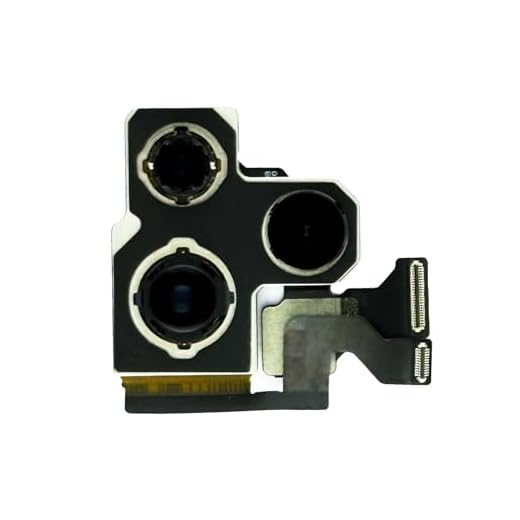
1. Clean the Lens: The first and simplest step is to clean the lens of your iPhone’s back camera. Use a microfiber cloth to gently wipe away any dust or smudges that may be causing the blurriness.
2. Restart Your iPhone: Sometimes, a simple restart can resolve camera issues. Turn off your iPhone, wait a few seconds, and then turn it back on to see if the camera is now clear.
3. Check for Updates: Make sure your iPhone’s operating system and camera app are up to date. Go to Settings > General > Software Update to check for any available updates. Updating your software may fix any bugs causing the blurry camera.
How to troubleshoot blurry back camera on iPhone
If you are experiencing a blurry back camera on your iPhone, there are several troubleshooting steps you can take to try and fix the issue. Here are some tips to help you get your camera back in focus:
- Check for smudges or dirt on the camera lens and clean it with a soft, lint-free cloth.
- Make sure the camera lens is not scratched or damaged. If it is, you may need to replace the lens.
- Restart your iPhone by turning it off and then back on again.
- Update your iPhone’s software to the latest version.
- Reset the camera settings by going to Settings > General > Reset > Reset All Settings.
- Try using a different camera app to see if the issue is with the app you are using.
- If none of these steps work, you may need to contact Apple Support or visit an Apple Store for further assistance.
Clean the camera lens
One common reason for a blurry back camera on your iPhone is a dirty lens. Over time, dust, fingerprints, and other debris can accumulate on the camera lens, affecting the clarity of your photos. To fix this issue, follow these steps:
- Start by gently wiping the camera lens with a microfiber cloth. Make sure to remove any visible dirt or smudges.
- If the lens is still dirty, dampen a corner of the cloth with a small amount of water or lens cleaning solution. Be careful not to get any liquid inside the camera lens or other openings.
- Gently clean the lens again with the dampened cloth, using circular motions to remove stubborn dirt or smudges.
- Once the lens is clean, use a dry portion of the cloth to wipe away any remaining moisture or residue.
- Check the camera to see if the blurriness has improved. If not, repeat the cleaning process or consider seeking professional help.
Regularly cleaning your iPhone camera lens can help maintain the quality of your photos and prevent blurry images in the future.
Restart your iPhone
If your iPhone’s back camera is blurry, a simple restart can often fix the issue. To restart your iPhone, press and hold the power button until you see the slider to power off. Drag the slider to turn off your device. Once it’s off, press and hold the power button again until the Apple logo appears, indicating that your iPhone is restarting.
A restart can help clear any temporary glitches or bugs that may be causing the camera to appear blurry. After the restart, check if the camera quality has improved. If the issue persists, you can try other troubleshooting steps to fix the blurry back camera on your iPhone.
Update iOS software
If your iPhone’s back camera is blurry, one possible solution is to update your device’s iOS software. Apple regularly releases software updates that can improve the performance of your iPhone’s camera and fix any bugs that may be causing blurriness.
To update your iOS software, go to Settings on your iPhone, then tap General, and finally, tap Software Update. If an update is available, follow the on-screen instructions to download and install it. Make sure your iPhone is connected to a stable Wi-Fi network and has sufficient battery life before starting the update process.
Check for physical damage
If your iPhone’s back camera is blurry, one of the first things you should do is check for any physical damage. Inspect the camera lens for scratches, dirt, or smudges. Clean the lens gently with a microfiber cloth and see if the blurriness improves.
Steps to check for physical damage:
- Remove the phone case, if any, and examine the camera lens closely.
- Look for any visible scratches, cracks, or dirt on the lens.
- Gently clean the lens with a soft, lint-free cloth to remove any smudges or dirt.
- After cleaning, test the camera again to see if the blurriness has been resolved.
Reset camera settings
If the back camera on your iPhone is blurry, one of the troubleshooting steps you can try is to reset the camera settings. This can help resolve any software glitches or conflicts that may be causing the blurriness.
To reset the camera settings on your iPhone, follow these steps:
- Open the Settings app on your iPhone.
- Scroll down and tap on “General.”
- Scroll to the bottom and tap on “Reset.”
- Tap on “Reset All Settings.”
- You may need to enter your passcode to confirm the reset.
- After the reset is complete, check the camera again to see if the blurriness issue has been resolved.
Note:
Resetting all settings on your iPhone will not erase your data, but it will reset all system settings including camera settings. If the problem persists after resetting the camera settings, you may need to contact Apple Support for further assistance.
Use third-party camera apps
If the built-in camera app on your iPhone is still producing blurry images, you can try using third-party camera apps available on the App Store. These apps often offer additional features and settings that can help improve the quality of your photos.
Before downloading a third-party camera app, make sure to read reviews and check the ratings to ensure that it is a reputable app. Some popular third-party camera apps include ProCamera, Camera+, and Halide.
Contact Apple Support for assistance
If you have tried all the troubleshooting steps and your iPhone’s back camera is still blurry, it may be time to contact Apple Support for further assistance. Apple Support can help diagnose the issue and provide guidance on the best course of action to resolve the problem.
You can reach out to Apple Support through their website, by phone, or by visiting an Apple Store. Be prepared to provide details about the issue you are experiencing and any steps you have already taken to try to fix it.


What if cleaning the lens doesn't help? Are there other reasons the camera might be blurry besides dirt?
Good question! Besides dirt on the lens, blurriness can also result from software glitches, physical damage to the lens, or issues with the camera app itself. If cleaning doesn’t help, consider restarting your iPhone or checking for software updates.
Has anyone tried using third-party camera apps? I’ve been using ProCamera and it seems to take clearer pictures than the default app, even when my camera was acting up.
I’ve used Camera+ and had a similar experience. They really do provide better control over the settings.
Honestly, I don’t think restarting the iPhone is a real fix. It never worked for me when my camera was blurry. I feel like people might be overlooking deeper issues.
I see your point, but a restart helped me once when I had a similar problem. Sometimes it’s just a glitch that needs clearing.
I’m curious about the reset settings step. When you reset all settings, does it erase personal data or just the system settings? I want to make sure I don't lose anything important.
Resetting all settings won't erase your personal data like photos or apps. It just resets system settings, including camera settings, to default. It's a good troubleshooting step!
I had the same issue last month. Cleaning the lens worked wonders for me! Just needed a good wipe with a microfiber cloth.
Remember to regularly clean your camera lens! I find that dirt builds up quickly, especially if you keep your phone in your pocket.