
 Carmen J. Moore

Keeping your GoPro camera’s software up to date is essential to ensuring optimal performance and access to the latest features. Luckily, updating your GoPro is a simple process that can be done in just a few steps.
In this guide, we will walk you through the steps to update your GoPro camera to the latest software version, so you can continue capturing amazing moments with ease.
Whether you’re a seasoned GoPro user or new to the world of action cameras, staying current with software updates is key to getting the most out of your device. Let’s dive in and learn how to update your GoPro camera!
Step-by-step guide to update software for GoPro camera
To ensure your GoPro camera is running the latest software and features, follow these steps:

Step 1: Check for updates
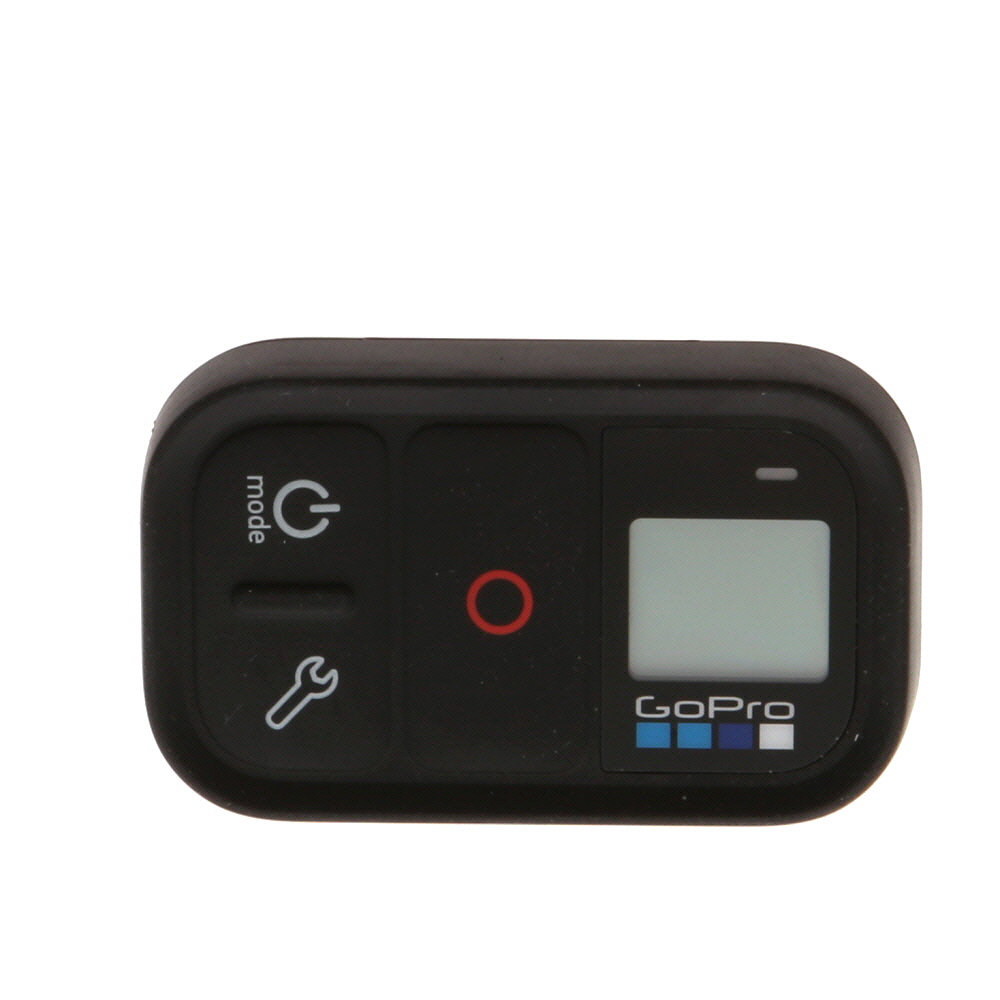
Connect your GoPro camera to the GoPro app on your smartphone or tablet. Check for any available updates in the app’s settings or on the GoPro website.
Step 2: Download the update
If there is a software update available, download it to your device. Make sure your camera is fully charged or plugged in during the update process.
Note: It is important to follow the instructions carefully to avoid any issues during the update.
By following these steps, you can easily update the software on your GoPro camera and enjoy the latest features and improvements.
Check current version of software
Before updating your GoPro camera software, it’s important to check the current version of the software installed on your device. This will help you determine if an update is necessary and ensure that you are installing the latest version available.
Step 1: Power on your GoPro camera
Turn on your GoPro camera and navigate to the settings menu. Look for the “About” or “Device Info” option to find the current software version installed on your camera.
Step 2: Note down the current software version
Make a note of the current software version displayed on your GoPro camera. This information will be helpful when checking for updates and ensuring you are installing the correct software version for your device.
Download Latest Software Update
To update your GoPro camera to the latest software version, you will need to download the update file from the official GoPro website. Follow these steps to ensure a successful update:
Step 1: Check Compatibility
Before downloading the update, make sure that your GoPro camera model is compatible with the latest software version. Visit the GoPro website to check the compatibility list.
Step 2: Download Update
Go to the GoPro support page and navigate to the software updates section. Find the latest software update for your specific camera model and click on the download link to save the update file to your computer.
| File Name: | GoPro_Camera_Update_vX.X.X.zip |
| File Size: | X MB |
| Release Date: | MM/DD/YYYY |
Prepare GoPro camera for update
Before updating your GoPro camera to the latest software, it’s important to ensure that your camera is properly prepared for the update process. Follow these steps to prepare your GoPro camera:
| 1. Charge your GoPro: | Make sure your GoPro camera is fully charged before starting the update process to prevent any interruptions. |
| 2. Check for available storage: | Ensure that there is enough available storage space on your GoPro camera to accommodate the update file. |
| 3. Backup your files: | It’s always a good idea to back up any important files or footage from your GoPro camera before proceeding with the update. |
| 4. Connect to the internet: | Make sure your GoPro camera is connected to a stable internet connection to download the latest software update. |
Step 1: Prepare your camera
Before connecting your GoPro camera to the computer, make sure it is fully charged and turned on.
Step 2: Connect the camera
Use the USB cable that came with your GoPro camera to connect it to a USB port on your computer. Make sure the cable is securely connected to both the camera and the computer.
If your camera has a microSD card, you can also remove the card and insert it into a card reader connected to your computer.
Update software using GoPro app
If you want to update the software on your GoPro camera, you can do so using the GoPro app on your mobile device. Follow these steps to update the software:
| Step 1: | Download and install the GoPro app on your mobile device from the App Store or Google Play Store. |
| Step 2: | Open the GoPro app and make sure your camera is connected to the app via Wi-Fi. |
| Step 3: | Once your camera is connected, navigate to the settings menu in the app. |
| Step 4: | Look for the option to check for updates or software updates. |
| Step 5: | If an update is available, follow the on-screen instructions to download and install the latest software version. |
| Step 6: | Once the update is complete, restart your camera to apply the changes. |
Updating your GoPro camera software using the GoPro app ensures that you have the latest features and improvements for your camera.
Verify successful software update
After completing the software update process for your GoPro camera, it is important to verify that the update was successful. Here are the steps to ensure that your camera is running the latest software version:
1. Power on the camera
Turn on your GoPro camera to check if it boots up properly and displays the usual interface.
2. Check software version
Go to the settings menu of your GoPro camera and navigate to the software information section. Verify that the software version displayed matches the latest version available on the GoPro website.




I’m a bit confused about the compatibility check. Does everyone need to do that before downloading the update, or just older models?
It's important for all users to check compatibility before downloading updates, especially for older models that may not support the latest software.
What happens if I skip a software update for my GoPro?
I updated my GoPro last week, and it was super easy using the app. Just had to connect via Wi-Fi and follow the prompts. No issues!
Thanks for sharing your experience! Using the app is a convenient way to keep your GoPro updated.
Always back up your files before an update! You never know what might happen during the process.
I don’t think updating is really that necessary unless you’re experiencing issues. My GoPro works fine as is!