
 Carmen J. Moore

Streaming with a GoPro camera on your computer opens up a world of possibilities for sharing your adventures in real time. Whether you’re into live streaming your extreme sports stunts or simply want to broadcast your travel experiences, using your GoPro for streaming can take your content to the next level.
In this guide, we’ll walk you through the steps to set up your GoPro camera for streaming on your computer. You’ll learn how to connect your GoPro to your computer, choose the right streaming software, and optimize your settings for the best streaming experience.
With the popularity of live streaming on the rise, leveraging your GoPro camera for streaming can help you reach a wider audience and engage with your viewers in real time. So, let’s dive in and explore how you can start streaming with your GoPro camera on your computer today!
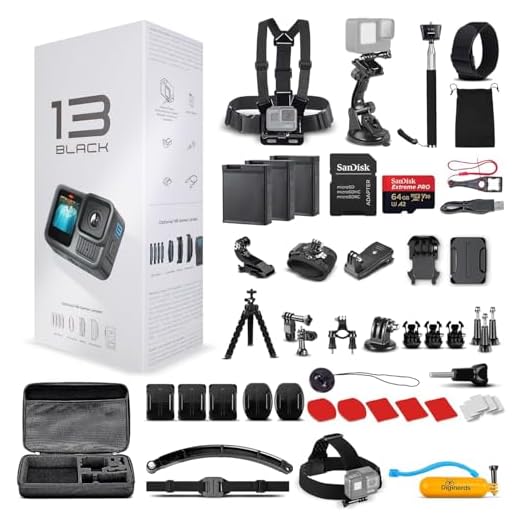

Set up your GoPro camera
Before you start streaming with your GoPro camera on your computer, you need to set it up properly. Follow these steps:
- Charge your GoPro: Make sure your GoPro is fully charged before you start streaming to avoid any interruptions.
- Update your GoPro firmware: Check for any available firmware updates for your GoPro camera and install them to ensure optimal performance.
- Connect your GoPro to your computer: Use the appropriate USB cable to connect your GoPro to your computer. Make sure the connection is secure.
- Install GoPro software: Download and install the GoPro app or GoPro desktop software on your computer to manage your camera settings and stream live video.
- Set up your streaming preferences: Configure your streaming settings in the GoPro app or software, including resolution, frame rate, and streaming platform.
- Test your setup: Before going live, test your streaming setup to ensure everything is working correctly and troubleshoot any issues.
Connect to your computer
To start streaming with your GoPro camera on your computer, you’ll need to connect the camera to your computer using a USB cable. Make sure your GoPro camera is turned on and in the correct mode for streaming. Once connected, your computer should recognize the camera as a USB device.
Download and install GoPro app
To stream with your GoPro camera on your computer, you need to download and install the GoPro app on your computer. Follow these steps to get started:
- Go to the GoPro website and navigate to the “Software” section.
- Find the GoPro app for your computer’s operating system (Windows or Mac) and click on the download link.
- Once the download is complete, double-click on the downloaded file to start the installation process.
- Follow the on-screen instructions to install the GoPro app on your computer.
- Once the installation is complete, launch the GoPro app and follow the prompts to connect your GoPro camera to your computer.
With the GoPro app installed on your computer, you’ll be ready to start streaming with your GoPro camera in no time!
Launch the app on your computer
After connecting your GoPro camera to your computer and installing the GoPro webcam software, it’s time to launch the app on your computer. Locate the GoPro webcam software in your applications or programs folder and double-click to open it.
Once the GoPro webcam software is launched, you should see the camera feed from your GoPro appear on your computer screen. You can now use this feed for streaming, video conferencing, or any other application that requires a webcam.
Pair your GoPro with the app
To start streaming with your GoPro camera on your computer, you need to pair your GoPro camera with the GoPro app on your mobile device. Make sure your GoPro camera is turned on and in pairing mode.
Open the GoPro app on your mobile device and follow the on-screen instructions to connect your GoPro camera to the app. Once the camera is paired with the app, you can control the camera settings, preview the footage, and start streaming to your computer.
Select the live streaming option
Once you have connected your GoPro camera to your computer and launched the GoPro app, navigate to the live streaming section. This option is usually found in the settings or preferences menu of the app.
Click on the live streaming option and follow the on-screen instructions to set up your streaming preferences. You may need to enter the streaming platform details such as the stream key and server URL.
Adjust settings for streaming
Before you start streaming with your GoPro camera on your computer, you need to adjust some settings to ensure a smooth and high-quality stream.
1. Resolution and frame rate
Make sure to set the resolution and frame rate of your GoPro camera to match the requirements of your streaming platform. Higher resolution and frame rate settings will result in better video quality but may require more bandwidth.
2. Bitrate
Adjust the bitrate of your stream to balance between video quality and network stability. Higher bitrates will provide better video quality but may cause buffering if your network connection is not strong enough.
By fine-tuning these settings, you can optimize your streaming experience and ensure that your audience receives the best possible video quality.
Start streaming from your GoPro
Streaming from your GoPro to your computer is a great way to share your adventures with the world. Follow these simple steps to start streaming:
| 1. | Connect your GoPro to your computer using the USB cable. |
| 2. | Open the GoPro app on your computer. |
| 3. | Select the “Live” or “Streaming” option in the app. |
| 4. | Follow the on-screen instructions to set up your streaming settings. |
| 5. | Once everything is set up, click on the “Start Streaming” button. |
| 6. | Your GoPro camera will now start streaming to your computer. |
Monitor the stream on your computer
Once you have set up your GoPro camera for streaming, you can monitor the stream on your computer to ensure everything is working properly. Here’s how you can do it:
Step 1: Open the streaming platform
Open the streaming platform or software you are using on your computer. This could be OBS Studio, XSplit, or any other streaming software.
Step 2: Add the GoPro camera as a video source
Add the GoPro camera as a video source in your streaming software. Make sure to select the correct input source and adjust the settings if needed.
End the streaming session
When you are ready to end your streaming session with your GoPro camera on your computer, follow these steps:
1. Stop the streaming software
First, stop the streaming software on your computer by clicking the “Stop” or “End Stream” button. This will disconnect your GoPro camera from the streaming session.
2. Turn off your GoPro camera
After you have stopped the streaming software, turn off your GoPro camera by pressing the power button until it powers down completely. This will ensure that your camera is ready for the next use.
By following these steps, you can safely end your streaming session with your GoPro camera on your computer.




I recently started streaming my hiking adventures with my GoPro. The setup was straightforward following your steps, but I struggled a bit with the bitrate settings. I found that a lower bitrate worked better for my internet connection, even if it meant sacrificing some quality. It's all about finding that sweet spot based on your network. Thanks for the detailed guide!
Does the GoPro app work well on both Windows and Mac? I want to make sure I can get the same features on either OS before I start setting everything up.
I've used it on both, and the features are pretty consistent. Just make sure to check the latest updates for your specific OS.