
 Carmen J. Moore

If you’re an adventurous soul who loves to capture every adrenaline-pumping moment, then you probably own a GoPro camera. But did you know that you can now live stream your epic adventures directly to your Facebook audience using your GoPro? That’s right – no more waiting to upload your footage after the fact; you can share your experiences in real-time with your friends and followers.


Live streaming with your GoPro on Facebook opens up a whole new world of possibilities. Whether you’re surfing the waves, skiing down a mountain, or skydiving from the skies, you can now bring your audience along for the ride as it happens. Imagine the thrill of sharing your adventures live with your loved ones, allowing them to experience the excitement and beauty of the moment with you in real-time.
So, how exactly can you live stream with your GoPro camera on Facebook? In this article, we’ll walk you through the step-by-step process of setting up your GoPro for live streaming, connecting it to your Facebook account, and going live with your epic adventures. Get ready to take your social media game to the next level and share your unforgettable moments with the world!
How to Live Stream
Live streaming with your GoPro camera on Facebook is a great way to share your adventures with friends and followers in real-time. Here’s a step-by-step guide to help you get started:
Step 1: Connect your GoPro to your Facebook account
Before you can start live streaming, you’ll need to connect your GoPro camera to your Facebook account. This can usually be done through the GoPro app on your smartphone or through the camera’s settings.
Step 2: Set up your live stream
Once your GoPro is connected, you can set up your live stream by selecting the “Live” option in the camera’s menu. Make sure to choose Facebook as the platform for your stream.
| Step 3: Configure your settings | Adjust the settings for your live stream, such as the video quality, resolution, and privacy settings. You can also write a description and add a title to your stream. |
| Step 4: Go live! | Once everything is set up, hit the “Go Live” button to start your live stream. You can now share your adventures with your Facebook friends and followers in real-time. |
With GoPro
If you want to live stream using your GoPro camera on Facebook, you’re in luck! GoPro cameras, such as the HERO7 Black and newer models, have the ability to live stream directly to Facebook Live. To do this, you’ll need to connect your GoPro camera to the GoPro app on your mobile device and then use the app to start the live stream on Facebook. Make sure you have a stable internet connection and a fully charged camera before you begin your live stream. With GoPro, you can share your adventures in real-time with your friends and followers on Facebook.
Live streaming options
There are several live streaming options available for GoPro cameras, including Facebook Live, Periscope, and YouTube Live. Each platform has its own unique features and benefits, so you can choose the one that best suits your needs.
Facebook Live
Facebook Live allows you to live stream directly to your Facebook profile or page. With your GoPro camera, you can easily connect to the Facebook app and start broadcasting your adventures in real-time to your friends and followers.
Periscope and YouTube Live
Periscope and YouTube Live are other popular platforms for live streaming with GoPro cameras. Both platforms offer a wide reach and allow you to engage with your audience through live comments and reactions.
For GoPro cameras
If you own a GoPro camera, you can easily live stream to Facebook using the GoPro app on your mobile device. Simply connect your GoPro to your phone via Wi-Fi, open the GoPro app, and select the live streaming option. From there, you can choose to stream directly to your Facebook profile or a Facebook page. Make sure you have a stable internet connection and a fully charged battery to ensure a smooth live streaming experience.
Step-by-step guide
1. Ensure your GoPro camera is fully charged and updated to the latest firmware.
2. Download and install the GoPro app on your smartphone or tablet.
3. Connect your GoPro camera to the GoPro app via Wi-Fi or Bluetooth.
4. Open the Facebook app on your device and start a new post.
5. Click on the “Live” option within the post creation screen.
6. Choose GoPro as your camera source for the live stream.
7. Add a title and description for your live stream on Facebook.
8. Adjust any additional settings such as privacy settings or tagging friends.
9. Click “Go Live” to start live streaming from your GoPro camera to Facebook.
10. Monitor the live stream and interact with viewers using the Facebook app.
11. When finished, click “Finish” to end the live stream and save it to your Facebook profile.
To live stream on Facebook
If you want to live stream with your GoPro camera on Facebook, you can easily do so by using the GoPro app on your smartphone or through a compatible live streaming platform. Here are the general steps to live stream on Facebook using your GoPro camera:
1. Connect your GoPro camera to the GoPro app
Make sure your GoPro camera is connected to the GoPro app on your smartphone. This will allow you to control your camera settings and start the live stream.
2. Set up your live stream
Once your camera is connected, open the GoPro app and navigate to the live streaming section. Follow the on-screen instructions to set up your live stream, including selecting Facebook as the platform to stream to.
After completing the setup, you’ll be able to start your live stream with your GoPro camera on Facebook and share your adventures in real-time with your friends and followers.
Setting up your GoPro
Before you start live streaming with your GoPro camera on Facebook, you need to make sure it is properly set up. Here are the steps to get your GoPro ready for streaming:
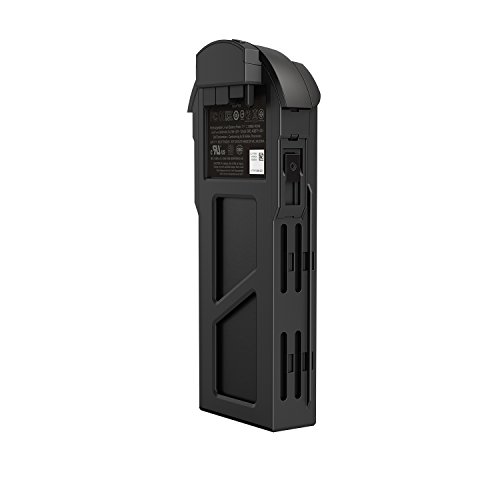
1. Ensure your GoPro is fully charged: Make sure your GoPro has enough battery life to stream for the duration you need.
2. Connect your GoPro to the GoPro app: Download the GoPro app on your smartphone and connect your GoPro camera to it for easy control and monitoring.
3. Check your internet connection: Make sure you have a stable internet connection with sufficient bandwidth for live streaming.
4. Set up your Facebook account: Link your Facebook account to the GoPro app for seamless streaming to your profile or page.
5. Configure your streaming settings: In the GoPro app, set up your streaming preferences, including resolution, frame rate, and audio settings.
6. Test your setup: Before going live, do a test stream to ensure everything is working correctly and adjust any settings if needed.
Once you have completed these steps, you are ready to start live streaming with your GoPro camera on Facebook!
For Live Streaming
If you want to live stream with your GoPro camera on Facebook, you can easily do so using the GoPro app. Simply connect your GoPro to the app on your smartphone and follow the instructions to start live streaming. Make sure you have a stable internet connection and a fully charged battery to ensure a smooth streaming experience.
During the live stream, you can interact with your audience by reading comments and responding to them in real-time. Choose an interesting location or activity to capture with your GoPro to engage your viewers and make the live stream more exciting. Don’t forget to share the live stream link with your friends and followers on Facebook to increase viewership.




I’m not convinced that live streaming with a GoPro is worth it. Isn’t it better to edit videos and upload them later for better quality?
I see your point, but live streaming adds a personal touch that edited videos can't quite capture! It depends on what you're going for.
How well does the GoPro handle streaming in different lighting conditions? I want to ensure my live streams look good whether it's sunny or cloudy!
I tried live streaming with my GoPro HERO8 last weekend while hiking, and it was amazing! The video quality was great, but I had some issues with connectivity in remote areas. It's definitely best to test your signal before you go live!
Battery life can vary depending on settings and usage, but it's generally a good idea to carry a power bank for longer streams, especially in remote areas.
That’s good to know! Did you have any issues with the battery life during the stream?
I'm considering whether to live stream on Facebook or YouTube with my GoPro. Are there significant differences between the two platforms when it comes to features and audience engagement?
Both platforms have their pros and cons. Facebook Live offers easy integration with social networking and real-time engagement, while YouTube Live has a broader reach and better discoverability for new audiences.
Just a heads up! Make sure to update your GoPro firmware before streaming; it makes a big difference in performance.