Carmen J. Moore

Are you looking to elevate your live streaming game? Using a Nikon DSLR camera can take your streams to the next level with professional-quality video and stunning visuals. With the right setup and techniques, you can create engaging and immersive live streams that captivate your audience.
Whether you’re a content creator, gamer, or business professional, learning how to use your Nikon DSLR camera for live streaming can open up a world of possibilities. In this guide, we’ll walk you through the essential steps and tips to optimize your camera settings, set up your equipment, and produce high-quality live streams that stand out from the crowd.
From choosing the right lens to adjusting your exposure settings, we’ll cover everything you need to know to harness the full potential of your Nikon DSLR camera for live streaming. Get ready to take your streaming experience to new heights!


Preparation and Equipment Setup
Before you start live streaming with your Nikon DSLR camera, it’s essential to properly prepare and set up your equipment. Here are the steps to follow:
| 1. Camera Settings: | Ensure your Nikon DSLR camera is fully charged and set to the appropriate settings for live streaming. You may need to adjust the white balance, exposure, and audio settings for optimal results. |
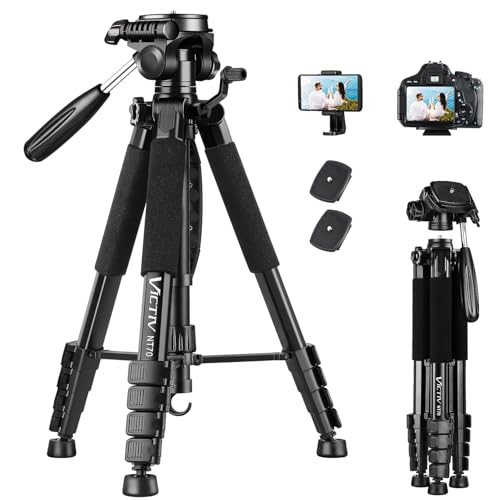
| 2. Tripod Mount: | Secure your camera on a stable tripod to prevent shaky footage during the live stream. Position the camera at the desired angle and height for your broadcast. |
| 3. Connect to Computer: | Use a USB cable or HDMI capture card to connect your Nikon DSLR camera to your computer for live streaming. Make sure the connection is stable and the camera is recognized by your streaming software. |
| 4. Lighting Setup: | Set up proper lighting to ensure good visibility and image quality during the live stream. Position lights to eliminate shadows and create a well-lit environment for your broadcast. |
| 5. Test Audio and Video: | Before going live, test the audio and video quality of your stream to ensure everything is working correctly. Adjust settings as needed to achieve the desired results. |
Choosing the Right Settings for Live Streaming
When setting up your Nikon DSLR camera for live streaming, it’s important to choose the right settings to ensure high-quality video and audio output. Here are some key settings to consider:
1. Resolution and Frame Rate
- Set your camera’s resolution to a suitable level for live streaming, such as 1080p or 720p.
- Choose a frame rate that matches your streaming platform’s requirements, typically 30 or 60 frames per second.
2. Exposure and White Balance
- Adjust the exposure settings to ensure proper lighting and avoid overexposure or underexposure.
- Set the white balance to match the lighting conditions of your streaming environment for accurate colors.
By carefully selecting and adjusting these settings, you can optimize your Nikon DSLR camera for live streaming and produce professional-looking video content.
Connecting Your Nikon DSLR Camera to Your Computer
To start using your Nikon DSLR camera for live streaming, you need to connect it to your computer. Follow these steps to set up the connection:
1. Check for Compatibility: Make sure your Nikon DSLR camera is compatible with live streaming software and can be used as a webcam. You may need to install the required drivers or software provided by Nikon.
2. Connect via USB: Use a USB cable to connect your Nikon DSLR camera to your computer. Make sure the camera is set to the appropriate mode for live streaming.
3. Configure Settings: Open your live streaming software on your computer and configure the settings to recognize your Nikon DSLR camera as the input source. You may need to select the camera from the list of available devices.
4. Adjust Camera Settings: Set up the camera settings such as exposure, white balance, and focus to ensure optimal image quality for live streaming.
5. Start Streaming: Once everything is set up, you can start streaming using your Nikon DSLR camera. Make sure to test the connection and video quality before going live.
Software for Live Streaming with Nikon DSLR Camera
When it comes to live streaming with a Nikon DSLR camera, having the right software is crucial to ensure a smooth and professional broadcast. Here are some popular software options that you can use to live stream with your Nikon DSLR camera:
| Software | Features |
|---|---|
| OBS Studio | Open-source software with advanced features for live streaming and recording. |
| Wirecast | Professional live streaming software with multi-camera support and advanced editing tools. |
| vMix | Powerful software for live streaming, mixing multiple sources, and adding effects. |
| Streamlabs OBS | Popular software with built-in widgets and tools for live streaming on platforms like Twitch and YouTube. |
These software options provide a range of features to enhance your live streaming experience with a Nikon DSLR camera. Make sure to choose the software that best fits your needs and technical requirements for a successful live stream.
Testing Your Setup Before Going Live
Before you start your live stream with your Nikon DSLR camera, it’s essential to test your setup to ensure everything is working correctly. Here are some steps to follow:
- Check your camera settings: Make sure your camera is set to the correct video mode and resolution for live streaming.
- Connect your camera to your computer: Use a compatible HDMI or USB cable to connect your camera to your computer for streaming.
- Open your streaming software: Launch your preferred streaming software and ensure it recognizes your camera as a video source.
- Check audio and video quality: Test the audio and video quality to make sure everything looks and sounds good.
- Test your internet connection: Ensure you have a stable internet connection with sufficient bandwidth for streaming.
- Practice your setup: Run a test stream on a private channel to practice your setup and make any necessary adjustments.
By thoroughly testing your setup before going live, you can avoid technical difficulties and ensure a smooth streaming experience for your audience.
Optimizing Audio Quality for Live Streaming
When setting up your Nikon DSLR camera for live streaming, it’s important to pay attention to audio quality to ensure a professional and engaging viewer experience. Here are some tips for optimizing audio quality:
- Use an external microphone: Built-in camera microphones may not provide the best audio quality. Invest in a good external microphone to capture clear and crisp sound.
- Position the microphone properly: Place the microphone close to the sound source for better audio pickup. Avoid background noise and echoes by choosing a quiet location.
- Monitor audio levels: Use headphones to monitor audio levels and adjust the volume accordingly. Avoid distortion by keeping the audio levels in check.
- Test audio before going live: Always do a sound check before starting your live stream to ensure that the audio is clear and balanced.
- Consider using a separate audio interface: For even better audio quality, consider using a separate audio interface to capture sound and connect it to your camera.
By following these tips, you can enhance the audio quality of your live streams and provide a more professional viewing experience for your audience.
Lighting Tips for Better Live Streaming Quality
When live streaming with your Nikon DSLR camera, proper lighting is essential to ensure high-quality video. Here are some lighting tips to improve your live streaming quality:
1. Use Soft Lighting
Harsh lighting can create unflattering shadows and overexposed areas in your video. To achieve a more professional look, use soft lighting sources such as softboxes, umbrellas, or diffusers to create a more even and natural lighting effect.
2. Position Your Lights Correctly
The placement of your lights can greatly affect the quality of your live stream. Position your lights at a 45-degree angle to your subject to create depth and dimension. Experiment with different angles and distances to find the best lighting setup for your streaming environment.
Engaging Your Audience During Live Streaming
Engaging your audience during live streaming is crucial for a successful broadcast. Here are some tips to keep your viewers interested:
1. Interact with Your Viewers
Encourage your viewers to ask questions and leave comments during the live stream. Respond to their comments and acknowledge their presence to make them feel valued.
2. Keep the Content Engaging
Plan your content in advance to ensure it is interesting and relevant to your audience. Use a variety of visuals, such as slideshows, videos, and live demonstrations to keep viewers engaged.
FAQ
Can I use a Nikon DSLR camera for live streaming?
Yes, you can use a Nikon DSLR camera for live streaming, but you may need additional equipment such as a capture card or HDMI converter to connect the camera to your computer.
What settings do I need to adjust on my Nikon DSLR camera for live streaming?
For live streaming with a Nikon DSLR camera, you may need to adjust settings such as aperture, shutter speed, ISO, and white balance to ensure optimal image quality. It’s also important to set the camera to manual mode and disable any auto-off settings to prevent the camera from turning off during streaming.