
 Carmen J. Moore

Keeping your Canon DSLR camera firmware up to date is essential to ensure optimal performance and compatibility with the latest features and technologies.


Updating the firmware on your Canon DSLR camera may seem like a daunting task, but with the right guidance, it can be a straightforward process that enhances your photography experience.
In this article, we will guide you through the steps to update the firmware on your Canon DSLR camera, providing you with the necessary information and tips to successfully complete the process.
Check Camera Model Compatibility
Before updating the firmware on your Canon DSLR camera, it is crucial to ensure that the firmware update is compatible with your specific camera model. Visit the official Canon website and navigate to the support section. Look for the firmware update page and search for your camera model in the list of supported devices. If your camera model is listed, you can proceed with downloading the firmware update. If your camera model is not listed, it means that there is no firmware update available for your camera at the moment.
Prepare Necessary Equipment
Before updating the firmware on your Canon DSLR camera, make sure you have the following equipment ready:
- Canon DSLR camera: Ensure your camera is fully charged or connected to a power source to prevent any interruptions during the firmware update.
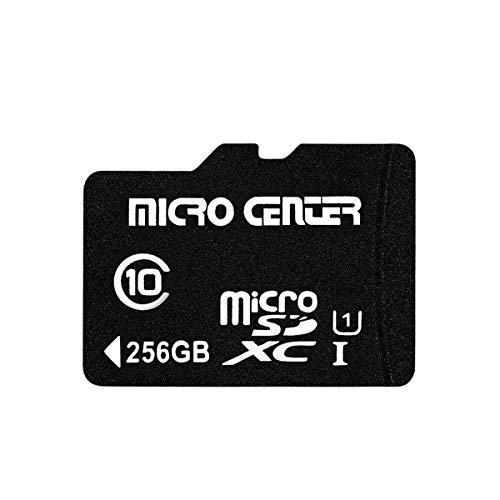
- Memory card: Use a formatted memory card with sufficient space to store the firmware update file.
- Computer: You will need a computer with an SD card reader to transfer the firmware update file to your camera.
- Internet connection: To download the latest firmware update file from the Canon website.
Download the Latest Firmware Version
To update your Canon DSLR camera firmware, you will need to download the latest firmware version from the official Canon website. Follow these steps to download the firmware:
| 1. | Go to the Canon support website. |
| 2. | Search for your camera model in the search bar. |
| 3. | Find the firmware section for your camera model. |
| 4. | Click on the firmware download link. |
| 5. | Read and accept the terms and conditions. |
| 6. | Download the firmware file to your computer. |
Once you have downloaded the firmware file, you can proceed with updating the firmware on your Canon DSLR camera following the manufacturer’s instructions.
Format Memory Card and Backup Data
Before updating the firmware on your Canon DSLR camera, it is important to format the memory card and backup all of your data to prevent any loss of important files. Follow these steps to format your memory card and backup your data:
- Insert the memory card into your camera and turn it on.
- Go to the camera’s menu and navigate to the format option.
- Select the memory card and choose the format option to erase all data on the card.
- Once the formatting is complete, connect the memory card to your computer using a card reader.
- Copy all of the files from the memory card to a separate folder on your computer to create a backup.
After you have formatted the memory card and backed up your data, you can proceed with updating the firmware on your Canon DSLR camera following the manufacturer’s instructions.
Update Canon DSLR Camera Firmware
Keeping your Canon DSLR camera’s firmware up-to-date is essential to ensure optimal performance and compatibility with the latest features and enhancements. Here is a step-by-step guide on how to update the firmware on your Canon DSLR camera:
Step 1: Check Current Firmware Version
Before updating the firmware, check the current version of your camera’s firmware. You can usually find this information in the camera’s menu under the “Firmware” or “Version” option.
Step 2: Download the Latest Firmware
Visit the official Canon website and navigate to the support section. Look for the firmware downloads for your specific camera model. Download the latest firmware version to your computer.
Step 3: Prepare the Camera
Insert a fully charged battery into your camera and make sure the memory card has enough space to store the firmware file.
Step 4: Transfer Firmware to Camera
Connect your camera to your computer using a USB cable. Copy the downloaded firmware file to the root directory of the memory card. Safely eject the camera from your computer.
Step 5: Update Firmware
Insert the memory card with the firmware file into your camera. Turn on the camera and navigate to the firmware update option in the menu. Follow the on-screen instructions to update the firmware.
Once the firmware update is complete, restart your camera. Check the firmware version to ensure the update was successful.
By following these steps, you can easily update the firmware on your Canon DSLR camera and enjoy the latest features and improvements.
Verify Firmware Installation
After completing the firmware update process on your Canon DSLR camera, it is important to verify that the update was successful. To do this, turn on your camera and navigate to the menu settings. Look for the firmware version in the camera settings or system information section. The updated firmware version number should match the one provided by Canon on their official website. This confirms that the firmware update was installed correctly on your camera.
Troubleshooting Firmware Update Issues
If you encounter any issues while updating your Canon DSLR camera firmware, here are some common troubleshooting steps you can try:
1. Check Compatibility
Make sure that the firmware update you are trying to install is compatible with your specific Canon DSLR camera model. Using the wrong firmware can cause errors and issues.
2. Restart the Update Process
If the firmware update process gets stuck or encounters an error, try restarting the update process from the beginning. Sometimes, a simple restart can resolve the issue.
| Issue | Solution |
|---|---|
| Camera not recognized | Disconnect and reconnect the camera, restart the update process. |
| Update fails to complete | Ensure stable internet connection, try using a different USB port. |
| Error messages | Check Canon’s support website for error code explanations and solutions. |
Benefits of Updating Canon DSLR Firmware
Updating the firmware of your Canon DSLR camera can bring several benefits:
- Improved Performance: Firmware updates often include bug fixes and performance enhancements that can improve the overall functionality of your camera.
- Enhanced Features: Some firmware updates may introduce new features or improve existing ones, giving you access to new capabilities and shooting modes.
- Better Compatibility: Firmware updates can improve the compatibility of your camera with new lenses, accessories, and software.
- Increased Stability: Updating the firmware can help stabilize the camera’s operation, reducing the likelihood of crashes or malfunctions.
- Security Enhancements: Firmware updates may include security patches to protect your camera from potential vulnerabilities.
By keeping your Canon DSLR camera firmware up to date, you can ensure that you are getting the best performance and reliability from your device.
FAQ
Why is it important to update the firmware on my Canon DSLR camera?
Updating the firmware on your Canon DSLR camera is important because it can fix bugs, improve performance, add new features, and enhance compatibility with accessories. It can also ensure that your camera is operating at its best and most efficient.
How often should I update the firmware on my Canon DSLR camera?
It is recommended to check for firmware updates regularly, at least once every few months. Canon releases firmware updates to address issues and improve performance, so staying up to date with the latest firmware is beneficial for your camera.
Can I update the firmware on my Canon DSLR camera myself?
Yes, you can update the firmware on your Canon DSLR camera yourself. Canon provides firmware updates on their official website along with instructions on how to install them. Just make sure to follow the steps carefully to avoid any issues during the update process.


I think firmware updates can sometimes cause issues. I updated mine and faced some glitches afterward.
The article mentions checking for compatibility on the Canon website. Can you clarify where exactly I should look for my camera model?
You can find your camera model by visiting the Canon support page, then searching for your specific camera under the firmware section.
I recently updated my Canon DSLR's firmware following the steps here, and it was super easy! Just make sure your battery is charged.
What if the update fails? Are there specific troubleshooting steps I should take?
If the update fails, start by checking your camera's compatibility with the firmware version. Then, follow the troubleshooting steps outlined in the article.
Don’t forget to back up your data before formatting the memory card! It’s a crucial step.
How do I know if my Canon DSLR needs a firmware update?