
 Carmen J. Moore

Are you looking to enhance your video conferencing experience by using your Samsung digital camera as a web camera? With the right software and setup, you can easily turn your Samsung camera into a high-quality webcam for your online meetings, live streaming, or video calls.
Using a digital camera as a webcam can significantly improve the video and audio quality of your online interactions, providing a more professional and polished look to your virtual presence. In this guide, we will walk you through the step-by-step process of setting up your Samsung camera as a web camera on your computer.
Setting Up Your Samsung Digital Camera
Before you can use your Samsung digital camera as a web camera, you need to make sure it is compatible with this function. Check the user manual or the manufacturer’s website for information on whether your camera supports webcam functionality.
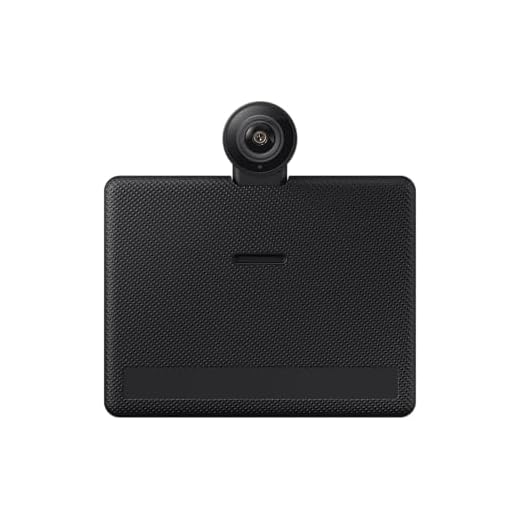


If your camera is compatible, you will need to install the necessary software on your computer. This software usually comes with the camera or can be downloaded from the manufacturer’s website.
Once the software is installed, connect your Samsung digital camera to your computer using a USB cable. Follow the instructions on the software to set up your camera as a web camera.
Adjust the camera settings, such as resolution and frame rate, to ensure optimal performance when using it as a web camera. You may also need to position the camera in a way that captures your face properly for video calls or streaming.
Installing Camera Drivers on Your Computer
Before you can use your Samsung digital camera as a web camera, you will need to install the necessary drivers on your computer. Follow these steps to install the camera drivers:
Step 1: Connect Your Camera
Connect your Samsung digital camera to your computer using the USB cable that came with the camera. Make sure the camera is powered on.

Step 2: Install Drivers
Once your camera is connected, your computer should automatically detect the device. If it does not, you may need to install the drivers manually. Visit the Samsung website and search for the drivers specific to your camera model. Download and install the drivers on your computer.
Connecting Your Camera to Your Computer
To use your Samsung digital camera as a web camera, you will need to connect it to your computer using a USB cable. Follow these steps to set up the connection:
- Turn on your Samsung digital camera and set it to the “PC” or “webcam” mode.
- Connect one end of the USB cable to your camera and the other end to a USB port on your computer.
- Wait for your computer to recognize the camera and install any necessary drivers.
- Once the camera is connected, you can launch your video conferencing software or webcam application to use your Samsung camera as a webcam.
Make sure to adjust the camera settings and position it as needed to get the best video quality for your video calls or livestreams.
Configuring Camera Settings for Web Use
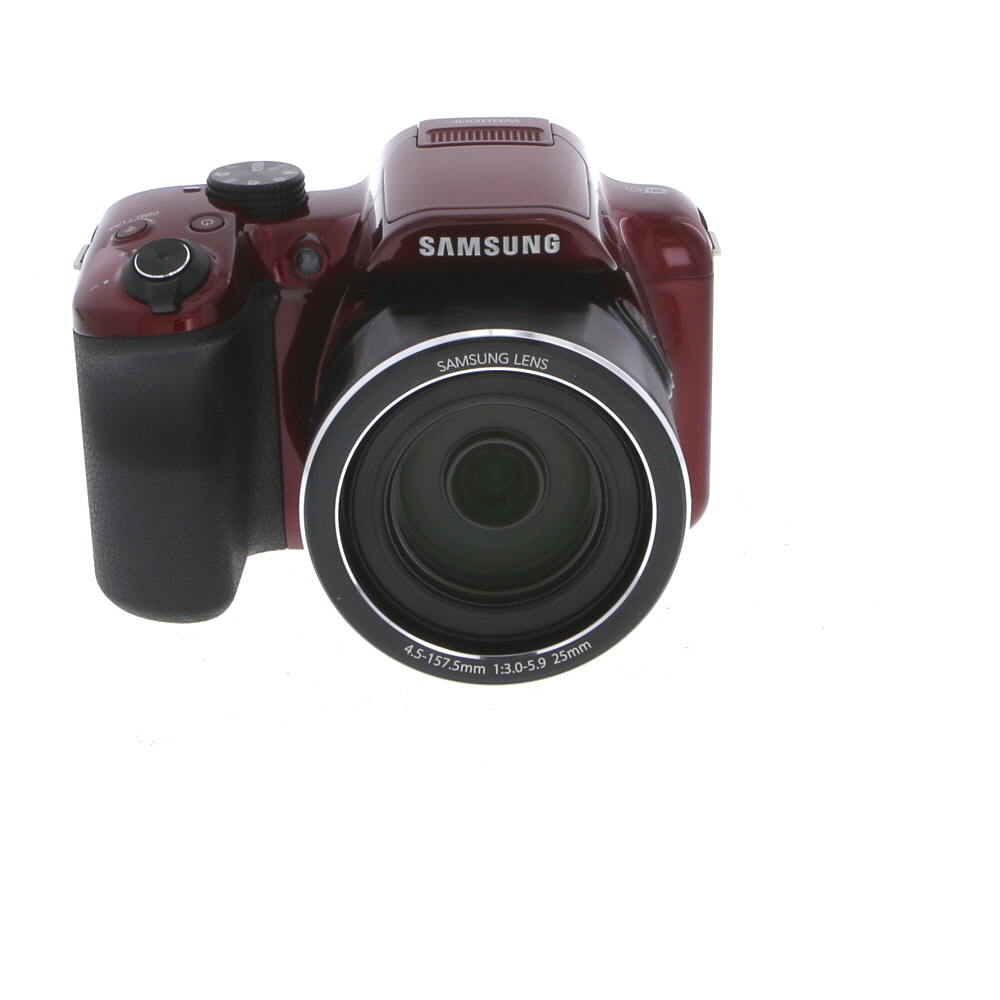
To use your Samsung digital camera as a web camera, you need to configure the camera settings properly. Follow these steps to set up your camera:
- Connect your camera to your computer: Use a USB cable to connect your Samsung digital camera to your computer. Make sure the camera is powered on.
- Access camera settings: Open the camera’s menu and navigate to the settings options. Look for settings related to connectivity or USB mode.
- Select PC mode: Choose the PC mode or similar option to enable the camera to function as a webcam when connected to the computer.
- Adjust camera settings: Configure settings such as resolution, frame rate, and focus to optimize the camera’s performance for web use. Experiment with different settings to find the best balance of image quality and performance.
- Test the setup: Connect the camera to your computer and open a video conferencing or streaming application to test the camera as a webcam. Make adjustments as needed to achieve the desired results.
By configuring the camera settings for web use, you can enhance the quality of your video calls, live streams, and online meetings using your Samsung digital camera.
Selecting the Right Software for Camera Integration
When using a Samsung digital camera as a web camera, it is important to choose the right software for camera integration. The software you select will determine the functionality and features available when using your camera for live streaming, video calls, or recording videos.
Some popular software options for integrating a Samsung digital camera as a web camera include OBS Studio, ManyCam, and XSplit. These software programs offer a range of features such as customizable overlays, scene transitions, and the ability to switch between multiple cameras seamlessly.
Testing Your Camera Setup for Web Streaming
Before you start streaming with your Samsung digital camera as a web camera, it’s important to test your setup to ensure everything is working correctly. Here are some steps to help you test your camera setup:
- Connect your Samsung digital camera to your computer using the appropriate USB cable.
- Open the software or application you plan to use for web streaming (e.g., Zoom, Skype, OBS).
- Go to the settings or preferences of the software and select your Samsung camera as the video input device.
- Check the video preview to see if your camera feed is displaying properly. Make sure the camera angle, focus, and lighting are set up correctly.
- Test the audio input as well to ensure that your camera’s microphone is working as expected.
- Start a test stream or video call with a friend or colleague to check the video and audio quality in a real-time scenario.
- Adjust any settings or configurations as needed to optimize the streaming quality.
By following these steps and testing your camera setup, you can ensure a smooth and professional web streaming experience using your Samsung digital camera.
Adjusting Camera Position and Angle for Better Quality
When using your Samsung digital camera as a web camera, it’s important to ensure that the camera is positioned and angled correctly to achieve the best quality video. Here are some tips to help you adjust the camera for optimal performance:

1. Position the Camera at Eye Level
For the most natural and flattering video calls, position your camera at eye level. This will help you maintain good eye contact with the person you are talking to and create a more engaging experience.
2. Avoid Harsh Lighting and Glare
Avoid placing your camera in front of bright lights or windows, as this can cause glare and wash out your image. Instead, position the camera in a well-lit area with soft, diffused lighting for the best results.
Troubleshooting Common Camera Connection Issues
If you are experiencing issues connecting your Samsung digital camera to your computer to use as a webcam, here are some common troubleshooting steps you can try:
1. Check the USB Cable and Port:
Make sure the USB cable you are using is not damaged and is securely connected to both the camera and the computer. Try using a different USB port on your computer to rule out any issues with the port.
2. Install the Necessary Software:
Ensure that you have installed the required software for your Samsung camera on your computer. Some cameras may require specific drivers or software to function as a webcam.

Enhancing Your Camera’s Performance with Additional Accessories
While using your Samsung digital camera as a web camera can improve your video quality, you can further enhance its performance with additional accessories. Here are some accessories that can help you get the most out of your camera:
1. Tripod
Investing in a tripod can help stabilize your camera and ensure steady video footage. This is especially useful for long video calls or streaming sessions where holding the camera can be tiring.
2. External Microphone
Improve your audio quality by using an external microphone with your camera. This can help reduce background noise and ensure clear sound during your video calls or recordings.
By using these accessories in conjunction with your Samsung digital camera, you can take your web camera setup to the next level and enhance your overall video quality.
Exploring Advanced Features of Samsung Digital Cameras for Web Use
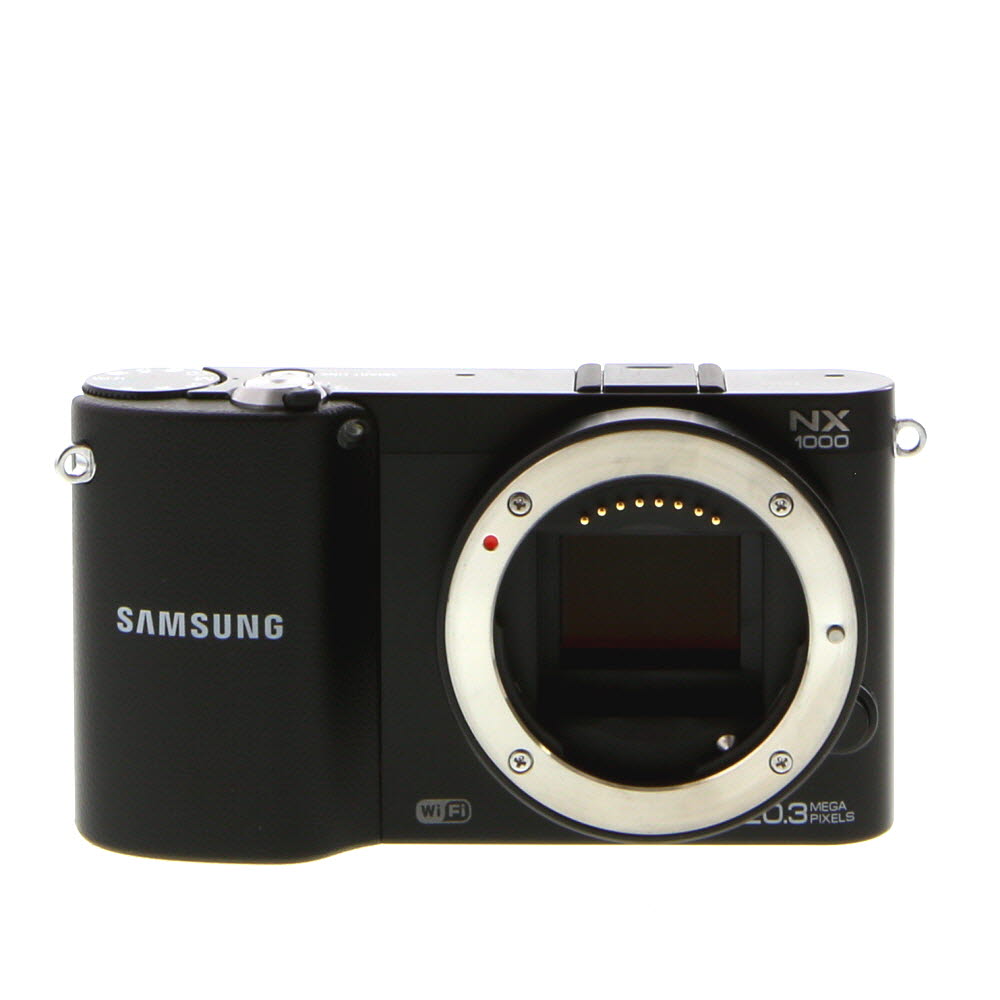
Modern Samsung digital cameras come equipped with a range of advanced features that can enhance your web camera experience. Here are some key features to explore:
1. High Megapixel Count
Samsung cameras often have high megapixel counts, allowing for crisp and detailed images when used as a web camera. This can result in sharper video quality during video calls or streaming.
2. Manual Settings
Many Samsung cameras offer manual settings for adjusting exposure, focus, white balance, and other parameters. This level of control can help you optimize your image quality for web use and ensure you look your best during online meetings or broadcasts.
By leveraging these advanced features, you can elevate your web camera setup and enjoy a higher-quality online experience.
FAQ
Can I use my Samsung digital camera as a web camera for video calls?
Yes, you can use your Samsung digital camera as a web camera for video calls by connecting it to your computer via a USB cable or using a wireless connection. You will need to install additional software on your computer to enable this feature.
What software do I need to use my Samsung digital camera as a web camera?
To use your Samsung digital camera as a web camera, you may need software like SparkoCam, ManyCam, or CameraFi. These software solutions allow you to connect your camera to your computer and use it for video calls or live streaming.

Is it possible to use my Samsung digital camera as a web camera for online meetings?
Yes, you can use your Samsung digital camera as a web camera for online meetings by connecting it to your computer and selecting it as the video input device in your meeting software settings. Make sure to adjust the camera settings for optimal video quality.
Can I use my Samsung digital camera wirelessly as a web camera?
Yes, some Samsung digital cameras offer wireless connectivity options that allow you to use them as web cameras without the need for a physical connection. You can connect your camera to your computer via Wi-Fi and use it for video calls or live streaming.
What are the advantages of using a Samsung digital camera as a web camera?
Using a Samsung digital camera as a web camera can provide higher video quality compared to built-in webcams on laptops or desktop computers. It allows you to take advantage of the advanced features and settings of your camera for video calls, online meetings, or live streaming.


I tried using my Samsung camera as a webcam last week, and it really improved the video quality for my Zoom calls! It was a bit tricky to set up at first, but once I got the right software and configured the settings, it worked great. I used OBS Studio, and the customizable features helped a lot too.
Thanks for sharing your experience! Getting the angle and lighting right can definitely enhance the quality further.
That's great to hear! Did you face any issues with the camera angle or lighting?
I don't think using a digital camera is worth the hassle. A good webcam is much simpler and just as good for most purposes.
I'm curious if my Samsung camera model is compatible with being used as a webcam. How can I check that?
You can check compatibility by referring to your user manual or visiting the Samsung website. Look for webcam functionality mentioned there for your specific model.