
 Carmen J. Moore

Are you tired of the poor video quality from your built-in webcam during Skype calls? If you have a digital camera with high-quality video capabilities, you can actually use it as a webcam for Skype. This can significantly improve the video quality of your calls and make you look more professional.
In this article, we will show you how to set up your digital camera as a webcam for Skype, so you can enjoy crystal-clear video calls with your friends, family, or colleagues.
Using your digital camera as a webcam for Skype is a simple process that can be done with the help of some software and a few easy steps. By following our guide, you’ll be able to use your digital camera to enhance your Skype experience and make your video calls more enjoyable.
Step-by-step guide: Using digital camera as webcam for Skype
If you want to use your digital camera as a webcam for Skype, follow these simple steps:




| Step 1: | Check if your digital camera has a video output feature. Most modern digital cameras have this option. |
| Step 2: | Connect your digital camera to your computer using a USB cable. Make sure your camera is in video mode. |
| Step 3: | Download and install camera software on your computer if needed. Some cameras require specific software to be installed. |
| Step 4: | Open Skype and go to the settings menu. Look for the webcam settings and select your digital camera as the video input device. |
| Step 5: | Test your camera by making a video call on Skype. Make sure the video is clear and working properly. |
| Step 6: | Adjust the camera settings in Skype to optimize the video quality if needed. |
Check camera compatibility
Before attempting to use your digital camera as a webcam for Skype, it’s important to check if your camera is compatible with this setup. Not all digital cameras have the capability to function as a webcam, so it’s essential to verify this first.
Visit the manufacturer’s website or check the camera’s user manual to see if it supports webcam functionality. Look for any specific instructions or software required to enable this feature. Some cameras may require additional drivers or software to be installed on your computer in order to work as a webcam.
If your camera is not compatible, you may need to consider alternative methods or invest in a dedicated webcam for your Skype calls.
Install necessary software
Before using your digital camera as a webcam for Skype, you will need to install some software to make it compatible with your computer. Here are the steps to install the necessary software:
- Download camera drivers: Visit the official website of your camera manufacturer and download the latest drivers for your camera model. Install the drivers on your computer to ensure that your camera is recognized.
- Download webcam software: Look for webcam software that supports using a digital camera as a webcam. Popular options include ManyCam, SparkoCam, and OBS Studio. Download and install the software on your computer.
- Configure the software: Open the webcam software and go to the settings to select your digital camera as the input device. Adjust the resolution, frame rate, and other settings according to your preferences.
- Connect your camera: Connect your digital camera to your computer using a USB cable or HDMI connection. Make sure the camera is powered on and in webcam mode.
Once you have installed the necessary software and connected your digital camera to your computer, you can now use it as a webcam for Skype.

Connect camera to computer
To use your digital camera as a webcam for Skype, you will first need to connect your camera to your computer using a USB cable. Make sure your camera is turned on and in the correct mode for webcam use. Once connected, your computer should recognize the camera as a webcam device.
Configure camera settings
Before using your digital camera as a webcam for Skype, it’s important to configure the camera settings to ensure optimal video quality and performance. Here are some steps you can follow to adjust the settings:
1. Resolution and frame rate
Make sure to set the resolution and frame rate of your camera to match the requirements of Skype. Higher resolution and frame rates can result in better video quality but may require more bandwidth.
2. Exposure and white balance
Adjust the exposure and white balance settings on your camera to ensure proper lighting and color balance during video calls. This can help improve the overall look of your video feed.
Test camera connection
Before using your digital camera as a webcam for Skype, it’s important to test the camera connection to ensure everything is working properly. Follow these steps:
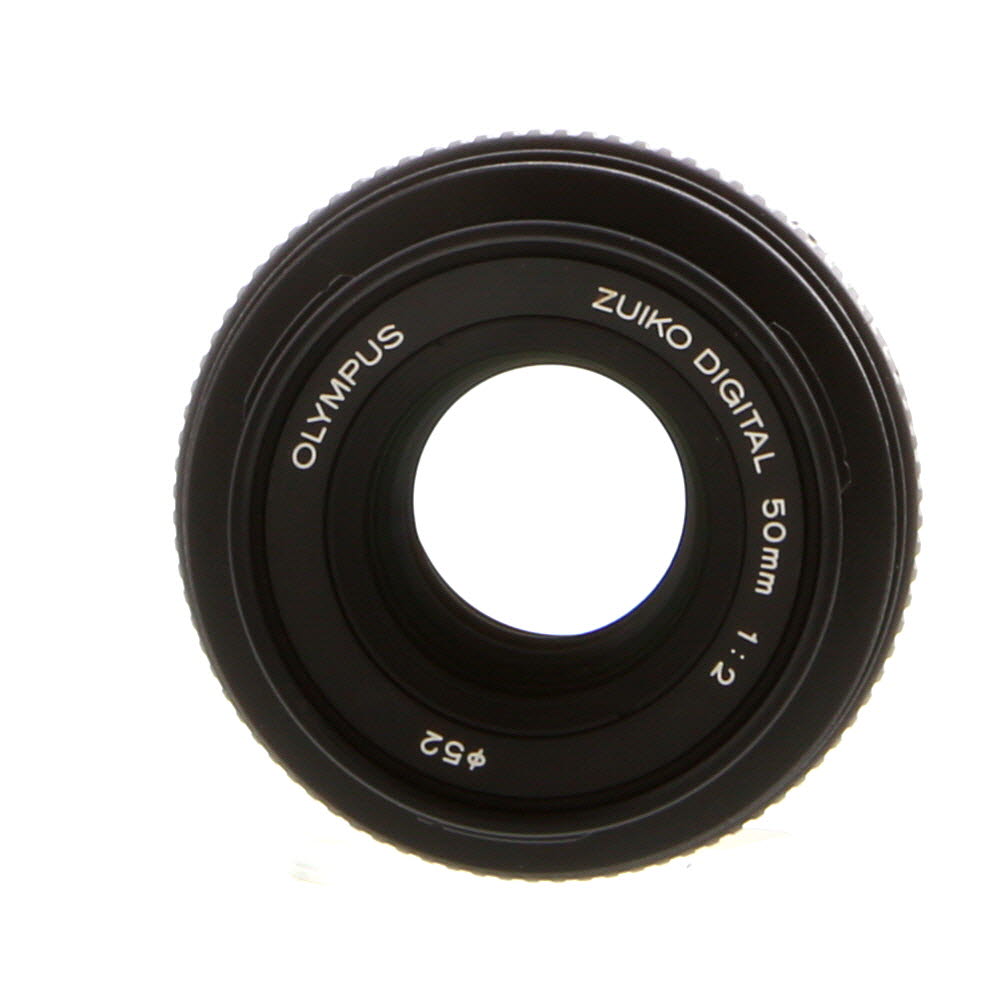
1. Connect the camera to your computer
Use the USB cable that came with your camera to connect it to your computer. Make sure the camera is turned on and in webcam mode.
2. Open a camera testing app
Open a camera testing app or website (such as Skype’s test call feature or an online webcam test site) to check if your camera is recognized and functioning correctly. Follow the on-screen instructions to verify the camera feed.
Enjoy high-quality video calls
Once you have set up your digital camera as a webcam for Skype, you can enjoy high-quality video calls with your friends and family. The improved image quality and resolution provided by a digital camera will make your video calls more enjoyable and engaging. You can show off your surroundings in vivid detail and make a strong impression during video conferences. Make sure to adjust the camera settings for optimal lighting and focus to ensure a professional and clear video feed.
FAQ
Can I use my digital camera as a webcam for Skype?
Yes, you can use your digital camera as a webcam for Skype. To do this, you will need to connect your digital camera to your computer using a USB cable and then set it up as a webcam in the Skype settings. Make sure your camera is compatible with your computer and that you have the necessary drivers installed.
What are the benefits of using a digital camera as a webcam for Skype?
Using a digital camera as a webcam for Skype can provide higher video quality compared to built-in webcams on laptops or desktop computers. Digital cameras often have better sensors and lenses, resulting in clearer and more vibrant video. Additionally, using a digital camera can give you more control over settings like exposure, focus, and zoom, allowing you to customize your video feed for a professional look during Skype calls.




I recently followed the guide on using my DSLR as a webcam for Skype. Honestly, the quality improvement was noticeable. However, I struggled a bit with the software setup. I ended up using OBS Studio, and it took some tweaking to get the settings right. Highly recommend playing around with the exposure and white balance!
Thanks for sharing your experience! OBS Studio is a great choice, and tweaking those settings can really enhance your video quality.
Can you use any digital camera as a webcam, or are there specific models that work best for Skype? I'm looking to upgrade my setup.
Most modern digital cameras can work, but it's better to check if they have a USB or HDMI output. I have an older DSLR and it works fine!
Don't forget to check for updated drivers for your camera to avoid compatibility issues!